2.4 GHz vs. 5 GHz WiFi: Which Band Wins Your Home Network
When you’re setting up a new router or troubleshooting a weak connection, you’ll hear a lot about the 2.4 GHz and 5 GHz WiFi bands. While both share the same purpose—sending data wirelessly—there are clear differences that can affect speed, range, and reliability. In this guide we’ll unpack those differences, show how each band behaves in a typical home, and give you concrete tips to pick the right one for your devices.
2.4 GHz vs. 5 GHz WiFi: What Makes Them Different?
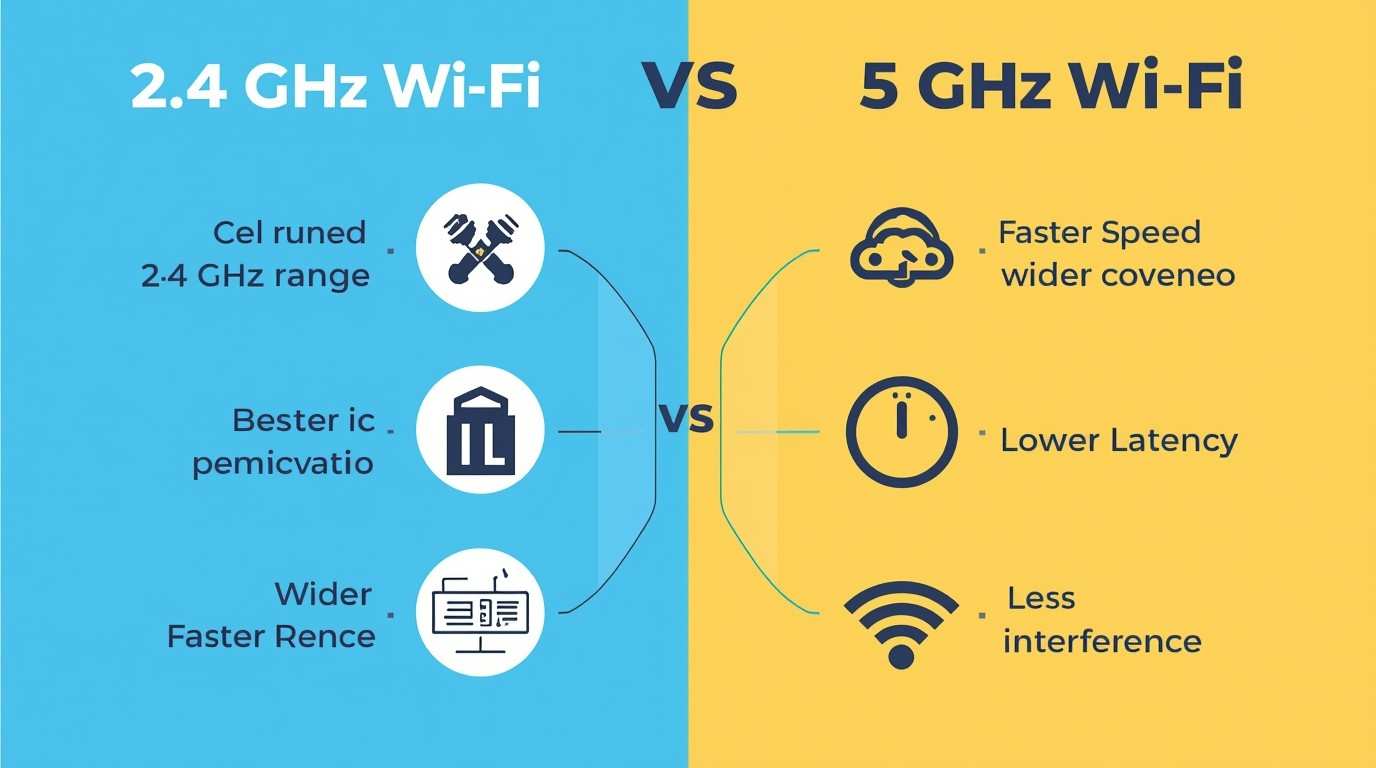
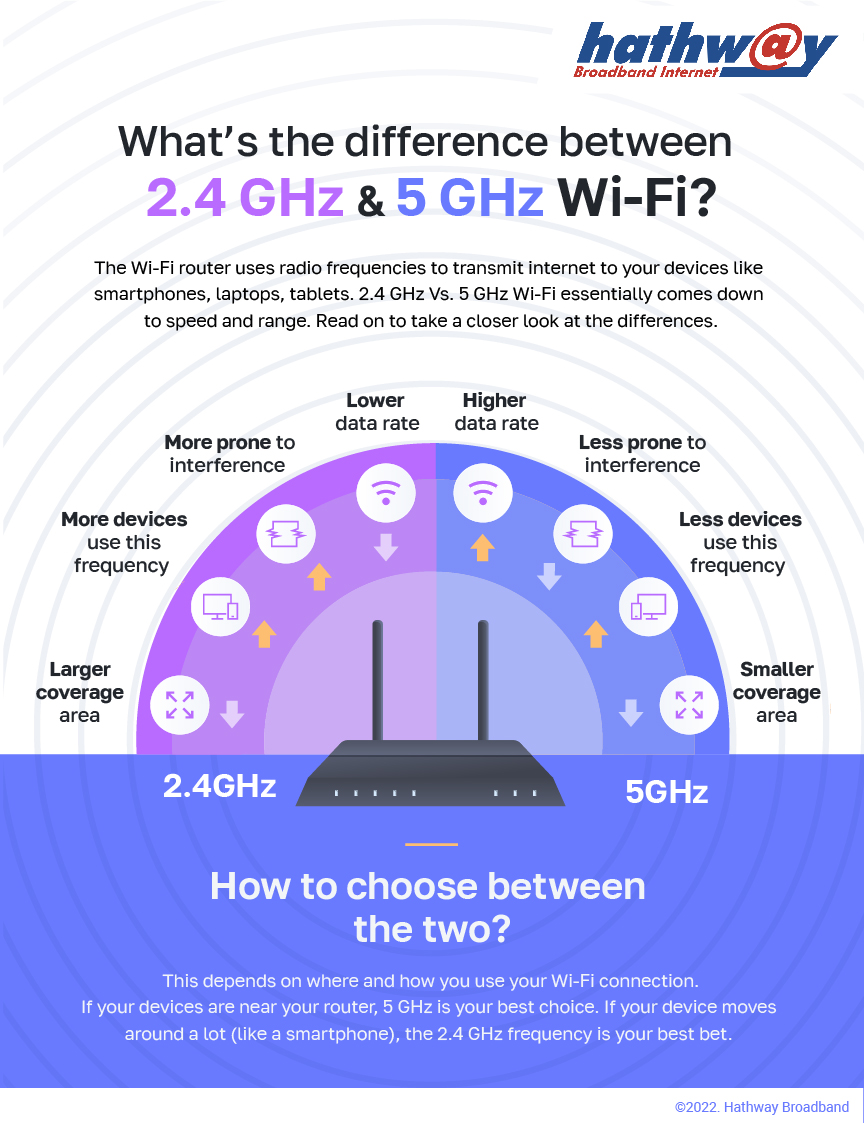
The fundamental distinction between the two frequencies lies in their physical properties. 2.4 GHz signals have longer wavelengths, allowing them to travel farther and penetrate walls more effectively. 5 GHz signals, by contrast, use shorter wavelengths that deliver higher data rates but have a shorter reach and are more easily obstructed by obstacles.
- Range – 2.4 GHz typically covers 100–150 ft in an open space, while 5 GHz usually reaches 50–70 ft.
- Speed – 5 GHz can achieve up to 3‑4× the throughput of 2.4 GHz under ideal conditions.
- Interference – 2.4 GHz competes with cordless phones, microwaves, and Bluetooth devices; 5 GHz faces fewer competing signals.
- Bandwidth – 5 GHz offers more non-overlapping channels, reducing congestion.
When Speed Trumps Coverage
If you have a flat‑plan home with a single router and most of your devices are in the same room, the 5 GHz band is usually the better choice. Streaming 4K video, playing online games, or transferring large files benefit from the higher throughput.
When Coverage Trumps Speed
In larger homes or buildings with many walls, the 2.4 GHz band often delivers a steadier signal to devices on lower floors or far from the router. It also works better for IoT gadgets such as smart thermostats or door sensors that need a reliable but low‑bandwidth link.
Device Compatibility Matters
Older laptops, phones, or smart TVs may only support 2.4 GHz. Modern devices usually include both bands, but the older models will default to the slower frequency if they can’t negotiate a 5 GHz connection.
Choosing the Right Band for Each Device
Many dual‑band routers allow you to assign devices to a specific band via a mobile app or the router’s web interface. Here’s a quick guide:
- Streaming & Gaming – 5 GHz
- Video calls & VoIP – 5 GHz (if available)
- Smart home hubs & sensors – 2.4 GHz
- Bluetooth accessories – 2.4 GHz (avoid overlapping channels)
- Legacy devices – 2.4 GHz (or upgrade firmware if possible)
Dual‑Band vs. Tri‑Band Routers
Dual‑band routers split their spectrum into two independent channels, one for each frequency. Tri‑band routers add an extra 5 GHz channel, giving you even more capacity for high‑traffic environments. If you run several 4K streams simultaneously, a tri‑band model can keep everyone happy.
Optimizing Your Home Network
Once you know which band suits each device, there are a few simple tweaks that can boost overall performance:
- Position the router centrally and off the floor to reduce obstructions.
- Use a wired backhaul between access points if you run a mesh system; that frees up wireless bandwidth.
- Change the 2.4 GHz channel to 1, 6, or 11—those are non‑overlapping channels that minimize interference from neighboring networks.
- Update firmware regularly to keep the router’s drivers and security patches current.
- Enable QoS (Quality of Service) to prioritize critical traffic like VoIP or gaming.
When to Use a Mesh Network
If your home layout makes a single router insufficient—think multi‑story houses or rooms behind thick walls—a mesh system can spread the signal evenly. Most mesh kits include routers that operate on both 2.4 GHz and 5 GHz, automatically assigning devices to the best band.
FAQ
- What’s the difference between 2.4 GHz and 5 GHz WiFi? 2.4 GHz offers better coverage and wall penetration but lower speeds; 5 GHz delivers faster data rates with reduced interference but a shorter range.
- Can my device switch between the two bands automatically? Many dual‑band routers let devices choose the fastest available band; if not, you can assign them manually via the router’s app.
- Why is my 5 GHz signal weak near the floor? The higher frequency struggles to pass through walls and floors, especially in older homes. Raising the router or using a mesh node closer to the lower floor can help.
- Do I need a separate router for each band? No. Dual‑band routers handle both frequencies simultaneously. Tri‑band routers provide an extra 5 GHz channel for heavy traffic but aren’t required for most households.