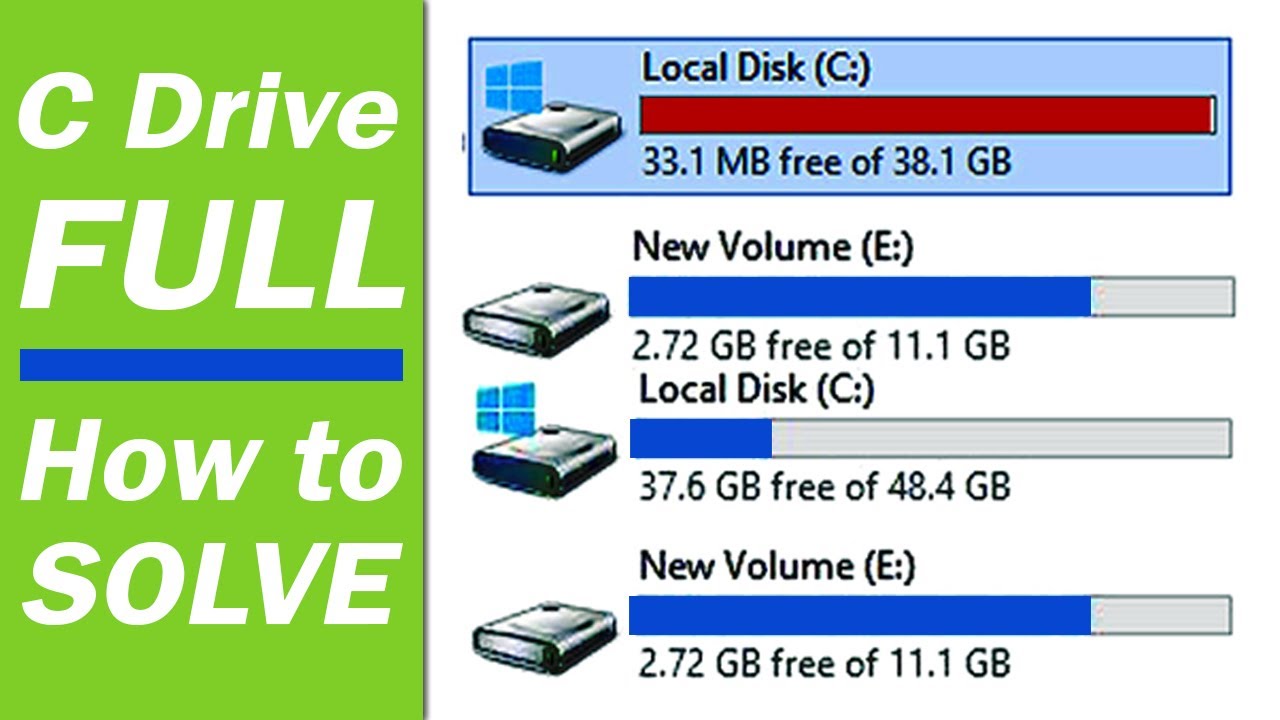
C Drive Full? Find Out Where Your Space Disappeared
Why Your C Drive Is Suddenly Full
If you’ve opened File Explorer and saw a red warning that the C drive is full, you’re not alone. Most Windows users hit this wall at least once, and the cause is rarely a single giant folder. Instead, a collection of hidden, system‑generated, or duplicated files silently gobbles up gigabytes. The good news is that once you know what to look for, you can reclaim space without reinstalling Windows.
System Files That Sneak Up on You
Windows keeps several large files for its own operation. They’re essential, but they can grow far beyond what you expect.
- Pagefile.sys – Acts as virtual memory. By default it can be as big as your RAM, or even double it on machines with lots of RAM.
- Hiberfil.sys – Stores the contents of RAM when you hibernate. If you never use hibernate, you can safely shrink or disable it.
- WinSxS folder – Holds component store files for updates and optional features. Over time it can balloon to several gigabytes.
- System Restore points – Each restore snapshot consumes space, and Windows may keep many of them unless you limit the allocation.
All of these live in the root of the C drive and are hidden by default, so you might never notice them until space runs low.
Temporary and Log Files: The Quiet Gremlins
Every time you browse the web, install software, or run a game, Windows creates temporary files. They’re meant to be short‑lived, but they often linger.
- Windows Temp folder (%temp%) – Holds leftovers from installers and updates.
- Browser caches – Chrome, Edge, and Firefox each store a copy of pages, images, and videos you’ve viewed.
- Application logs – Programs like Photoshop, Visual Studio, or even Windows Update write logs that can swell over months.
Because these folders are scattered across the drive, a quick glance at “C:\” won’t reveal their impact.
User Data That Grows Without Notice
Photos, videos, and documents are the obvious culprits, but even the “Documents” and “Downloads” folders can hide hidden subfolders. Cloud‑sync services (OneDrive, Google Drive) keep local copies of everything you sync, which duplicates data you might think lives only in the cloud.
Another sneaky offender is the Recycle Bin. Deleting a 2‑GB movie doesn’t free space until you empty the bin, and Windows often reserves a percentage of the drive just for it.
How to Diagnose What’s Eating Your C Drive
Before you start deleting, get a clear picture of the space distribution. Windows 10/11 includes a built‑in tool, but third‑party apps can give more detail.
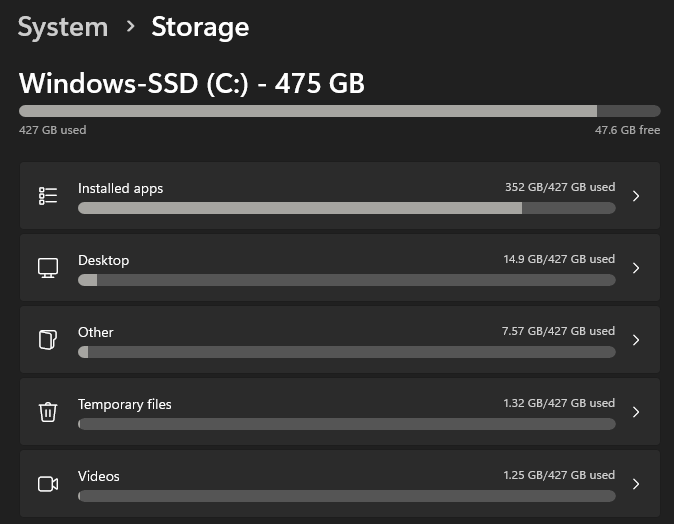
- Open Settings > System > Storage. Turn on “Storage Sense” to see a quick breakdown (Apps, System & reserved, Temporary files, etc.).
- Click “Show more categories” to drill down into WinSxS, Hibernation, and System restore sections.
- For a deeper view, download a free utility like TreeSize Free or WinDirStat. These programs map folder sizes as a colorful treemap, making it obvious where the biggest blocks sit.
Once you know the offenders, you can target each one without risking system stability.
Step‑by‑Step Cleanup Plan
Below is a practical, safe sequence that most users can follow.
- Turn off hibernation if you never use it. Open an admin PowerShell and run
powercfg -h off. This deleteshiberfil.sysand frees several gigabytes. - Adjust the pagefile size. Right‑click “This PC” → Properties → Advanced system settings → Performance Settings → Advanced → Change. Set “Custom size” to a lower maximum (e.g., 1 GB) or let Windows manage it if you have ample RAM.
- Limit System Restore. In the same Performance Settings dialog, click “System Protection”, select the C drive, then “Configure”. Reduce the Max Usage to 5‑10 % of the drive.
- Run Disk Cleanup. Search “Disk Cleanup”, choose the C drive, then click “Clean up system files”. Tick “Windows Update Cleanup”, “Temporary files”, and “Previous Windows installations” if present.
- Delete old user temp files. Press Win+R, type
%temp%, and delete everything you can. Repeat withC:\Windows\Temp(admin rights required). - Empty the Recycle Bin. Right‑click the bin icon and select “Empty Recycle Bin”.
- Remove unused apps. In Settings → Apps & features, sort by “Size” and uninstall programs you no longer need.
- Trim cloud sync folders. If OneDrive or Dropbox is set to keep local copies, open their settings and choose “Files On‑Demand” or selectively unsync large folders.
After each step, re‑check the storage breakdown. You’ll often see a dramatic drop after just the first few actions.
When Space Still Won’t Budge
If you’ve trimmed the obvious culprits and the drive remains stubbornly full, consider these less common scenarios.
- WinSxS bloat – Use the command
dism /online /cleanup-image /startcomponentcleanupin an admin Command Prompt to prune old component files. - Hidden large folders – Some programs create hidden data caches (e.g., Adobe Lightroom, gaming launchers). Enable “Show hidden files” in File Explorer and look for folders over 1 GB.
- Malware or cryptominers – Unusual spikes in disk usage can hint at malicious software. Run a reputable anti‑malware scan if you suspect foul play.
- Insufficient partition size – If the C drive was allocated a small slice during Windows installation, you may need to resize partitions using tools like “Disk Management” or third‑party partition editors.
Preventing Future C Drive Fill‑Ups
Maintenance is easier than emergency cleanup. Here are habits that keep the C drive healthy.
- Enable Storage Sense to automatically delete temporary files and empty the Recycle Bin on a schedule.
- Schedule a monthly run of Disk Cleanup or a third‑party cleaner.
- Keep the pagefile on a secondary drive if you have one, freeing the system drive for essential files.
- Regularly review installed programs and uninstall those you no longer use.
- Set cloud services to “online‑only” for large media libraries, storing only thumbnails locally.
FAQ
What’s the difference between the pagefile and hiberfil?
The pagefile extends RAM by swapping data to disk, while hiberfil stores a snapshot of RAM when the computer hibernates. Both are system files on the C drive, but you can disable hibernation without harming performance, whereas reducing the pagefile too much may cause out‑of‑memory errors.
Can I move the WinSxS folder to another drive?
Microsoft does not support moving WinSxS. The safest approach is to clean it up with DISM commands or limit the size of system restore points, which indirectly reduces its growth.
How often should I run Disk Cleanup?
For most users, a monthly run is sufficient. If you install many updates or frequently use large applications (e.g., video editors), consider a bi‑weekly schedule.
Is it safe to delete files in C:\Windows\Temp?
Generally yes, as long as you’re not deleting files that are actively in use. If a file refuses to delete, it’s likely still needed by a running process; you can skip it or reboot and try again.

![What Happens When C Drive is Full? [Solutions Included]](https://www.diskpart.com/screenshot/en/others/windows-10/storage-settings.png)