Create Stunning Images Online With Adobe Firefly’s Generative Fill
What Generative Fill AI Actually Does
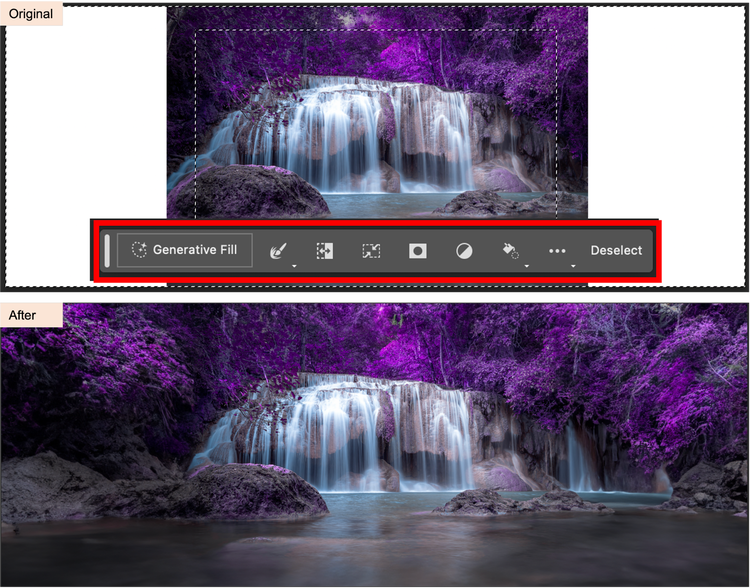
Adobe Firefly’s Generative Fill AI is a browser‑based tool that lets you add, replace, or extend visual content with a simple text prompt. Instead of painstakingly painting pixels, you describe the missing piece—“a sunrise behind the mountains” or “replace the car with a vintage bicycle”—and the engine conjures a seamless patch that blends with the surrounding area. The magic lies in a massive dataset of images and a diffusion model trained to understand context, lighting, and style, so the result feels like it was always part of the original composition.
How Firefly’s Generative Fill Works Behind the Scenes
The process starts with a text‑to‑image diffusion model that iteratively refines a noisy canvas until it matches your description. Firefly adds a “mask” layer that tells the model which pixels to keep and which to rewrite. By analyzing the surrounding pixels, the system predicts colors, shadows, and texture that naturally continue the scene. Because the computation runs on Adobe’s cloud servers, you don’t need a high‑end GPU—just a modern browser and an internet connection.
Step‑by‑Step: Creating a Stunning Image Online
- 1. Upload or open a base image. Firefly works with photos, illustrations, or even a blank canvas.
- 2. Define the area to edit. Use the rectangular or lasso selection tool to mask the part you want to change.
- 3. Type a clear prompt. Be specific about objects, style, and lighting. For example, “add a glowing lantern hanging from the tree branch at dusk.”
- 4. Hit Generate. Firefly sends the request to its AI engine, which returns a few variations in seconds.
- 5. Refine if needed. You can accept a result, tweak the prompt, or use the “Undo” button to start over.
Tips for Getting the Best Results
Even the smartest model benefits from a little guidance. Keep prompts concise but descriptive—mention color, mood, and perspective when possible. If you want a painterly look, add “in the style of oil on canvas.” When the AI misinterprets a detail, try rephrasing rather than adding more words; the model responds better to clarity than verbosity. Finally, use the built‑in “Blend” slider to control how aggressively the new content merges with the original background.
Real‑World Uses: From Social Media to Marketing
Content creators love the speed: a single prompt can replace a background, add a product, or generate a thematic banner in under a minute. Marketers use it to prototype ad concepts without hiring a photographer for every variation. Even hobbyists find it handy for turning sketch ideas into polished illustrations, allowing them to focus on storytelling rather than pixel‑perfect rendering.
Ethical and Practical Considerations
Because Firefly draws from a curated image library, Adobe claims it respects copyright and avoids using unlicensed material. Nevertheless, users should still verify that the generated visuals don’t inadvertently replicate protected works, especially when the output will be sold or widely distributed. Additionally, be mindful of the “deep‑fake” potential; generating realistic people or brand logos can raise legal or reputational risks if misused.
Performance and Pricing Overview
Firefly operates on a credit‑based system. Each generation consumes a certain number of credits depending on resolution and complexity. Adobe bundles credits with its Creative Cloud plans, so existing subscribers often have a generous monthly allotment. For occasional users, a pay‑as‑you‑go option lets you buy credits in small packs, keeping costs predictable.
Comparing Firefly to Other Generative Tools
Unlike open‑source alternatives that require local hardware, Firefly’s cloud‑first approach eliminates setup hassles. It also integrates tightly with Photoshop and Illustrator, meaning you can jump from a generative fill to layer adjustments without leaving the app. On the downside, reliance on an internet connection can be a bottleneck for users in low‑bandwidth regions. In terms of output quality, Firefly tends to excel at photorealism, while some competitors specialize in stylized or abstract aesthetics.
Future Directions: What’s Next for Generative Fill?
Adobe hints at upcoming features like multi‑prompt blending, where two separate descriptions can be merged into a single region, and real‑time video frame filling for motion graphics. Expect tighter integration with Adobe Stock, allowing you to pull licensed assets directly into the generative workflow. As the model learns from user feedback, we’ll likely see even finer control over texture and perspective.
FAQ
Can I use Firefly’s Generative Fill for commercial projects?
Yes, provided the final image complies with Adobe’s licensing terms and you avoid recreating trademarked logos or protected portraits without permission.
Do I need a Photoshop subscription to access Firefly?
Firefly is available as a standalone web app, but a Creative Cloud subscription gives you extra credits and deeper integration with Photoshop and Illustrator.
What resolution can I generate?
The standard offering supports up to 2048 × 2048 pixels per generation; higher resolutions are available for an additional credit cost.
Is there a way to edit the AI‑generated result manually?
Absolutely. Once the fill is applied, you can treat it like any other layer—use masks, adjustment filters, or brush tools to fine‑tune the outcome.