Design Eye‑Catching Posters in Canva: A Beginner’s Guide
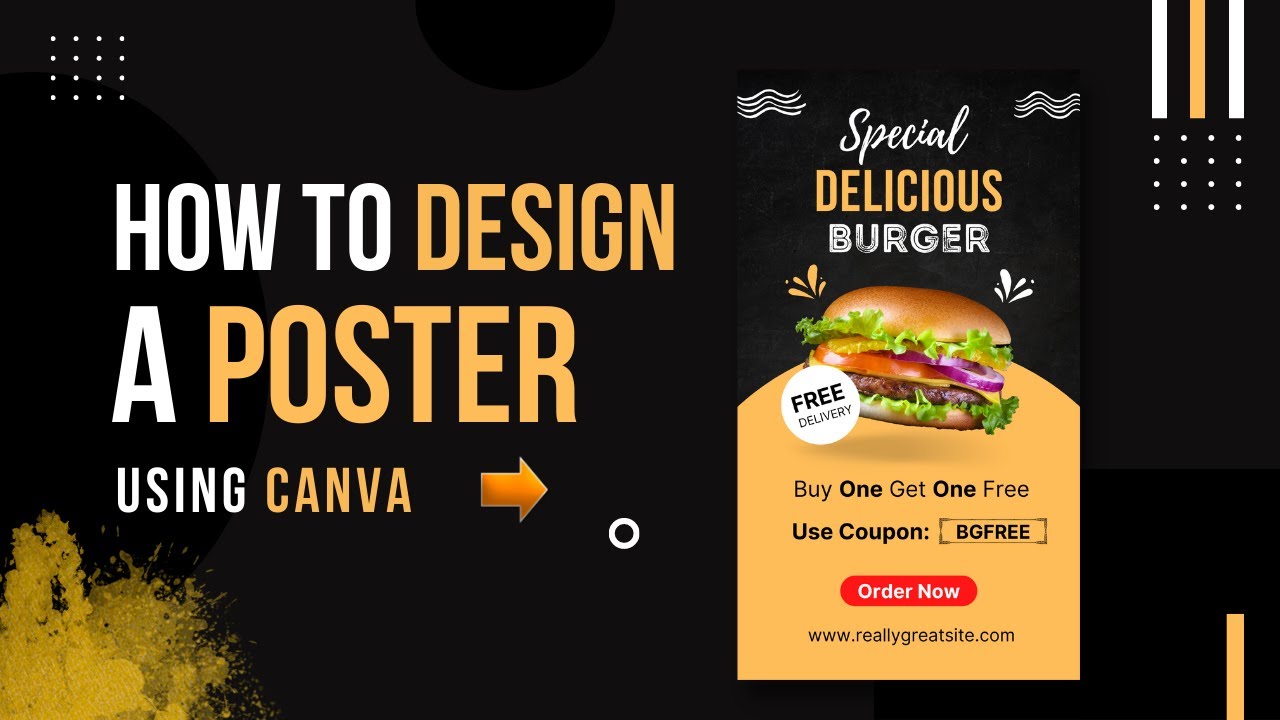
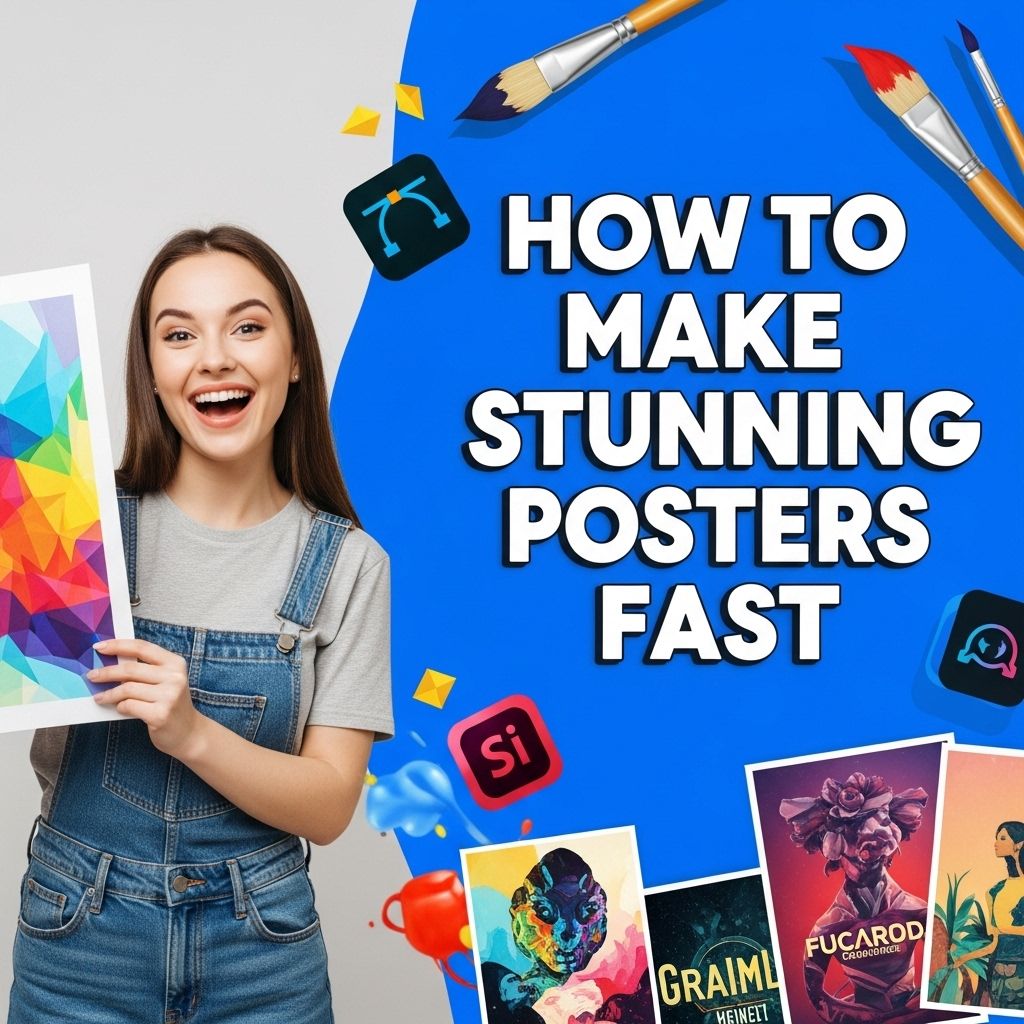
If you’ve ever stared at a blank canvas and wondered how to turn an idea into a poster that actually grabs attention, you’re not alone. Canva makes that leap feel less like a mountain and more like a short, well‑marked trail. In this guide we’ll walk through the basics of creating stunning posters with Canva, from choosing a template to polishing the final export. No design degree required—just a curiosity to experiment.
Why Canva Is Ideal for Poster Design
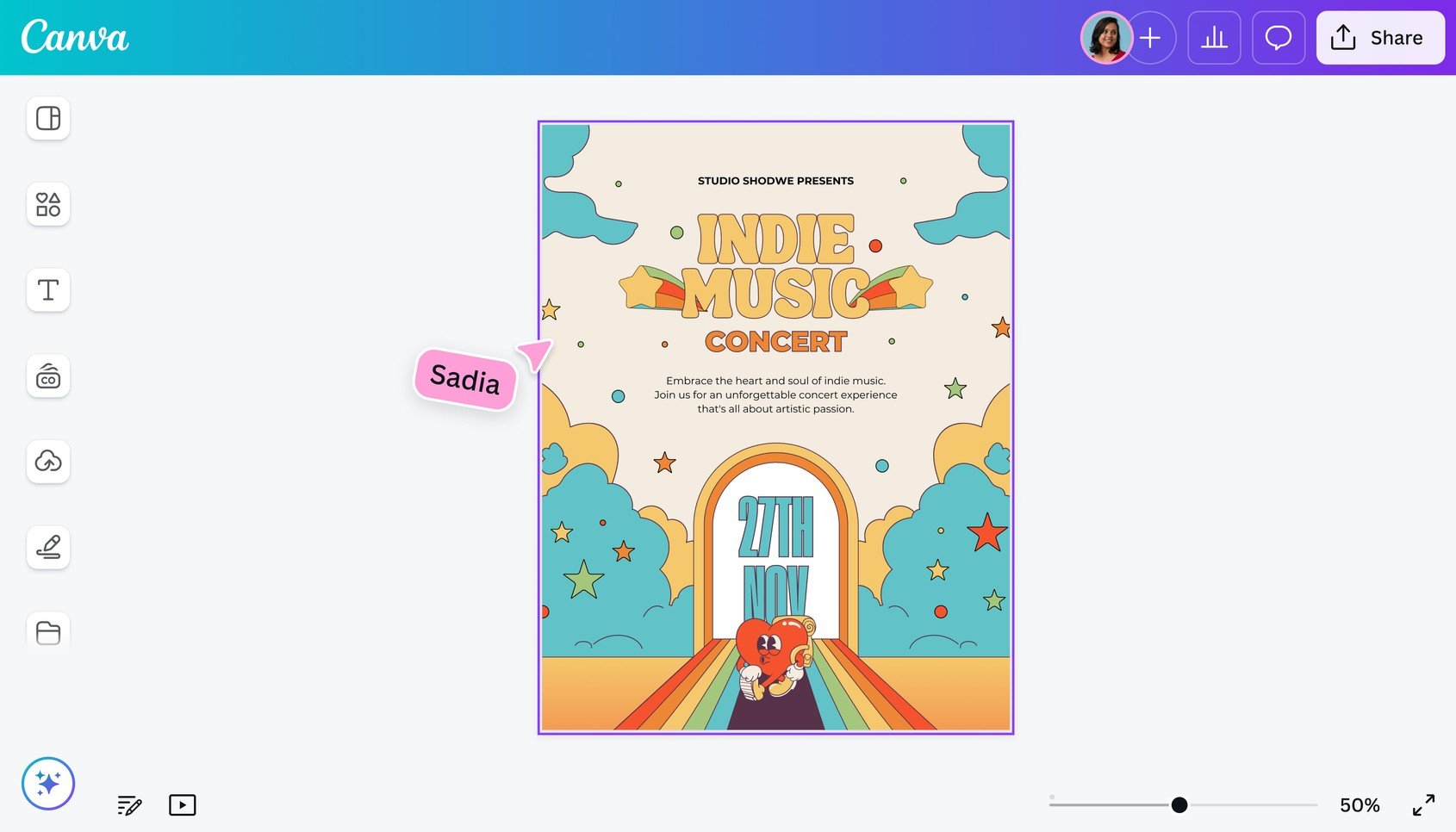
Canva blends simplicity with enough depth to keep beginners engaged while still offering tools that seasoned designers appreciate. Its drag‑and‑drop interface eliminates the intimidation of layered Photoshop files, and a massive library of free photos, icons, and fonts means you rarely need to leave the platform. Because it runs in a browser, you can work from any computer without installing heavyweight software, and collaboration is as easy as sharing a link.
Step‑by‑Step: Create Stunning Posters with Canva
1. Set Up a New Project
- Log in to Canva and click “Create a design.”
- Choose “Poster” from the preset sizes (usually 24 × 36 inches or A3).
- If you have specific dimensions, select “Custom size” and enter width and height in pixels or inches.
Starting with the right canvas size prevents later headaches when you need to print or share online.
2. Choose a Template That Fits Your Theme
Canva offers thousands of poster templates sorted by industry, mood, and color palette. Use the search bar with keywords like “music festival” or “sale” to narrow results. When you find a layout that resonates, click it to load it onto your canvas. Remember, a template is a springboard—not a final product; you’ll replace elements to make it truly yours.
3. Customize Fonts and Colors
- Click any text box to edit the copy, then choose a font from the top toolbar. Stick to two fonts maximum—one for headlines, one for body copy—to keep the design cohesive.
- Use the color picker or Canva’s “Brand Kit” (if you have a Pro account) to apply consistent hues. Complementary colors work well for contrast, while analogous shades give a smoother flow.
Play with hierarchy: larger, bolder text for the main message, and smaller, lighter type for supporting details.
4. Add Images, Icons, and Illustrations
The “Elements” tab houses a treasure trove of free graphics. Search for a relevant icon—say, a camera for a photography workshop—and drag it onto the poster. For photos, the built‑in “Photos” library offers high‑resolution options, or you can upload your own images by clicking “Uploads.” Align visuals with the focal point of your design; a well‑placed image can guide the viewer’s eye toward the headline.
5. Fine‑Tune Layout and Spacing
Whitespace isn’t empty; it’s breathing room that makes each element stand out. Use Canva’s alignment guides (they appear as you move objects) to keep margins even. If you need more precise control, select an element, hit “Position,” and choose “Top,” “Center,” or “Bottom” to snap it into place. Group related items together—text, icon, and background shape—so you can move them as a single block.
6. Incorporate Call‑to‑Action and Essential Details
Every poster should answer the basic questions: Who? What? When? Where? Make sure dates, times, and contact info are unmistakably legible. A contrasting button‑style shape or a bold underline can highlight a call‑to‑action such as “Buy Tickets Now” or “Visit Our Website.”
7. Preview, Export, and Share
Click the “Preview” button to see how the poster looks without the editing grid. When you’re satisfied, hit “Download.” For print, choose PDF‑Print with bleed marks; for social media, select PNG or JPG at high resolution. Canva also offers a “Share” option that generates a link you can email or embed directly on a website.
Tips for Polishing Your Poster
- Contrast is king. Light text on a dark background—or vice versa—ensures readability from a distance.
- Limit decorative fonts. Use them sparingly for headings; body copy should stay clean and legible.
- Mind the hierarchy. Size, weight, and color all signal importance. Keep the most crucial information largest.
- Proofread. A typo on a poster can undermine credibility faster than a design flaw.
- Test print. If possible, print a small proof to check color fidelity before committing to a full‑size run.
Frequently Asked Questions
- Do I need a Canva Pro account to make posters? No. The free tier provides plenty of templates, fonts, and images. Pro unlocks premium assets and brand‑kit features, but a polished poster is achievable without it.
- Can I use my own fonts in Canva? Yes, with a Pro subscription you can upload custom fonts. For most beginners, the built‑in library offers more than enough variety.
- What file format is best for printing? Choose PDF‑Print with bleed and CMYK color mode if the printer requests it. PNG works for digital displays.
- How can I keep my poster looking good on different screens? Stick to high‑resolution images (at least 300 dpi for print) and avoid tiny text. Canva’s “Resize” tool can generate alternative dimensions without starting from scratch.