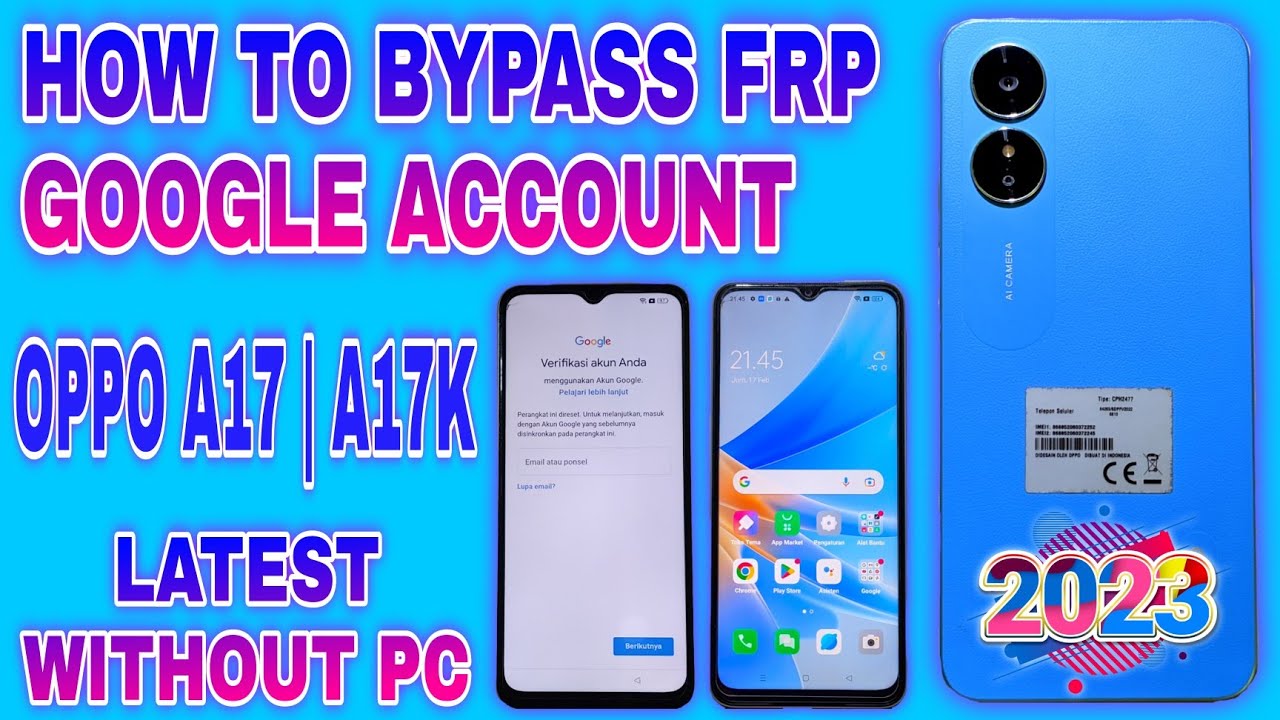
How to Bypass FRP on the OPPO A17: A Step‑by‑Step Guide
What is FRP and why you might need to bypass it
Factory Reset Protection (FRP) is a security layer built into Android devices, including the OPPO A17, that locks the phone to the Google account that was active before a factory reset. If the original account credentials are lost, the device appears as a brick. People often need to bypass FRP after buying a second‑hand phone, inheriting a device from a family member, or simply forgetting the login details.
Legal and safety considerations
Bypassing FRP is legal only when you own the device or have explicit permission from the owner. Attempting to unlock a phone that isn’t yours can breach privacy laws and violate terms of service. Always back up any accessible data before you start, because the process may erase everything on the handset.
Preparing your OPPO A17 before you start
- Charge the battery: Ensure at least 70% charge to avoid accidental shutdowns.
- Enable USB debugging (if possible): This speeds up PC‑based methods, but many users won’t have this option before the lock.
- Gather required tools: A Windows PC, a reliable USB cable, and the latest version of OPPO’s official flash tool (OPPO Flash Tool or a trusted third‑party alternative).
- Download the stock firmware: Obtain the exact firmware for the A17 model (e.g., ColorOS 12.0) from OPPO’s support site.
- Create a backup of your Google account details: If you can still access the account, note the email and password for later verification.
Method 1: Using the built‑in “Forgot Password” workaround
This approach exploits the “Forgot password” link on the lock screen. It works best on devices running older versions of ColorOS.
- Power on the OPPO A17 and reach the FRP verification screen.
- Tap the “Forgot password?” option. The device will prompt you to enter a Google account.
- Instead of typing credentials, tap the three‑dot menu at the top‑right corner and select “Google Assistant” (if available).
- When the Assistant opens, say “Open Settings” and wait for the Settings app to appear.
- Navigate to “About Phone” → “Status” → “IMEI information.” Write down the IMEI number.
- Return to the main Settings screen, find “Developer options” (you may need to tap “Build number” seven times to unlock it).
- Enable USB debugging and OEM unlock.
- Connect the phone to your PC via USB. The device should now be recognized, allowing you to flash the stock firmware and wipe the FRP lock.
Method 2: Employing a PC‑based flashing tool
If the first method fails, a PC‑based flash is the most reliable fallback.
- Download and install the OPPO Flash Tool on a Windows computer.
- Extract the stock firmware you gathered earlier. Inside you’ll find a
.xmlor.zipfile ready for flashing. - Launch the Flash Tool, click “Load”, and browse to the firmware file.
- Switch the OPPO A17 to Download Mode by powering off, then holding
Volume Up + Poweruntil the download screen appears. - Connect the phone to the PC with a USB cable. The tool should detect the device as “OPPO A17 (download mode).”
- Click “Start” and wait for the process to complete. The phone will reboot automatically.
- When the device restarts, it should skip the FRP prompt and land on the initial setup screen.
- Complete the setup with a new Google account, and you’re back in business.
Troubleshooting common hiccups
- Device not detected in Download Mode: Try a different USB cable, a different USB port, or reinstall the appropriate USB drivers from OPPO’s website.
- Flash tool aborts with an error: Verify that the firmware version matches your exact A17 model number (e.g., A17k, A17l). Mismatched firmware will cause integrity checks to fail.
- FRP screen reappears after flashing: Ensure you disabled “Factory Reset Protection” in the Settings before initiating the flash. If the option was unavailable, repeat the “Forgot password” workaround to enable developer options first.
- Battery drains during flashing: Keep the phone connected to a charger throughout the process. A sudden power loss can brick the device.
When to seek professional help
If every attempt ends with the same FRP lock or the phone refuses to enter Download Mode, it may have a hardware‑level security lock or a corrupted bootloader. In such cases, a certified OPPO service center can perform a deep flash or replace the internal storage module. Attempting further DIY fixes could void the warranty.
FAQ
Will bypassing FRP erase my personal data?
Yes, most reliable methods involve flashing the stock firmware, which formats the internal storage. That’s why a full backup is essential beforehand.
Can I bypass FRP without a computer?
The “Forgot password” trick can work without a PC, but it depends on the Android version and the presence of Google Assistant. Many newer ColorOS builds block this route, making a PC‑based flash the safer bet.
Is there any risk of bricking my OPPO A17?
Flashing the correct firmware carries minimal risk, but using the wrong file or interrupting the process can render the device unusable. Follow each step carefully and keep the phone powered throughout.
Do I need to reinstall the bootloader after bypassing FRP?
No. The stock firmware includes the original bootloader, so once the flash finishes, the device boots normally without extra steps.