How to Change Language on Android in a Few Simple Steps
Whether you just bought a new phone, traveled abroad, or simply prefer a different script, learning how to change language on Android doesn’t have to feel like a tech‑support call. In the next few minutes you’ll walk through the most common menus, discover a couple of shortcuts, and get a sense of what to expect if your device runs a slightly older version of the operating system.
Why Change Language on Android?
Switching the system language does more than swap a few words on the lock screen. It updates the text in menus, notifications, and most built‑in apps, making the entire experience feel native. For multilingual families, it’s a handy way to let each user pick the language they’re most comfortable with without needing a separate device.
Step‑by‑Step Guide to Switch Languages
Even though manufacturers add their own skins, the core pathway remains largely the same. Follow the steps that match your Android version, and you’ll be good to go.
Android 12 and newer
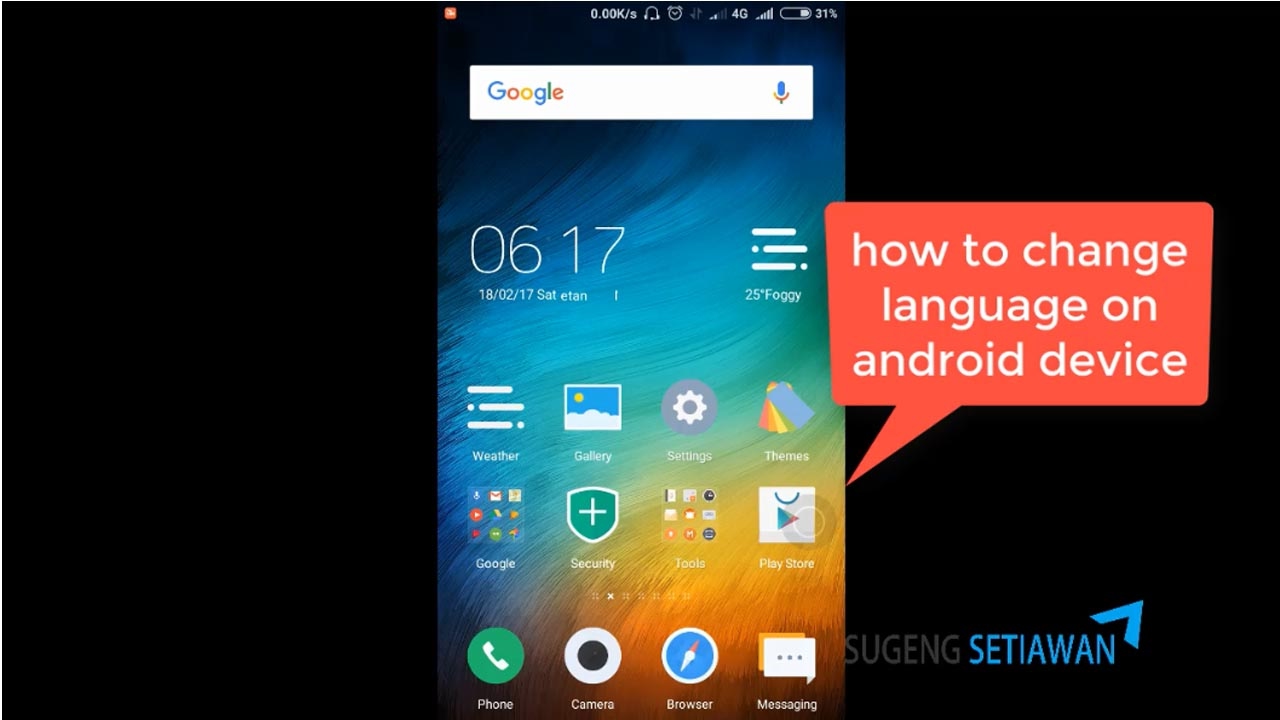
- Open Settings. You can swipe down from the top, tap the gear icon, or use the voice command “Open Settings.”
- Tap System → Languages & input. On some brand skins this may appear under General management.
- Select Languages. You’ll see a list of languages already installed.
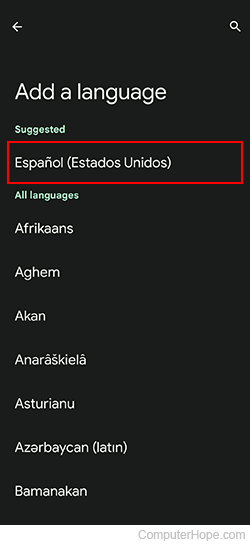
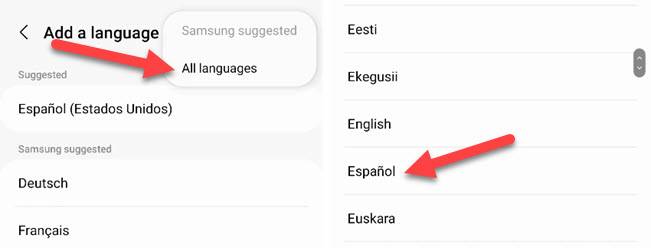
- Add a new language. Tap the “Add a language” button, scroll or search for the one you want, and confirm.
- Set the new language as default. Press and hold the language you just added, then drag it to the top of the list. Android will ask you to confirm; tap Apply.
- Restart (optional). Most changes appear instantly, but a quick reboot guarantees every app reloads the new locale.
Android 10 and 11
- Navigate to Settings → System → Languages & input → Languages.
- Tap “Add a language,” choose yours, and then use the three‑line “drag” icon to move it to the top.
- If you don’t see the drag handle, tap the language and select “Set as default.”
Older Android versions (9 Pie and below)
- Open Settings → System → Languages & input → Language (sometimes just “Language & keyboard”).
- Tap “Add language,” pick the desired entry, and confirm.
- Long‑press the new language in the list and move it to the top, or tap it and choose “Set as default.”
That’s it. The interface will flip to the chosen language, and most apps you’ve already installed will follow suit. If an app stubbornly stays in the old language, a quick force‑stop and relaunch usually nudges it into the new locale.
Tips and Common Gotchas
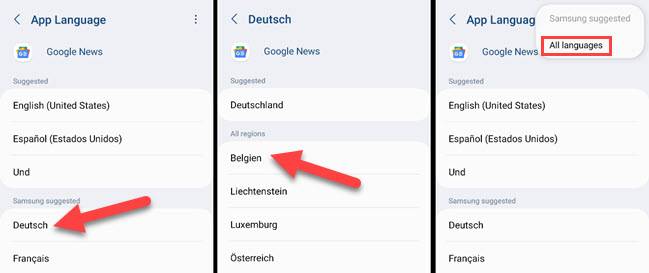
- Per‑app language settings. Android 13 introduced a feature that lets you set a different language for individual apps. Find it under Settings → Apps → App language if you need that level of control.
- Keyboard layout. Changing the system language also swaps the default keyboard layout. If you prefer a specific keyboard (Gboard, SwiftKey, etc.), double‑check its language settings after the switch.
- Voice assistants. Google Assistant will adopt the new language automatically, but you may need to re‑train voice recognition for better accuracy.
- Regional variations. Selecting “English (United Kingdom)” versus “English (United States)” affects date formats, spellings, and even some default content. Choose the variant that matches your preferences.
- Data and apps. Changing language does not erase any personal data, contacts, or installed apps. It merely changes the text strings that the operating system and compatible apps display.
What If the Desired Language Isn’t Listed?
Android ships with a broad set of languages, but niche languages or scripts sometimes need a manual download. Open Settings → System → Languages & input → Languages → Add a language. If you don’t see it, scroll to the bottom and tap “More languages” or “Add language pack.” This will pull the additional resources from Google’s servers.
Changing Language on Android Tablets and Wearables
The steps are virtually identical on larger screens, though the “System” menu might be nested under “General” or “Device.” Wear OS devices rely on the companion phone for language preferences, so a change on your phone automatically reflects on the watch.
FAQ
Can I set a different language for each user account on the same device?
Yes. Android supports multiple user profiles, each with its own language setting. Switch to the desired user, then follow the same steps to pick a language for that profile.
Will changing the language affect app updates?
No. Updates are tied to the app version, not the locale. However, after an update, an app might introduce new strings that only appear in the newly selected language if the language pack is complete.
Is it possible to revert to the original language without remembering the new menu names?
Android offers a quick‑toggle in the power‑off menu on many devices. Hold the power button, tap the small gear icon that appears, and you’ll be taken straight to language settings, even if the rest of the UI is now in a language you don’t read.
Do third‑party launchers respect the system language?
Most do, because they pull text from Android’s resources. However, some custom launchers allow independent language packs; you’d need to adjust those within the launcher’s own settings.



.jpg?itok=9O-KniX5)


