How to Change Voice Pitch in FL Studio: A Step‑by‑Step Guide
Whether you’re polishing a vocal demo or crafting a quirky character voice, learning how to change voice pitch in FL Studio opens up a whole new palette of creative possibilities. The DAW offers several built‑in tools—Newtone, Pitcher, and basic sampler pitch controls—each suited to different workflow needs. Below we’ll walk through the most reliable methods, from quick adjustments to detailed pitch‑correction, and sprinkle in a few practical tips to keep the result sounding natural.
Why Pitch Shifting Matters in a Vocal Track
Pitch isn’t just about hitting the right note; it influences timbre, perceived age, and emotional tone. Raising a voice a few semitones can make a singer sound younger or add a playful edge, while lowering it can give a spoken‑word piece a more authoritative feel. Understanding the musical context helps you decide whether a subtle shift or a dramatic transformation is appropriate.
Preparing Your Audio Clip for Pitch Manipulation
Before you dive into FL Studio’s pitch tools, a clean source makes a huge difference. Trim silence, apply a gentle high‑pass filter to remove low‑frequency rumble, and consider normalizing the clip so the pitch processors work with a consistent level. Once the audio is tidy, drag it into the Playlist or load it directly into the Channel Rack as an audio clip.
Using Newtone for Precise Pitch Control
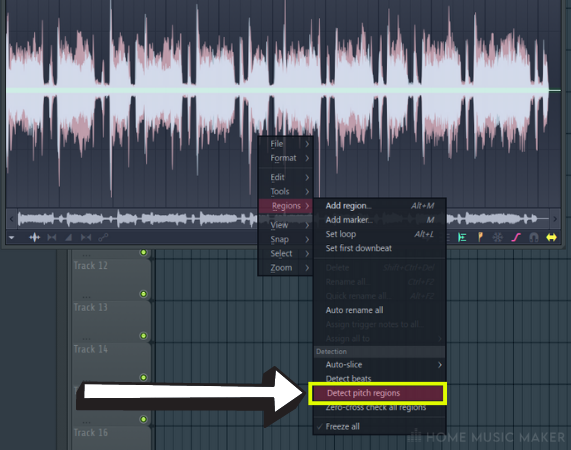
Newtone is FL Studio’s dedicated pitch‑correction editor. It shines when you need frame‑by‑frame adjustments or want to create harmonies without affecting timing.
- Step 1: Open the clip in Newtone by right‑clicking the channel and selecting “Edit in Newtone.”
- Step 2: The waveform appears alongside a pitch graph. Click and drag individual notes up or down to shift their pitch. Holding Shift while dragging snaps to semitone intervals.
- Step 3: For smoother transitions, use the “Formant” knob to preserve vowel characteristics while changing pitch.
- Step 4: When satisfied, close Newtone. The edited audio is automatically saved back to the original channel.
Because Newtone works in a non‑destructive environment, you can always revert changes by re‑opening the clip.
Pitcher Plugin Basics
Pitcher excels at real‑time pitch shifting and automatic correction, making it ideal for live‑recorded vocals that need a quick fix.
- Insert Pitcher on the vocal track’s mixer slot.
- Set the “Key” and “Scale” to match your song; the plugin will then lock notes to the nearest correct pitch.
- Use the “Pitch Shift” knob for a global raise or drop in semitones. A value of +2 raises the entire vocal by a whole tone.
- Toggle “Formant Shift” if you want the vocal’s character to stay intact despite large pitch changes.
Pitcher also offers a “MIDI Input” mode, letting you control the pitch shift with a keyboard or controller for dynamic performance effects.
Simple Pitch Adjustments with the Sampler
For one‑off shifts, the built‑in sampler can do the trick without loading extra plugins.
- Open the channel’s Channel Settings window.
- Locate the “Pitch” knob under the “TIME” section.
- Turn the knob clockwise to raise pitch or counter‑clockwise to lower it. Each full turn equals one octave (12 semitones).
- For finer control, hold Ctrl while turning to adjust in cent increments.
This method is fast but offers limited formant control, so use it for effects where natural timbre isn’t critical.
Automation for Dynamic Pitch Changes
Sometimes you want the voice to glide up or down over time—think of a sci‑fi announcer or a comedic “chipmunk” effect.
- Right‑click the pitch knob you wish to automate (whether in Newtone, Pitcher, or the Sampler) and select “Create automation clip.”
- The automation clip appears in the Playlist; draw a curve that rises, falls, or oscillates as needed.
- For smooth pitch bends, use the “Smoothing” option in the automation clip’s settings to eliminate abrupt jumps.
Automation lets you combine subtle corrections with dramatic transformations in a single track.
Tips for Keeping the Pitch Shift Natural
Even the best tools can produce a robotic sound if used indiscriminately. Here are a few quick pointers:
- Preserve Formants: When shifting more than two semitones, always engage formant control to maintain vowel shape.
- Use Minimal Correction: If the original performance is mostly in tune, limit correction to the outlier notes; this retains human nuance.
- Layer with Original: Blend a lightly pitch‑shifted track with a copy of the untouched vocal at low volume. The mix often sounds richer and less processed.
- Check in Context: Soloing the vocal can hide issues that become obvious when the full mix plays back. Always audition your pitch changes with drums and bass.
FAQ
Q: Can I change the pitch of a vocal without affecting its tempo?
A: Yes. All the methods described—Newtone, Pitcher, and sampler pitch—operate independently of time stretching, so the rhythm stays intact while the pitch moves.
Q: Does raising pitch make a voice sound chipmunk‑like?
A: If you increase pitch dramatically without adjusting formants, the voice can take on a chipmunk quality. Enabling the formant shift knob preserves the vocal’s natural character even at higher pitches.
Q: Is it possible to automate pitch changes in real time during a live performance?
A: Absolutely. Load Pitcher on the mixer track, map its “Pitch Shift” knob to a MIDI controller, and you can bend the voice on the fly while recording or performing.
Q: Which method is best for subtle, studio‑grade pitch correction?
A: Newtone provides the most precise, note‑by‑note editing, making it the go‑to choice for professional‑level correction where you want to retain the singer’s natural nuances.