How to Change Your Chromecast Language Quickly and Easily
If you’ve ever wondered how to change Chromecast language to match your preference, you’re not alone. The streaming dongle is designed for simplicity, yet the language setting can be a hidden gem that many overlook. Whether you’re traveling abroad, sharing the device with a multilingual family, or just craving a fresh interface, adjusting the language is a straightforward process. Below is a practical guide that walks you through every click, plus a few troubleshooting tips if things don’t go as planned.
Why Language Settings Matter on Chromecast
Chromecast isn’t just a passive receiver; it mirrors the language of the apps you cast, but its own menus and system prompts stick to the default language you chose during setup. Changing this setting can:
- Make navigation more intuitive for non‑English speakers.
- Ensure voice‑controlled commands via Google Assistant are understood correctly.
- Provide a more immersive experience when streaming foreign‑language content.
In short, a language tweak can smooth out everyday interactions and reduce the need to juggle multiple devices just to get the right wording on screen.
Step‑by‑Step: Changing the Language
The process varies slightly depending on whether you’re using a Chromecast with Google TV or a classic Chromecast that relies on the Google Home app. Follow the appropriate path below.
Chromecast with Google TV
- Turn on your TV and select the Chromecast input.
- From the home screen, navigate to Settings (the gear icon).
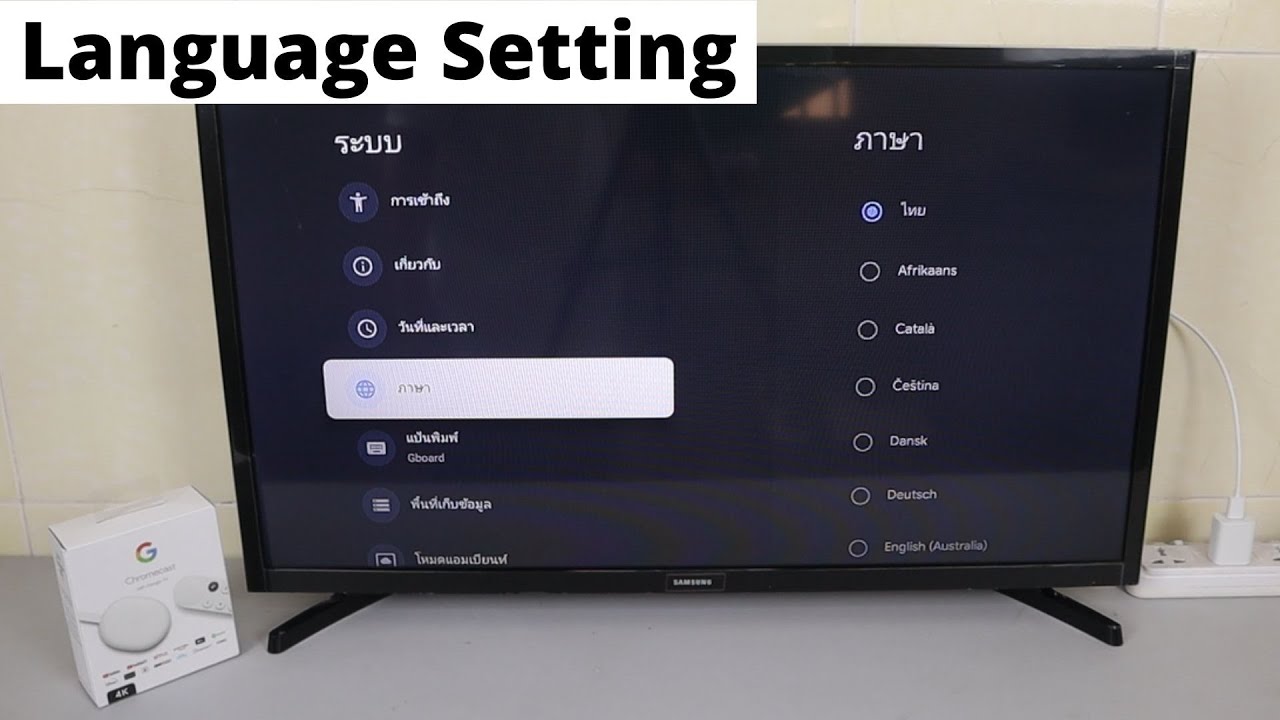
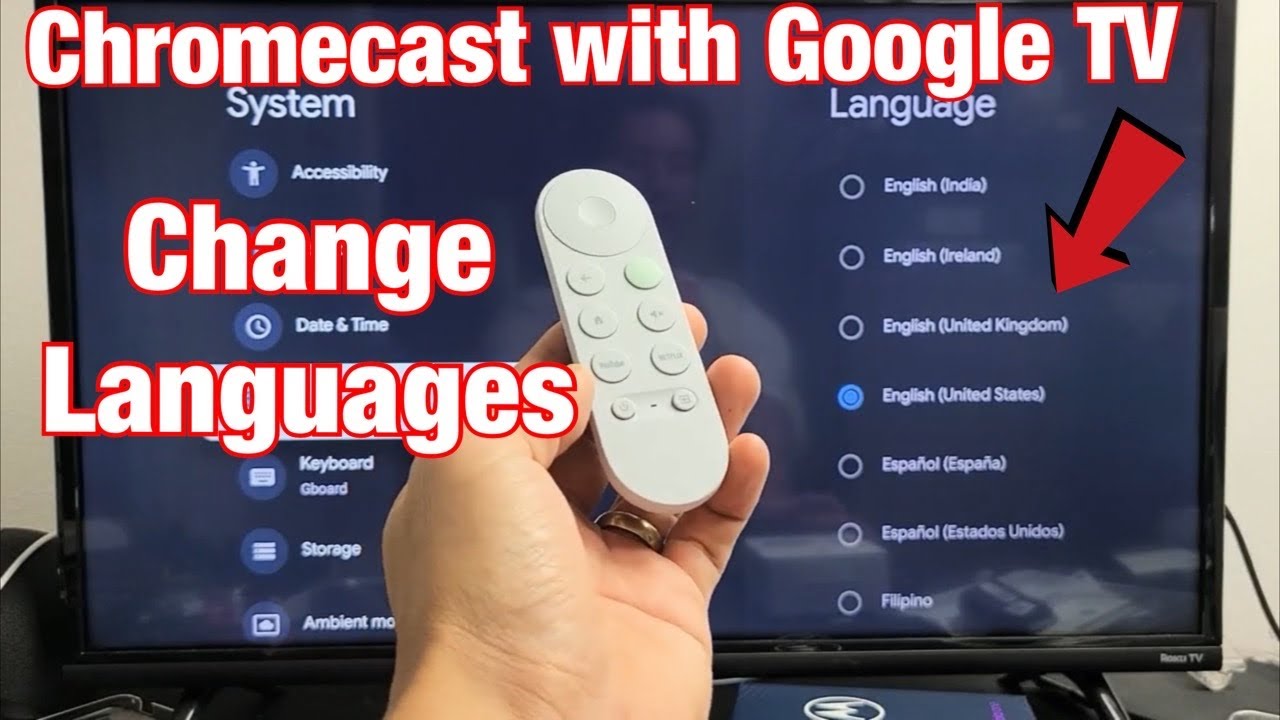
- Scroll down to System and choose Languages.
- Tap Display language and pick the language you want from the list.
- Confirm your choice; the interface will refresh within a few seconds.
That’s it—your menus, voice prompts, and on‑screen text now reflect the new language.
Classic Chromecast (using Google Home)
- Open the Google Home app on your smartphone or tablet.
- Locate your Chromecast device in the home view and tap the three‑dot menu.
- Select Settings, then scroll to Device information.
- Find the Language option and tap it.
- Choose your preferred language and confirm. The change propagates to the device within a minute.
Because classic Chromecast doesn’t have a built‑in UI, the Google Home app handles the language preference for you.
Troubleshooting Common Issues
If the new language doesn’t appear right away, try these quick fixes.
- Restart the device: Unplug the Chromecast, wait ten seconds, then plug it back in.
- Refresh the app: Close and reopen the Google Home app to ensure it syncs the latest settings.
- Check firmware: An outdated system can prevent language changes. Go to Settings → System → About and select System update if an update is available.
- Clear cache: For Chromecast with Google TV, navigate to Settings → Apps → See all apps → Chromecast and clear the cache.
These steps resolve the majority of hiccups without needing a factory reset.
Tips for a Seamless Experience
Beyond the basic steps, a few habits can keep your Chromecast running smoothly in any language.
- Set the language before adding apps: New apps adopt the system language during their first launch.
- Use a consistent Google account: Switching accounts can revert language preferences, especially on shared devices.
- Leverage voice control: If you have a Google Nest speaker, say “Hey Google, change the language to Spanish” and the command will be executed on supported devices.
These small adjustments save time and avoid the occasional mismatch between app and system languages.
Frequently Asked Questions
Can I set different languages for different apps?
No. Chromecast applies a single system language across all menus and built‑in prompts. However, many streaming apps let you choose a language within their own settings, independent of the device’s language.
Does changing the language affect subtitles?
Only if the app you’re casting uses the device’s language as a default subtitle track. Most apps let you select subtitle language manually, so you can keep subtitles in your preferred language while the UI remains in another.
Is the language change permanent?
Yes, unless you manually switch it back or perform a factory reset. The setting is stored in the device’s firmware, so it survives power cycles.
Will changing the language impact my Google Home routines?
Routines that include spoken commands will follow the language of the Google Assistant associated with your account. Adjusting the Chromecast language doesn’t alter those routines, but aligning both can create a more cohesive smart‑home experience.