How to Download Games to Your PSP 3000: A Step‑by‑Step Guide
Understanding What You Can Download
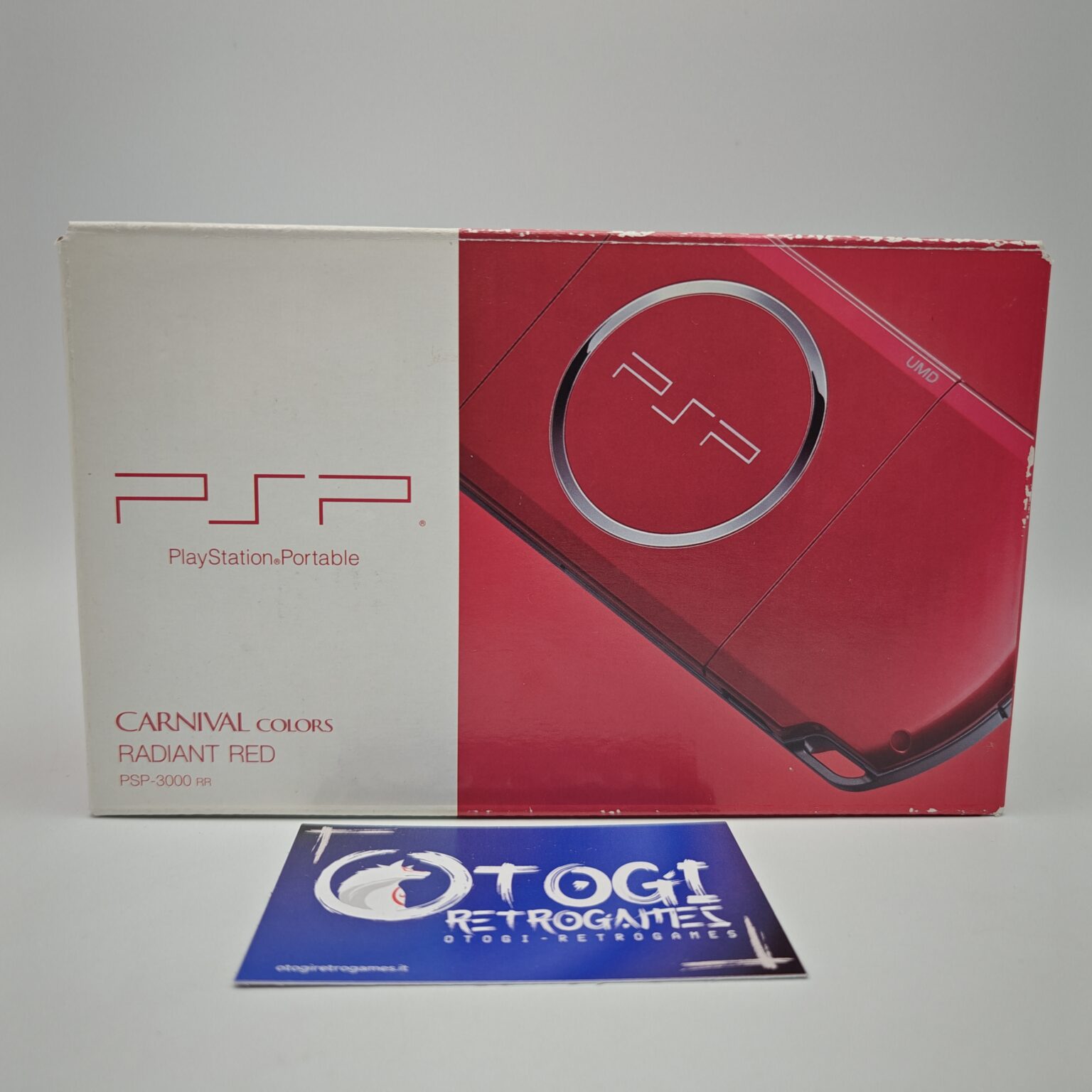
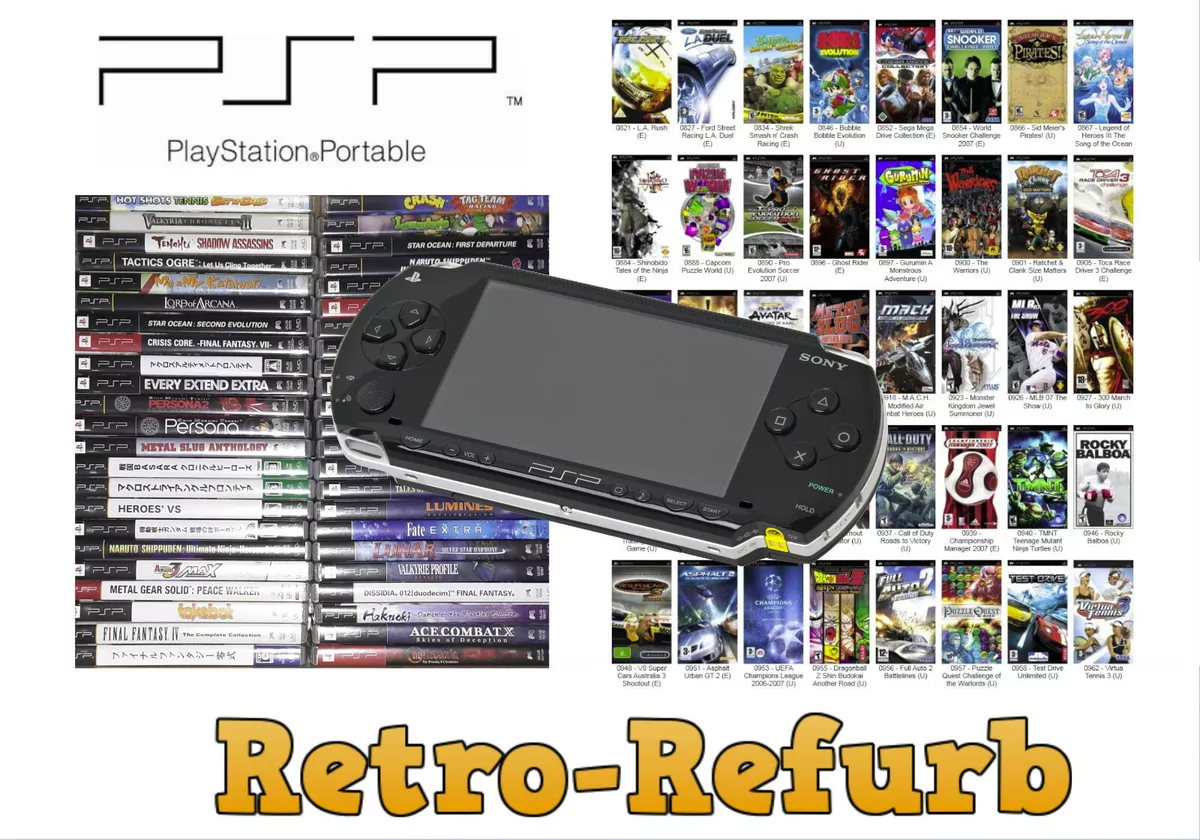
The Sony PlayStation Portable (PSP) 3000 is the sleekest model in the original PSP line, featuring a brighter LCD and built‑in microphone. While the device originally relied on physical UMD discs, it also supports digital game files stored on a Memory Stick Duo. Knowing the difference between official PlayStation Store downloads, legitimate free demos, and home‑brew titles will shape the method you choose.
Preparing Your PSP 3000 for Transfers
Before you start moving files, make sure your PSP is ready:
- Insert a compatible Memory Stick Duo (at least 2 GB, preferably 8 GB for a comfortable library).
- Navigate to Settings → System Settings → Format Memory Stick to ensure a clean slate.
- Update the firmware to the latest official version (6.61 for the PSP 3000) via the Settings menu; this improves stability and unlocks newer file‑system features.
If you plan to use homebrew or custom firmware (CFW), the update step will differ. We'll cover both official and unofficial paths.
Official Downloads via the PlayStation Store
Although Sony discontinued the PSP Store in 2016, users who still have a PSP Go or a legacy account can occasionally access older purchases. To check:
- Connect the PSP to Wi‑Fi and select PlayStation Network from the main menu.
- Log in with your Sony ID; if you see a Download List option, any previously bought titles will appear.
- Select a game, confirm the download, and wait for the progress bar to finish.
This method is completely legal and requires no extra hardware, but its availability is limited to existing purchases.
Downloading Games from a PC and Transferring via USB
For most users, the practical route involves downloading game files on a computer, then moving them to the PSP. Follow these steps:
- Find a reputable source. Look for sites that host ISO or CSO files of games you already own. Avoid “free download” sites that claim to offer copyrighted titles without proof of ownership.
- Convert if needed. ISOs are the raw disc image; CSOs are compressed versions that save space. Tools like UmdGen can convert between them.
- Rename the file. The PSP expects a specific folder structure:
E:\PSP\GAME\followed by a folder named after the game’s ID (e.g.,E:\PSP\GAME\ULUS10123\) containing theEBOOT.PBPfile. - Copy to the Memory Stick. Connect the PSP to the PC with the USB cable, select USB Connection on the PSP, then drag the game folder into the
GAMEdirectory. - Eject and launch. Disconnect the USB, return to the PSP’s Game menu, and your new title should appear.
Remember that this workflow assumes you have a legal copy of the game; copying without ownership violates copyright law.
Using Custom Firmware for Expanded Options
If you want to run homebrew applications, emulators, or backups of games you own, installing custom firmware (CFW) opens those doors. The most common CFW for the PSP 3000 is PRO CFW, which can be installed using the PSP Mini exploit or the Infinity method. The process is technical:
- Download the appropriate
BOOT.BINandUPDATE.PBPfiles from the official PRO CFW site. - Place them on the Memory Stick in
E:\PSP\UPDATE\. - Run the Update option from the Settings menu; the system will flash the custom firmware.
Once CFW is active, you can use tools like PSP ISO Resigner to sign game ISOs, allowing the PSP to recognize them as legitimate. This step is optional but often necessary for games that refuse to launch on a standard firmware.
Managing Storage and Performance
Games can quickly fill a Memory Stick, especially when using the compressed CSO format. Here are a few tips to keep things running smoothly:
- Delete demos or games you no longer play; the PSP will free space without a separate “recycle bin”.
- Use the System Settings → Memory Stick → Check for Errors utility periodically to detect corrupted files.
- If you notice slower load times, try converting large ISOs to CSOs, but be aware that some games may suffer minor graphical glitches after compression.
Troubleshooting Common Issues
Game won’t appear in the menu. Double‑check the folder name and ensure the EBOOT.PBP file is present. A missing or misspelled ID will hide the title.
“This game cannot be played” message. This often means the ISO isn’t signed. Use a signing tool compatible with your firmware version, or consider installing CFW if you haven’t already.
USB transfer stalls. Try a different USB cable or port, and make sure the Memory Stick isn’t write‑protected. Formatting the stick can also resolve hidden file system errors.
Legal and Ethical Considerations
The PSP 3000 is a capable handheld, but its ability to run digital copies comes with responsibility. Downloading games you don’t own is illegal in most jurisdictions and can expose your device to malware. Stick to:
- Official purchases from the PlayStation Store (if still accessible).
- Backups of games you already own, stored for personal use.
- Homebrew applications that are freely distributed by their creators.
Respecting these boundaries keeps the PSP community healthy and ensures you won’t run into unexpected bans or hardware issues.
FAQ
Can I download new PSP games from the PlayStation Store today?
Not directly. Sony discontinued the PSP Store in 2016, so only previously purchased titles can be re‑downloaded, and only if they remain linked to your account.
Do I need a special memory stick for the PSP 3000?
The PSP uses Memory Stick Duo cards. Any capacity up to 32 GB works, but 8 GB or 16 GB provides a good balance of space and price.
Is custom firmware safe for my PSP?
When installed correctly, CFW is stable and widely used. However, it voids the warranty and can brick the device if the installation is interrupted. Follow reputable guides and back up your data first.
What file format should I use: ISO or CSO?
ISO preserves the original data but takes more space. CSO compresses the file, saving storage at the risk of occasional loading glitches. Choose based on your storage limits and tolerance for minor performance differences.