How to Download uBlock Origin in Just a Few Easy Steps
Why uBlock Origin Still Beats Most Ad Blockers
If you’ve ever felt the sting of intrusive pop‑ups or the slowdown caused by endless tracking scripts, you’ve probably searched for a reliable ad blocker. uBlock Origin stands out because it’s lightweight, open‑source, and respects your privacy without demanding a subscription. That’s why millions of users trust it for Chrome, Firefox, Edge, and even some mobile browsers. Below, we walk through the download process in clear, easy steps, so you can start browsing ad‑free in minutes.
Step 1: Pick the Right Browser
uBlock Origin is available for most mainstream browsers, but the extension store you’ll use depends on where you spend most of your online time. The most common choices are:
- Google Chrome or Chromium‑based browsers (like Brave or Opera)
- Mozilla Firefox
- Microsoft Edge
- Safari (via the App Store, though the official version is still in beta)
Make sure your browser is up to date; older versions can sometimes block the installation dialog or cause compatibility quirks.
Step 2: Visit the Official Extension Page
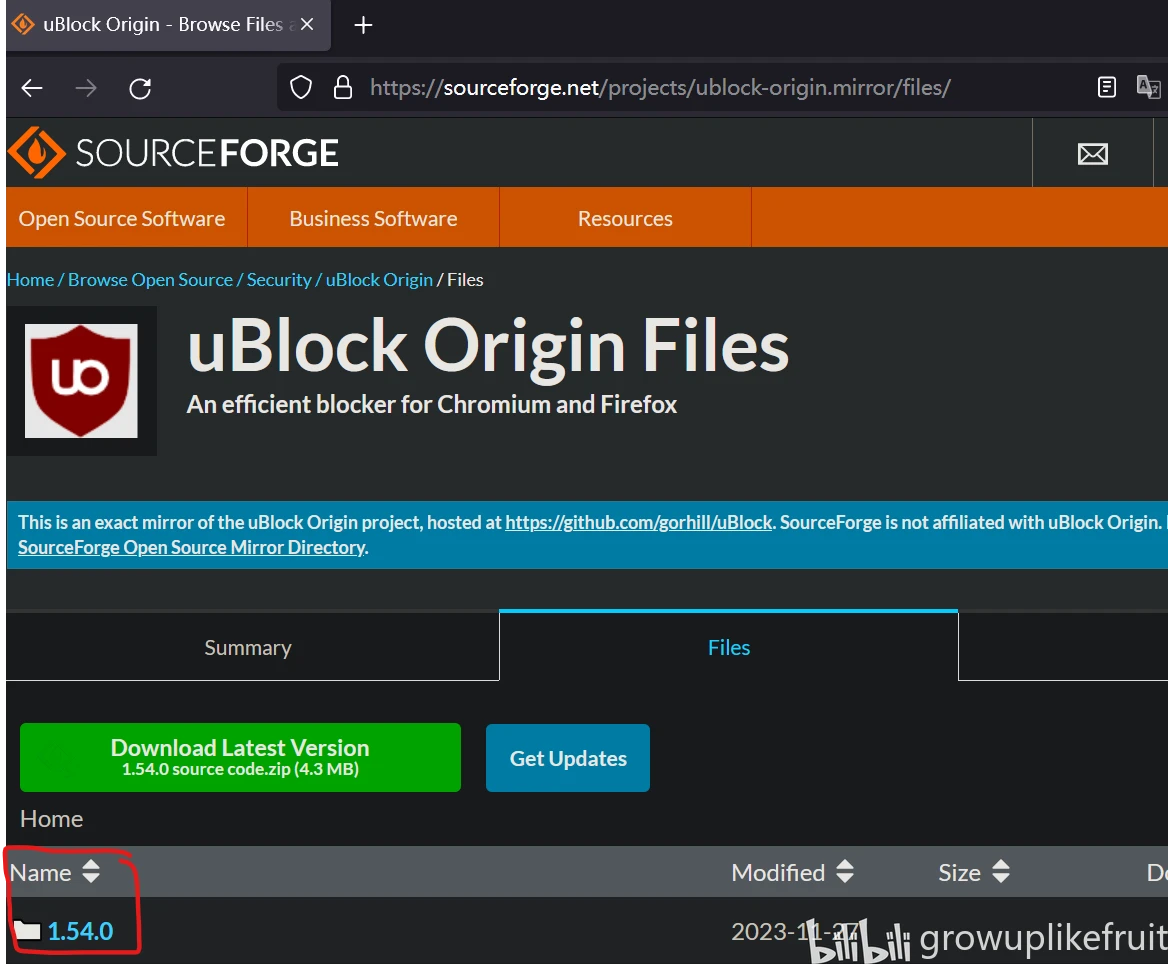
Never trust third‑party download sites. The safest source is the official store for your browser:
- Chrome users head to the Chrome Web Store.
- Firefox fans should go to the Firefox Add‑ons site.
- Edge users can find it on the Microsoft Edge Add‑ons page.
These pages are curated by the browser vendors, which means the file is signed, regularly scanned for malware, and automatically updated.
Step 3: Click “Add to Browser” and Confirm
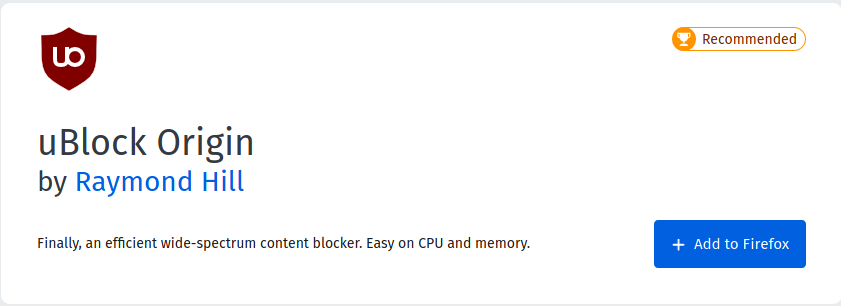
Once you’re on the correct page, the button will read something like “Add to Chrome” or “Add to Firefox.” Click it, and a pop‑up will appear asking for permission to install the extension. The dialog typically lists the permissions uBlock Origin needs—mostly the ability to read and change data on websites you visit. This is essential for an ad blocker to function, but it’s not a backdoor; the code runs only within your browser sandbox.
If you’re comfortable, hit “Add extension” (or “Install”). In a few seconds, you’ll see the uBlock Origin icon appear in your toolbar—a small shield with “u” inside.
Step 4: Do a Quick Configuration Check
uBlock Origin works well out of the box, but a couple of tweaks can improve performance:
- Open the dashboard by clicking the shield icon, then the gear symbol.
- Under “Filter lists,” ensure the default lists (EasyList, uBlock filters, etc.) are enabled.
- If you notice a website breaking, toggle “Disable on this site” from the same menu.
Most users won’t need to change anything else. The default settings already block the majority of ads, trackers, and malware domains.
Step 5: Verify the Extension Is Active
To make sure everything’s running smoothly, visit a site known for heavy advertising—think a news outlet with video pre‑rolls. If you see a clean page with no intrusive banners, congratulations: uBlock Origin is doing its job. You can also hover over the shield icon; a small popup will show how many requests were blocked on the current page.
Common Pitfalls and How to Avoid Them
Even with a straightforward download, a few hiccups can happen:
- Fake extensions: Some malicious actors copy the name “uBlock Origin” and upload a look‑alike to obscure stores. Always double‑check the publisher’s name—“Raymond Hill” is the official developer.
- Conflicts with other blockers: Running two ad blockers simultaneously can cause page errors. If you already have another extension, consider disabling it before installing uBlock Origin.
- Browser restrictions: Some corporate or school networks lock down extension installation. In that case, you’ll need admin rights or a personal device.
Keeping uBlock Origin Updated
One of the advantages of using the official store is automatic updates. Still, it’s worth occasionally checking the dashboard for a “Check for updates” button, especially after a major browser upgrade. Updated filter lists mean newer ad formats get blocked faster.
When to Use uBlock Origin on Mobile
Mobile browsers have limited support for extensions, but there are workarounds:
- Firefox for Android: Directly install the same add‑on from the Firefox Add‑ons site.
- Brave: Comes with built‑in ad blocking; you can import uBlock Origin’s filter lists manually.
- Safari on iOS: The App Store version of uBlock Origin is still in beta, and it requires iOS 15 or later.
Performance on mobile is generally comparable to desktop, though battery usage may rise slightly if you enable all advanced filters.
FAQ
Is uBlock Origin safe to use?
Yes. It’s open‑source, meaning anyone can audit the code. The project is maintained by a small team of volunteers who prioritize privacy and security.
Can I use uBlock Origin alongside a VPN?
Absolutely. A VPN encrypts your traffic, while uBlock Origin filters content locally in your browser. They complement each other without conflict.
What’s the difference between uBlock Origin and uBlock?
uBlock Origin is a fork of the original uBlock project, focused on performance and minimal resource usage. The older “uBlock” has become less maintained, so Origin is the recommended choice.
Do I need to whitelist any sites?
Occasionally, sites that rely on third‑party scripts for essential functionality—like video players—may break. Clicking the shield icon and selecting “Whitelist this site” restores normal behavior.