How to Eliminate Lag in Xbox Cloud Gaming for Fortnite
If you’ve ever tried to land a Victory Royale on a storm‑clouded island only to be booted out by a sudden freeze, you know how frustrating lag can be in Xbox Cloud Gaming. The good news is that most hiccups aren’t caused by the game itself but by a mix of network quirks, server choices, and console settings. Below is a step‑by‑step guide that tackles each of those layers so you can keep your builds smooth and your aim razor‑sharp.
Understanding Why Lag Happens
Before you start tweaking, it helps to know what “lag” actually means in the context of cloud gaming. Unlike a locally installed game, Fortnite on Xbox Cloud Gaming streams video frames from a remote server while your controller inputs travel back to that server. Any delay in either direction shows up as stutter, input lag, or visual tearing. Three main culprits typically surface:
Network Bandwidth and Latency
Even a fast‑forwarding broadband connection can struggle if the signal has to hop across several routers before reaching the Xbox. Latency—often measured in milliseconds—captures the round‑trip time between your controller press and the server’s response. A latency spike above 50 ms usually becomes noticeable in fast‑paced shooters.
Server Location and Load Balancing
Microsoft’s cloud infrastructure places game servers in multiple regions. If you’re routed to a distant node or a server that’s currently overloaded, the stream can lag behind your actions. This is why you might experience smooth gameplay one day and a choppy session the next.
Device Performance and Settings
The Xbox console itself isn’t doing the heavy lifting, but its Wi‑Fi chip, background apps, and display configuration still matter. An outdated firmware or a screen set to a resolution your TV can’t sustain will add unnecessary strain.
Basic Checks Before Diving Deeper
- Restart your router and Xbox; a fresh handshake often clears temporary congestion.
- Make sure the Xbox is running the latest system update.
- Close any background apps (e.g., Netflix, Discord) that might be hogging bandwidth.
- Test your internet speed; aim for at least 15 Mbps download with ping under 40 ms to the nearest Microsoft server.
Optimizing Your Home Network
Most lag issues stem from an inconsistent Wi‑Fi connection. Here’s how to tighten the pipeline.
Prefer a Wired Ethernet Connection
If your Xbox sits near your router, plug it directly into the Ethernet port. Wired links eliminate the interference that wireless signals pick up from walls, microwaves, or neighboring networks, and they usually shave off 10‑20 ms of latency.
Fine‑Tune Your Wi‑Fi Settings
When a cable isn’t practical, upgrade to a dual‑band router and lock the Xbox onto the 5 GHz band. That frequency offers higher throughput and is less crowded than the older 2.4 GHz band. Position the router in an open space, ideally elevated and away from large metal objects.
Enable Quality of Service (QoS)
Many modern routers let you prioritize traffic for specific devices or applications. Set your Xbox’s MAC address as a high‑priority client, or create a rule that boosts “gaming” traffic. This tells the router to allocate bandwidth to your console before streaming movies or downloads.
Swap DNS Servers for Faster Resolution
Sometimes the delay isn’t the raw speed but the time it takes to resolve server addresses. Switching to public DNS services like Cloudflare (1.1.1.1) or Google (8.8.8.8) can shave off a few milliseconds, especially during peak hours.
Fine‑Tuning Xbox Settings for Cloud Play
The console’s video output and power options also influence how fluid the stream feels.
- Resolution: Set the display output to 1080p instead of 4K if your TV or monitor struggles with the higher bandwidth.
- Refresh Rate: Match the Xbox’s refresh rate to your screen (60 Hz is a safe bet). A mismatch can cause judder that feels like lag.
- Power Mode: Choose “Instant‑On” only if you need fast startup; otherwise, “Energy‑Saving” reduces background processes that might compete for network resources.
Adjusting Fortnite In‑Game Settings
Even though the game runs on a remote server, the client still renders a local overlay. Lowering certain visual options reduces the amount of data the console must process, which can improve perceived responsiveness.
- Turn off Motion Blur and Depth of Field. These effects add little gameplay value but consume extra processing.
- Set Graphics Quality to “Low” or “Medium.” The cloud server already handles the heavy lifting, so a simpler overlay speeds up frame delivery.
- Disable V‑Sync if you notice input delay; the trade‑off is a slight increase in screen tearing, but many players find it worthwhile for snappier controls.
When All Else Fails: Alternative Solutions
If you’ve walked through every step and the lag persists, consider these backup options.
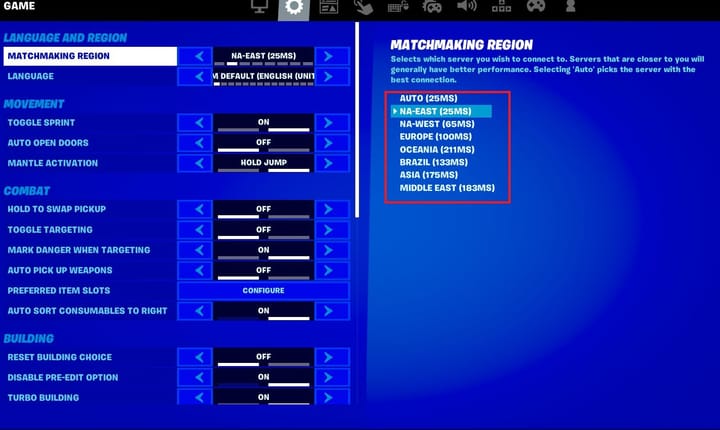
- Switch Server Regions: Within the Xbox Game Pass app, you can select a different geographic region for the Fortnite cloud instance. Choose the one that consistently shows the lowest ping in your speed test.
- Upgrade Your Internet Plan: A higher tier with dedicated upload bandwidth (at least 5 Mbps) can make a noticeable difference, especially during peak evening hours.
- Use a Mobile Hotspot: In some areas, a 5G hotspot offers lower latency than a congested cable line. Test both to see which yields smoother gameplay.
- Consider Local Installation: If cloud performance remains unreliable, the traditional route—installing Fortnite directly on an Xbox console—eliminates streaming latency altogether.
Frequently Asked Questions
Can I play Fortnite on Xbox Cloud Gaming without any lag?
Completely lag‑free streaming is rare, as it depends on external factors like your ISP and server load. However, applying the steps above can reduce latency to a level where it feels indistinguishable from a locally installed game.
Is a 5 GHz Wi‑Fi connection always better than Ethernet?
Generally, Ethernet provides the most stable link. A 5 GHz Wi‑Fi connection can be comparable if the signal is strong and interference is minimal, but any physical obstacles or distance will still favor a wired cable.
Do Xbox Game Pass Ultimate subscriptions affect cloud performance?
The subscription itself doesn’t alter server speed, but it grants you access to Microsoft’s most recent cloud infrastructure, which tends to be better maintained than older, legacy servers.
Should I lower my TV’s HDR settings for smoother gameplay?
Turning off HDR can reduce the amount of data the console needs to transmit, which sometimes helps with lag. If visual fidelity isn’t your top priority, it’s a quick trade‑off worth testing.
/i.s3.glbimg.com/v1/AUTH_08fbf48bc0524877943fe86e43087e7a/internal_photos/bs/2022/Q/X/Gyk8M5T3ejgCJuyMRBng/fortnite-cloud-passo-4.jpg)