How to Enable Google SafeSearch and Protect Your Online Experience
Google SafeSearch is a simple yet powerful tool that helps filter out explicit content from search results, images, videos, and maps. By turning it on, you can keep yourself and your family safe from potentially offensive material while using Google’s vast search engine. Even though the filter isn’t perfect, it significantly reduces the chance of encountering inappropriate content during everyday browsing.
Enabling Google SafeSearch on Desktop Browsers
To activate SafeSearch on a desktop, start by opening Google.com in your favorite browser. Click the menu icon (three horizontal lines) in the upper-left corner and select “Settings.” Within Settings, choose “Search settings.” On the next page, look for the “SafeSearch filters” section. Check the box that says “Turn on SafeSearch.” Finally, scroll down and click “Save” to apply the changes.
Once you’ve enabled the filter, all future searches on that browser will automatically apply SafeSearch unless you manually turn it off. If you’re using multiple accounts, the setting is tied to each account individually, so you’ll need to enable it separately for each profile.
How to Activate SafeSearch on Mobile Devices
On Android or iOS, open the Google app or navigate to google.com via your mobile browser. Tap the three‑line menu and choose “Settings.” Next, tap “General” and then “SafeSearch filter.” Slide the toggle to the “On” position. A confirmation pop‑up will appear; tap “Turn on” to confirm.
When you’re using the Google app, the setting syncs with your Google account, ensuring that SafeSearch stays on across devices. If you switch devices or use a different account, remember to repeat the process.
Enabling SafeSearch in Google Images, YouTube, and Maps
SafeSearch isn’t limited to standard web searches; you can also apply it to images, videos, and maps. On the Google Images page, click the menu icon, go to “Settings,” then “Image settings.” Look for the “SafeSearch filter” option and toggle it on. This blocks explicit images from appearing in your image results.
For YouTube, open the site and tap your profile icon. Select “Settings,” then “General,” and find “Restricted Mode.” Turn it on to filter out mature videos. Google Maps follows the same account‑wide setting; once SafeSearch is on, the maps search will exclude any content flagged as inappropriate.
Why the Filter Might Still Show Some Content
SafeSearch relies on machine‑learning algorithms and manual tagging, so occasional false positives or negatives can happen. Explicit content that is mislabeled, or new material that hasn’t been indexed, might slip through. If you encounter something you believe should be filtered, you can report it to Google directly through the search interface.
Making SafeSearch Permanent with Browser Extensions
Some browsers let you force SafeSearch even if a website tries to override it. The “Google SafeSearch” extension for Chrome or Firefox adds a small button to the address bar, allowing you to toggle the filter on or off quickly. This is handy when you’re logged into multiple accounts or switching between sites that offer their own search bars.
Extensions also help keep the filter active when you clear cookies or switch to incognito mode, ensuring that the default state remains SafeSearch. Remember to review the extension’s privacy policy before installing; most reputable ones only interact with your browser’s search pages.
How to Verify SafeSearch is Working
After enabling the filter, perform a quick test: search for a term that would normally trigger adult results, such as “mature content.” If you see a notification at the top of the results page that says “SafeSearch is on,” the filter is active. Additionally, look for a “no adult content” banner when browsing images or videos.
When to Turn SafeSearch Off
Some users may prefer a less restrictive experience, especially if they’re doing specialized research. In such cases, you can temporarily disable SafeSearch by unchecking the box in Settings or turning off the toggle in the mobile app. Just be mindful that the filter is on by default for new accounts, so you’ll need to remember to turn it off if you want the full search experience.
Combining SafeSearch with Other Safety Tools
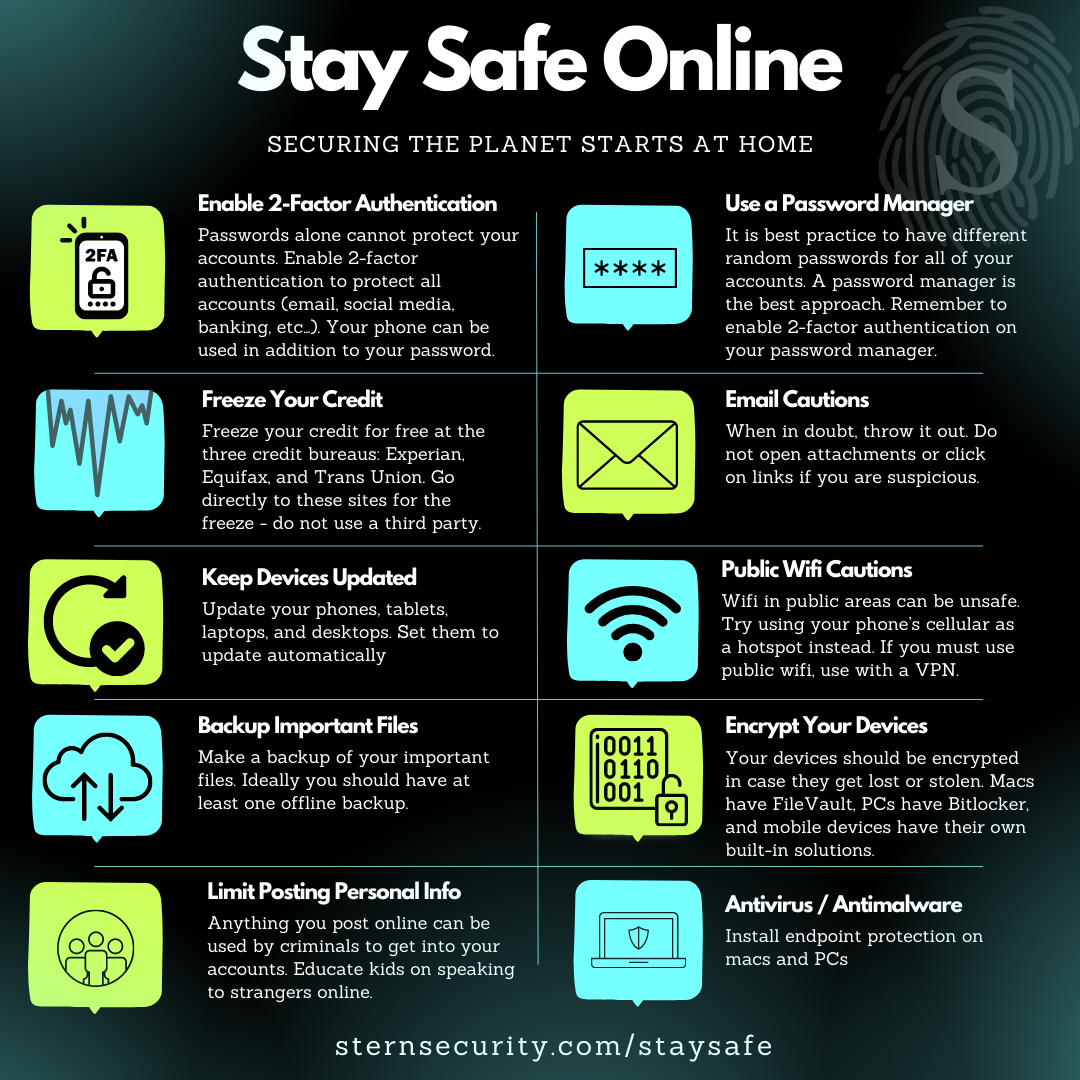
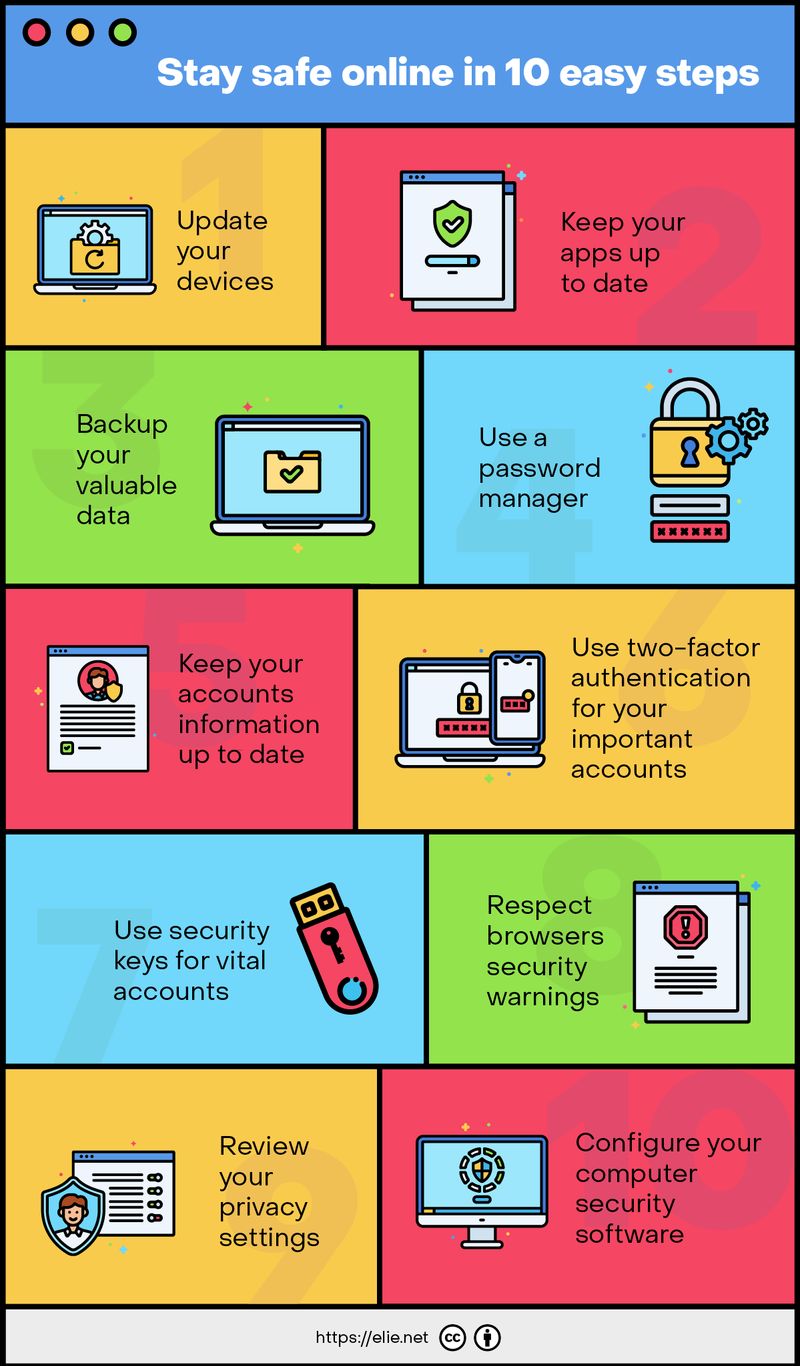
While SafeSearch is effective, it works best when paired with other safety measures. Use reputable parental control software that blocks malicious sites, sets content filters, and monitors online activity. Additionally, keep your browsers and operating systems up to date, enabling automatic security patches to protect against phishing and malware.
Educating yourself and your family about safe browsing habits—such as avoiding suspicious links and recognizing social‑engineering attempts—complements the technical filters and creates a safer overall environment.
FAQs About Google SafeSearch
- Does SafeSearch filter out all pornographic content? It blocks most explicit material, but a small number of items may still appear due to labeling errors. Report any missed content to Google.
- Is SafeSearch available on all Google products? It’s supported on Search, Images, YouTube, and Maps. Other Google services may have their own separate filters.
- Can I set SafeSearch automatically for new devices? Once you log in with your Google account and enable the filter, it syncs across all devices using the same account.
- Will SafeSearch affect SEO or ad targeting? No—Google SafeSearch is purely a filtering mechanism; it doesn’t alter the underlying search algorithm or ad delivery.