How to Factory Reset Your Samsung Phone in 5 Easy Steps
If your Samsung device is acting sluggish, showing strange bugs, or you’re getting ready to pass it on, you’ll soon discover why a factory reset is the clean‑slate solution many users reach for. In this guide we’ll walk through exactly how to factory reset your Samsung, whether you prefer the on‑screen menus or the good‑old hardware button combo. By the end you’ll feel confident hitting that reset button without losing the essentials.
Why a Factory Reset Might Be Worth It
A factory reset wipes everything back to the state it left the factory in – apps, accounts, settings, and personal data all go. It can:
- Eliminate persistent software glitches that software updates can’t fix.
- Free up storage that’s been hoarded by hidden caches.
- Prepare the phone for a new owner, protecting your privacy.
Because the process is irreversible, it’s wise to back up anything you can’t afford to lose.
Step‑One: Back Up Your Important Data
Before you tap “Delete all,” make sure your photos, contacts, and documents are safe. Samsung’s own Smart Switch app can sync everything to a PC or the cloud, and Google’s backup service covers apps, call history, and settings. If you use a microSD card, simply copy the folder you want to keep to a computer.
Step‑Two: Choose the Reset Method That Fits Your Situation
Most Samsung phones, including the Galaxy A line, let you reset through the Settings menu. However, if the screen is unresponsive or you can’t log in, the hardware key method comes to the rescue.
Reset via Settings (the easiest route)
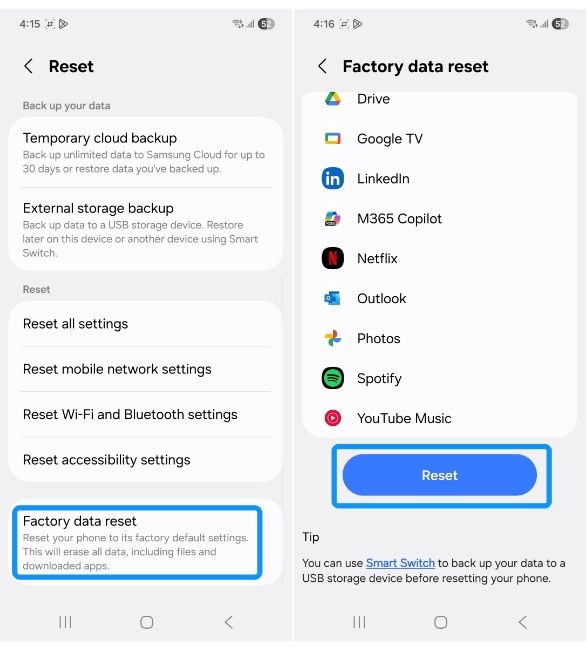
- Open Settings and scroll to General management.
- Select Reset, then tap Factory data reset.
- Review the list of accounts that will be removed, then hit Reset.
- The phone will restart and begin erasing data – this can take a few minutes.
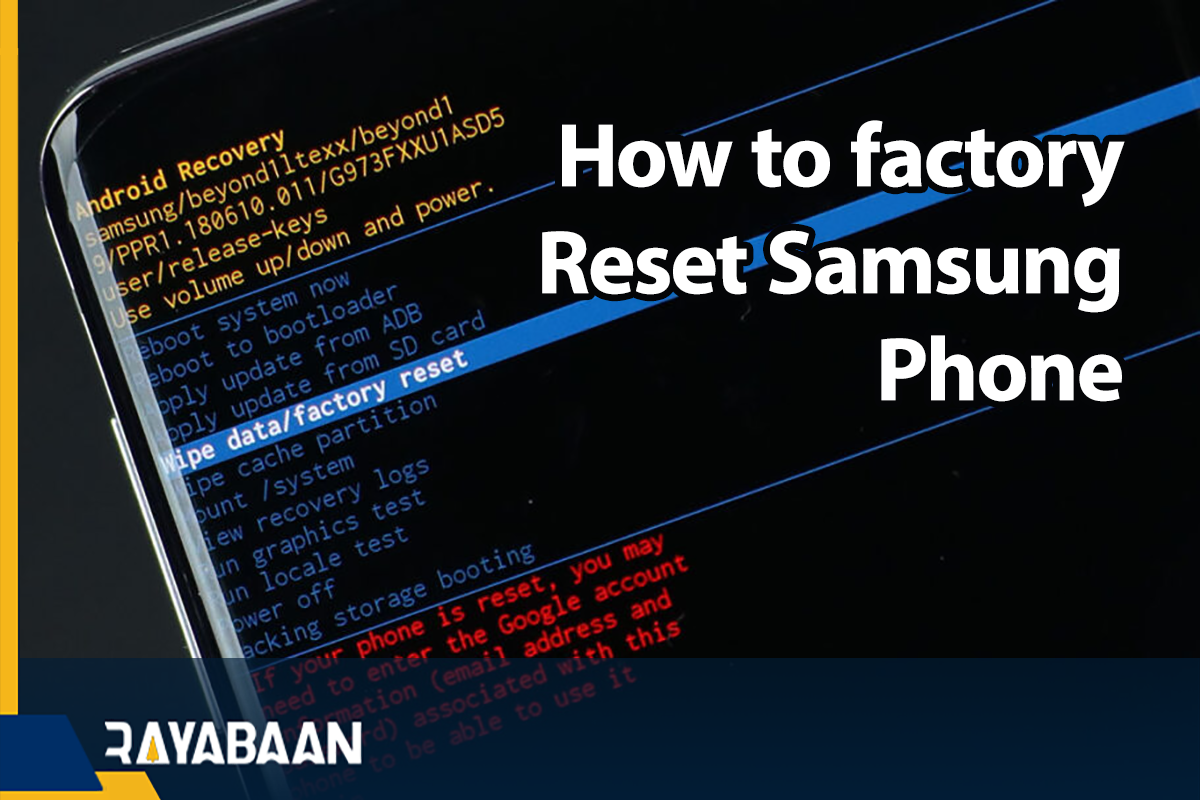
Reset using hardware buttons (when the screen won’t cooperate)
- Power off the device completely.
- Press and hold the Volume Up and Power buttons simultaneously.
- When the Samsung logo appears, release the Power button but keep holding Volume Up until the Android recovery menu shows.
- Navigate with the volume keys to Wipe data/factory reset and confirm with the Power button.
- After the reset finishes, choose Reboot system now.
Reset remotely with Find My Mobile
If you’ve already registered your phone on Samsung’s Find My Mobile website, you can trigger a factory reset from any browser. Log in, select your device, and click “Erase data.” This is handy when the phone is lost or stolen.
Step‑Three: Confirm the Reset and Wait
After you initiate the reset, the phone will display a progress bar. Avoid interrupting the power source; a sudden shutdown can corrupt the system. When the reboot finishes, you’ll be greeted by the initial setup screen – just like when you first unboxed the phone.
Step‑Four: Set Up Your Phone Again (or Hand It Off)
If you’re keeping the device, follow the on‑screen prompts to reconnect to Wi‑Fi, sign back into your Google and Samsung accounts, and restore backups you created earlier. If you’re selling or giving away the phone, skip the personal setup and let the new owner handle it.
Post‑Reset Tips to Keep Things Smooth
- Install the latest software update right away – it patches security holes and can improve performance.
- Re‑install apps gradually. This helps you spot any that might be causing issues again.
- Consider a lightweight launcher if the stock one feels heavy; it can give the device a faster feel without extra bloat.
Frequently Asked Questions
Will a factory reset delete my SD card data?
No. The reset only wipes the internal storage. Your microSD card remains untouched unless you manually format it.
Can I revert a factory reset if I change my mind?
Unfortunately, once the reset completes the data is gone. That’s why a thorough backup is essential before you start.
How often should I perform a factory reset?
There’s no set schedule. Most users only need to reset when they encounter persistent problems or before handing the phone to someone else.
Is a factory reset the same as a “soft reset”?
Not at all. A soft reset is simply rebooting the phone, which clears temporary glitches. A factory reset erases everything and restores the original software configuration.