How to Fix iPhone Problems: Expert Troubleshooting Guide
Every iPhone owner eventually bumps into a glitch or two—whether it’s a stubborn battery that won’t hold a charge, an unresponsive touch screen, or mysterious app crashes. iPhone issues can be frustrating, especially when you rely on your device for work, navigation, and staying connected. The good news is that many of these hiccups have straightforward fixes you can try at home before hunting for a repair shop. Below, we walk through the most common problems, the steps to diagnose them, and when it’s wise to call in an expert.
Diagnosing the Core Problem
Before you dive into any fix, it helps to isolate the symptom. Is the device refusing to power on, or is it simply lagging? Does the issue appear after a recent iOS update, or has it been creeping in over weeks? A quick check of the iPhone’s settings, battery health, and recent activity often points you in the right direction.
Battery Drain and Charging Woes
Rapid battery loss is one of the most common complaints. First, head to Settings → Battery and enable Battery Health. If the maximum capacity is below 80 %, the battery’s efficiency has likely degraded, and a replacement will restore normal runtime.
For charging problems, inspect the Lightning connector for lint or debris—use a soft brush or a clean, dry toothbrush to clear it gently. Also, verify that your charger and cable are Apple‑certified; non‑MFi accessories can cause intermittent charging or even damage the port.
Display Anomalies: Flicker, Ghost Touch, and Cracks
A flickering screen often points to a software glitch. A forced reboot—pressing volume up, then volume down, followed by holding the side button—can clear temporary glitches. If the flicker persists, try a full restore via iTunes or Finder after backing up your data.
Ghost touches (phantom taps that you didn’t make) usually indicate hardware trouble, such as a swollen battery pressing against the digitizer. In this scenario, replace the battery promptly to avoid further damage.
Cracked glass is a clear sign you need professional service. While DIY screen kits exist, they require delicate tools and precise alignment; a misaligned screen can cause touch latency or pressure‑sensitive issues.
Audio Problems: Muffled Sound and Mic Failure
If calls sound muffled or the speaker seems quiet, start by cleaning the speaker grille and checking the volume slider. Also, toggle off Bluetooth to ensure the audio isn’t routing to a paired device.
Microphone issues often stem from blocked openings or a software setting. Go to Settings → Privacy → Microphone and verify that the apps you use have permission. If the mic still won’t pick up sound, a hardware inspection may be needed.
Connectivity Hiccups: Wi‑Fi, Bluetooth, and Cellular
When Wi‑Fi won’t connect, toggle Airplane mode on for a few seconds, then off again. Resetting network settings—found under Settings → General → Transfer or Reset → Reset → Reset Network Settings—clears cached data that may be corrupt.
Bluetooth drops can often be solved by “forgetting” the device and re‑pairing it. For persistent cellular drop‑outs, check the carrier settings update in Settings → General → About, and consider a SIM card reseat.
App Crashes and Software Glitches
When an app keeps crashing, delete it and reinstall from the App Store. If the problem spreads across multiple apps, a software update might be overdue. Navigate to Settings → General → Software Update and install any available iOS version.
For deeper issues, a backup to iCloud or a computer followed by a clean restore can eliminate corrupted system files. Remember to keep a current backup—otherwise you risk losing important data during the process.
Camera Malfunctions: Blur, Freeze, or No Preview
Camera blur can be caused by a dirty lens; a microfiber cloth does the trick. If the preview freezes, force close the Camera app and reopen it. Should the camera refuse to launch altogether, resetting all settings (Settings → General → Transfer or Reset → Reset → Reset All Settings) often restores functionality.
Hardware failures, like a detached lens module, require professional repair. Attempting to disassemble the camera without proper tools can void warranties and lead to further damage.
Water Damage: What to Do Immediately
iPhones are designed with some water resistance, but exposure beyond the rated depth can cause corrosion. Power off the device immediately, dry the exterior with a lint‑free cloth, and place it in a breathable bag of uncooked rice or silica gel packets for at least 24 hours.
Do not plug the phone into power or try to charge it before you’re sure it’s dry. If the device still shows signs of malfunction after drying, a professional cleaning of the internal components is advisable.
When to Seek Professional Help
While many issues are DIY‑friendly, certain signs scream “expert needed.” These include:
- Physical damage to the frame or internal components (e.g., bent logic board).
- Repeated battery swelling or overheating.
- Persistent boot loops or black screen after multiple restores.
- Any issue that appears after a drop or impact.
Choosing a reputable repair service—preferably Apple‑authorized or a certified third‑party shop—ensures genuine parts and a warranty on the work performed.
Maintenance Tips to Prevent Future Issues
Prevention is often cheaper than repair. Keep your iPhone’s software up to date, avoid extreme temperatures, use a case and screen protector, and clean ports regularly. Periodic battery health checks can alert you to wear before it becomes a problem.
Finally, consider an insurance plan or AppleCare+ if you’re prone to accidents; the coverage can save you a lot of hassle when mishaps happen.
FAQ
Q: My iPhone won’t turn on at all. What should I try first?
A: Start with a forced reboot (volume up, volume down, then hold the side button). If that fails, connect it to a charger for at least 15 minutes and try again. Should the device remain dead, a battery or logic board issue may be the cause, and professional diagnosis is recommended.
Q: Is it safe to replace the iPhone battery myself?
A: Technically possible, but it requires specialized tools and careful handling of adhesive strips. An improper replacement can damage internal components or affect water‑resistance. Most users find a certified repair shop to be the safest route.
Q: My iPhone’s Face ID stopped working after a software update. How can I fix it?
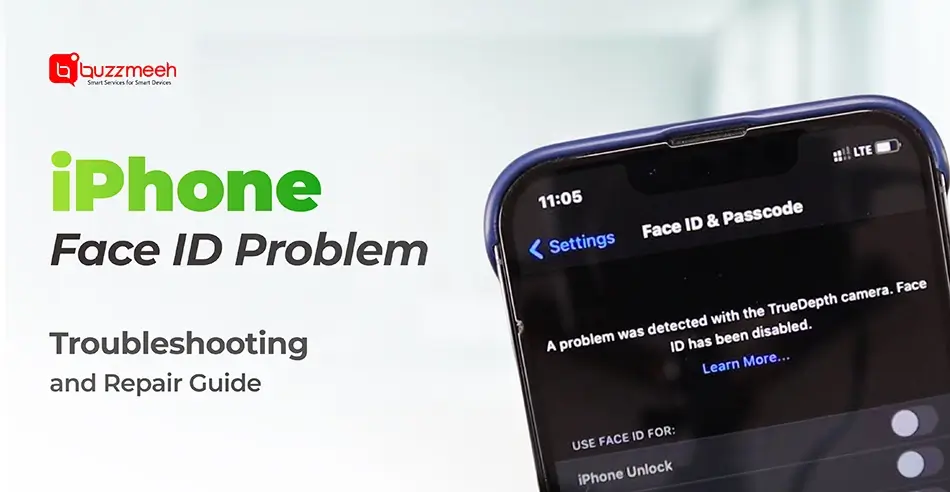
A: First, ensure the TrueDepth camera area is clean. Then, go to Settings → Face ID & Passcode and reset Face ID. If the problem persists, a hardware check may be needed because the update could have exposed a pre‑existing fault.
Q: Can I use any Lightning cable for charging?
A: While many third‑party cables work, only Apple‑certified (MFi) accessories guarantee proper power delivery and protect the device from voltage spikes. Using non‑certified cables can lead to slow charging or, in rare cases, port damage.