How to Install pfSense on Proxmox: A Complete Step‑by‑Step Guide
Setting up a dedicated firewall inside a virtual environment can feel like juggling cables you can’t see. Fortunately, pfSense runs smoothly on Proxmox, giving you the flexibility of a VM without sacrificing the robustness of a hardware‑based router. In this walkthrough we’ll take you from a blank Proxmox node to a fully functional pfSense instance, covering every configuration quirk you’re likely to meet along the way.
Why Run pfSense on Proxmox?
Proxmox VE already handles storage, clustering, and backup for a range of workloads, so adding a virtual firewall keeps everything under a single management umbrella. This arrangement reduces hardware sprawl, makes disaster recovery as simple as restoring a VM snapshot, and lets you experiment with network topologies without rewiring physical switches. While a bare‑metal pfSense appliance might edge out in raw throughput, most home and small‑office setups won’t notice the difference.
Prerequisites Before You Begin
- A running Proxmox VE host (version 7.x or newer is recommended).
- At least 2 GB of RAM and a single CPU core allocated to the pfSense VM.
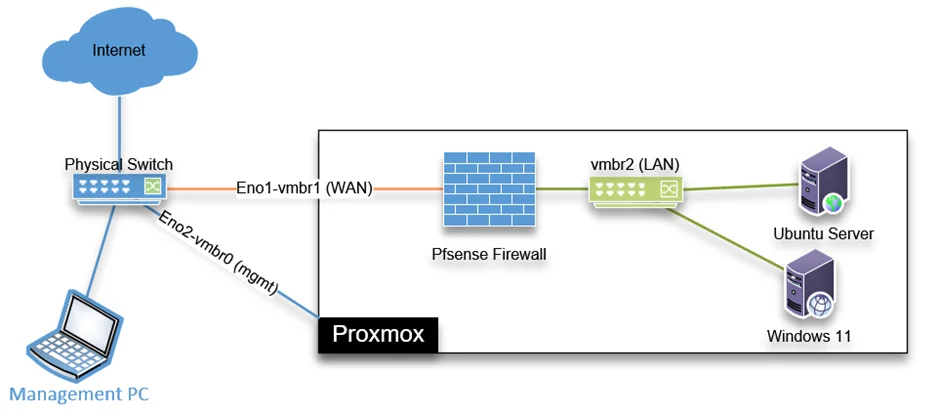
- Two virtual network interfaces: one for the WAN (external) side and one for the LAN (internal) side.
- The latest pfSense ISO image, which you can download from the official Netgate site.
- Basic familiarity with Proxmox’s web UI and the ability to access the console of a new VM.
Creating the pfSense Virtual Machine
Log in to the Proxmox web interface and hit “Create VM.” Give the VM a clear name—something like pfSense‑Router—so you can spot it among other guests. Set the OS type to “Other,” then under the “CD/DVD” tab, browse to the pfSense ISO you uploaded to the local storage pool.
When you reach the “System” step, leave the default BIOS (SeaBIOS) unless your hardware explicitly requires UEFI. For “Machine,” stick with the default “i440fx.” Next, allocate memory (2 GB is a comfortable minimum) and at least one CPU core. The real magic happens in the “Hard Disk” section: select “SCSI” as the bus type, choose a modest 8 GB “qcow2” disk, and enable “Discard” to let the VM release unused space.
Configuring Network Interfaces
Proxmox treats each virtual NIC as a “bridge.” You’ll need two bridges—commonly vmbr0 for WAN (connected to your physical NIC) and vmbr1 for LAN (isolated or linked to an internal switch). In the VM’s hardware view, add two “Network Device” entries, each attached to the appropriate bridge. Set the model to “virtio” for optimal performance; pfSense supports it natively and it reduces CPU overhead.
Don’t worry if the LAN bridge isn’t connected to a physical network yet. The pfSense web UI will let you reassign IP ranges later, and you can even create additional VLANs from within pfSense if your setup grows.
Installing pfSense Inside the VM
Boot the VM and you’ll be greeted by the pfSense installer’s text‑based menu. Choose the default “Install” option, accept the default keymap, and let the installer lay down the base system on the virtual disk. When prompted about the “Console setup,” select “No”—you’ll configure most settings through the web interface later.
After installation, the VM will reboot. You’ll see a couple of IP addresses on the console: one for the WAN interface (often 0.0.0.0 if no DHCP server is present) and one for the LAN (typically 192.168.1.1). Note the LAN address; you’ll need it to reach the pfSense GUI.
First‑time Setup in the pfSense Web GUI
From a computer attached to the same network as the LAN bridge, open a browser and navigate to https://192.168.1.1. The default credentials are “admin” / “pfsense.” The initial wizard walks you through the basics: assigning interfaces, setting a strong admin password, and choosing a timezone.
When the wizard asks you to assign the WAN and LAN ports, confirm that the virtual NICs line up with the bridges you created earlier. If the WAN side should obtain an address via DHCP, simply enable “DHCP” on that interface; otherwise, assign a static IP that matches your upstream router’s subnet.
After the wizard finishes, pfSense will restart the web service. You’ll then land on the dashboard, where you can add firewall rules, configure NAT, and enable optional packages like “Snort” or “Squid” with a few clicks.
Tips for Performance and Security
- Enable VirtIO Ballon: This lets Proxmox dynamically adjust RAM usage based on load, keeping your host responsive.
- Use a Dedicated SSD: Even a modest SSD dramatically cuts down boot times and speeds up package installations.
- Activate Proxmox’s Firewall: By blocking unwanted traffic to the VM’s management ports, you add an extra layer of protection.
- Take Regular Snapshots: Before making major changes (like adding new packages), snapshot the VM. Restoring is as simple as clicking “Rollback.”
- Limit Console Access: Disable the serial console in pfSense if you don’t need it; this reduces the attack surface.
Frequently Asked Questions
Can I run multiple pfSense instances on a single Proxmox host?
Yes. Proxmox supports multiple VMs, so you can spin up separate firewalls for different VLANs or test labs. Just be mindful of CPU and RAM constraints; each instance needs its own dedicated resources.
Do I need to enable VT‑x/AMD‑V in the BIOS?
Enabling hardware virtualization is highly recommended. It improves performance and ensures that Proxmox can allocate CPU cores efficiently to the pfSense VM.
What’s the best way to back up my pfSense configuration?
From the pfSense GUI, go to “Diagnostics → Backup & Restore.” Export the XML configuration file regularly and store it off‑site. You can also schedule Proxmox snapshots to capture the entire VM state.
Is it safe to expose the pfSense web GUI to the internet?
Generally, you should keep the GUI behind a trusted network. If remote access is required, use a VPN or enable two‑factor authentication and restrict access to specific IP addresses.