How to Log Out of Facebook Quickly (Steps & Fixes)
Whether you’re sharing memes on a shared device or just want to keep your newsfeed private, a clean logout from Facebook can save you a lot of hassle. The process is usually straightforward, but occasional glitches—like a stuck session or a stubborn app—can leave you feeling stuck. Below you’ll find the simplest steps to log out, plus troubleshooting tips for when the usual route doesn’t work.
Facebook Logout: Easy Steps
These instructions cover the most common platforms: the web browser, Android, and iOS. Follow the steps that match your device, and you’ll be out of your account in under a minute.
- Desktop or Laptop (Web Browser)
- Click the downward‑pointing arrow in the top‑right corner of the Facebook page.
- From the dropdown, select Log Out. The page will refresh, confirming you’re signed out.
- Android App
- Tap the three‑line menu (☰) at the bottom right.
- Scroll down and tap Log Out near the bottom of the list.
- Confirm the prompt if one appears.
- iPhone or iPad (iOS)
- Tap the three‑line menu (☰) in the lower right corner.
- Scroll to the bottom and tap Log Out.
- Hit Log Out again to confirm.
If you’re using Facebook’s newer “Meta” design, the menu icon may appear as a profile picture instead of the classic three lines—tap that, then look for the logout option near the bottom.
Troubleshooting Common Logout Issues
Sometimes the logout button seems to disappear, or the app simply refuses to close the session. Here are a few fixes that usually do the trick.
- Cache or Data Glitch – On mobile, go to Settings → Apps → Facebook → Storage, then tap Clear Cache. For Android, you can also choose Clear Data, but be aware this will sign you out of all accounts and reset preferences.
- App Not Updating – An outdated version may have a broken logout flow. Open the Google Play Store or Apple App Store, search for “Facebook,” and hit Update if a newer version is available.
- Multiple Accounts Logged In – If you’ve added several Facebook accounts to the same device, you might be logging out of the wrong one. Switch accounts first, then repeat the logout steps for the active profile.
- Browser Session Persistence – Some browsers keep you signed in even after you click “Log Out.” Close the tab, then clear cookies for facebook.com via the browser’s privacy settings, or open a private/incognito window to verify you’re truly signed out.
- Network Issues – A spotty connection can interrupt the logout request. Try toggling Wi‑Fi off and on, or switch to cellular data, then attempt to log out again.
Alternative Ways to Sign Out
If the standard route still won’t budge, these methods let you force a logout without digging into app settings.
- Use the Mobile Browser – Open any browser on your phone, go to facebook.com, tap the menu arrow, and select Log Out. This works even if the app itself is misbehaving.
- Remove the App’s Permissions – On Android, head to Settings → Accounts → Facebook and choose Remove Account. iOS users can go to Settings → Facebook and toggle the switch off, which forces a sign‑out.
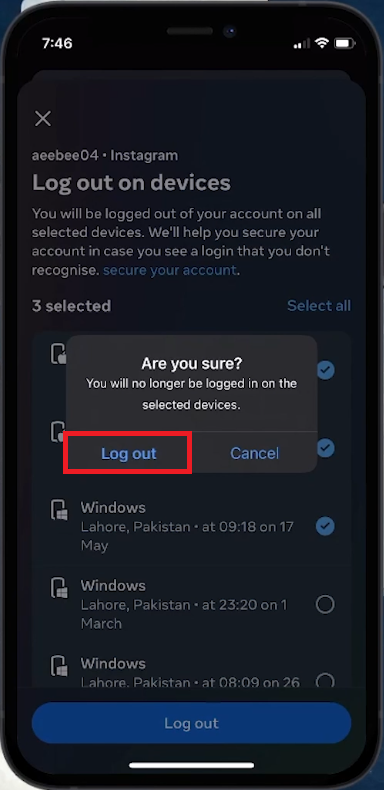
- Revoke Access via Security Settings – Log into Facebook on a computer, navigate to Settings → Security and Login → Where You’re Logged In, then click Log Out of All Sessions. This signs you out everywhere, including stubborn devices.
These alternatives are handy when you’re sharing a device with someone else or need to ensure no lingering session remains after a quick checkout.
When to Consider a Full Account Reset
Rarely, persistent login issues hint at a deeper problem, such as compromised credentials or corrupted app data. If you’ve tried clearing cache, updating the app, and revoking all sessions but still see yourself logged in, it may be time to change your password and review recent activity in the Security and Login section.
Changing your password forces every device to require re‑authentication, effectively resetting any stuck sessions. After you update the password, repeat the logout steps to confirm everything is clean.
FAQ
Q: I’m logged in on Facebook but can’t find the logout button—what gives?
A: The button may be hidden under a new profile‑picture menu. Tap your profile picture at the top right, scroll down, and you’ll see “Log Out” near the bottom.
Q: Does clearing cookies log me out of Facebook on all browsers?
A: Yes, removing Facebook cookies from a browser erases the session token, so the next time you visit the site you’ll be prompted to log in again.
Q: Can I stay logged out on a shared device without reinstalling the app?
A: Absolutely. Use “Log Out of All Sessions” from the Security and Login settings, then double‑check by opening a private browsing window.
Q: Why does Facebook keep signing me back in after I log out?
A: Some devices have auto‑login features that store your credentials. Disable “Saved Passwords” in your browser or the “Auto‑Fill” option in the Facebook app settings to stop the automatic sign‑in.