How to Master IP Clean Commands in Windows CMD
When a network connection feels sluggish or websites refuse to load, the first place many Windows users look is the Command Prompt. Running the right IP clean CMD commands can wipe out stale DNS entries, clear ARP tables, and reset adapters—all without rebooting. Below we’ll break down the most useful commands, explain when to use each, and share a few safety tips so you won’t accidentally unplug your own connection.
What “IP Clean” Really Means
“IP clean” isn’t a formal Microsoft term; it’s a shorthand for any command that refreshes or purges network‑related caches. These caches exist to speed up traffic, but they can become outdated after a router change, VPN toggle, or ISP outage. By clearing them, you force Windows to query fresh information, which often resolves connectivity hiccups.
Core Commands You Should Know
All of the following are entered directly into cmd.exe with administrator rights unless noted otherwise.
- ipconfig /flushdns – Erases the DNS resolver cache. Useful after moving to a new Wi‑Fi network or when a site’s IP has changed.
- netsh interface ip delete arpcache – Clears the ARP cache that maps IP addresses to MAC addresses on your local subnet.
- netsh winsock reset – Restores the Windows Socket (Winsock) catalog to its default state, often fixing stubborn socket errors.
- netsh int ip reset – Resets the TCP/IP stack, wiping out custom routing tables and re‑establishing default settings.
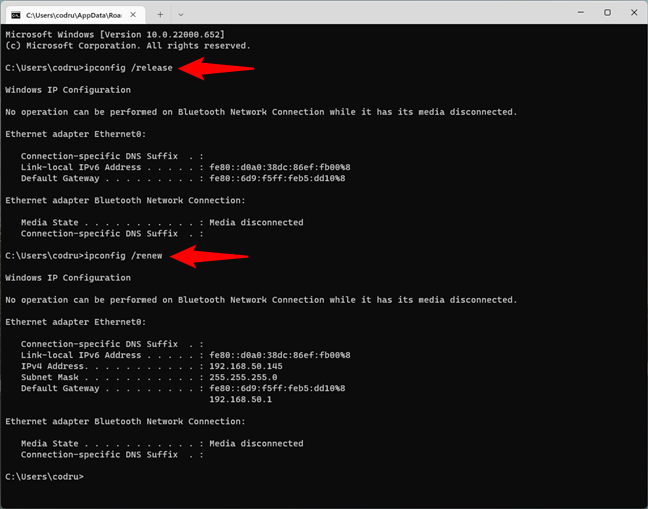
- ipconfig /release & ipconfig /renew – Forces your adapter to drop its current DHCP lease and request a new one.
When to Deploy Each Command
Not every issue calls for a full TCP/IP reset. Here’s a quick guide:
- If a single website refuses to load after a DNS change, start with
ipconfig /flushdns. - For problems that seem limited to local devices—like a printer disappearing—try
netsh interface ip delete arpcache. - When you encounter “socket not connected” errors in browsers or games, the Winsock reset is often the cure.
- Persistent “no internet” messages after multiple router reboots usually benefit from
netsh int ip reset.
Running Commands Safely
Most IP clean commands are harmless, but a few reset settings that other software might rely on. Follow these best practices:
- Open CMD with Run as administrator. Without elevated rights, commands like
netsh winsock resetwill fail silently. - Document any custom static routes before a full TCP/IP reset. You can list them with
route printand restore them later if needed. - After using
netsh int ip resetornetsh winsock reset, restart your computer. The changes take full effect only after a reboot.
Automating Routine Clean‑ups
If you frequently hop between VPNs or travel to new networks, typing each command can become a chore. A simple batch file can string the most common steps together:
@echo offecho Flushing DNS cache...
ipconfig /flushdns
echo Deleting ARP cache...
netsh interface ip delete arpcache
echo Resetting Winsock...
netsh winsock reset
echo Restarting network adapter...
netsh int ip reset
echo All done. Please restart your PC.
pause
Save this as CleanIP.bat, right‑click, and choose “Run as administrator” whenever you suspect a stale network state.
Common Pitfalls and How to Avoid Them
Even seasoned users can stumble:
- Forgot to run as admin: The command executes, but Windows returns “Access is denied.” Always verify the elevated prompt.
- Over‑resetting: A full TCP/IP reset clears custom DNS servers you may have manually entered. Keep a note of those settings before you run the command.
- Network adapter disabled: If
ipconfig /releasereturns “Media disconnected,” ensure the adapter is enabled in the Network Connections control panel.
Testing After a Clean
Once you’ve run the desired commands, a quick sanity check helps confirm success. Open a new Command Prompt and type ping 8.8.8.8 to test raw connectivity, then nslookup example.com to verify DNS resolution. If both respond, you’ve likely cleared the issue.
FAQ
Q: Do I need to clear both DNS and ARP caches?
A: Not always. DNS flushing fixes domain‑name problems, while ARP clearing addresses local‑network mapping errors. Use the one that matches the symptom.
Q: Will a Winsock reset affect my internet speed?
A: It doesn’t directly change speed, but it can eliminate hidden socket glitches that make connections appear slow.
Q: Can I run these commands remotely on another PC?
A: Yes, using tools like PsExec or PowerShell remoting, but you still need administrative rights on the target machine.
Q: How often should I clean my IP settings?
A: There’s no set schedule—run a clean whenever you notice connectivity oddities, after a VPN switch, or after major router firmware updates.