How to Optimize System Performance: A Complete Guide
Why Optimizing System Performance Matters
Every computer, whether a desktop workstation or a cloud‑hosted server, has limits. When those limits are reached, applications lag, users get frustrated, and maintenance costs rise. Optimizing system performance isn’t just about squeezing out a few extra frames per second; it’s about creating a stable, responsive environment that can handle today’s workloads and tomorrow’s surprises.
Start with the Basics: Clean Up and Update
Before diving into deep‑dive tweaks, clear out the obvious clutter. Uninstall programs you no longer use, delete temporary files, and run a reputable anti‑malware scan. Next, ensure your operating system, drivers, and firmware are up to date. Manufacturers regularly release patches that fix memory leaks, improve scheduler efficiency, and tighten security—benefits that translate directly into smoother performance.
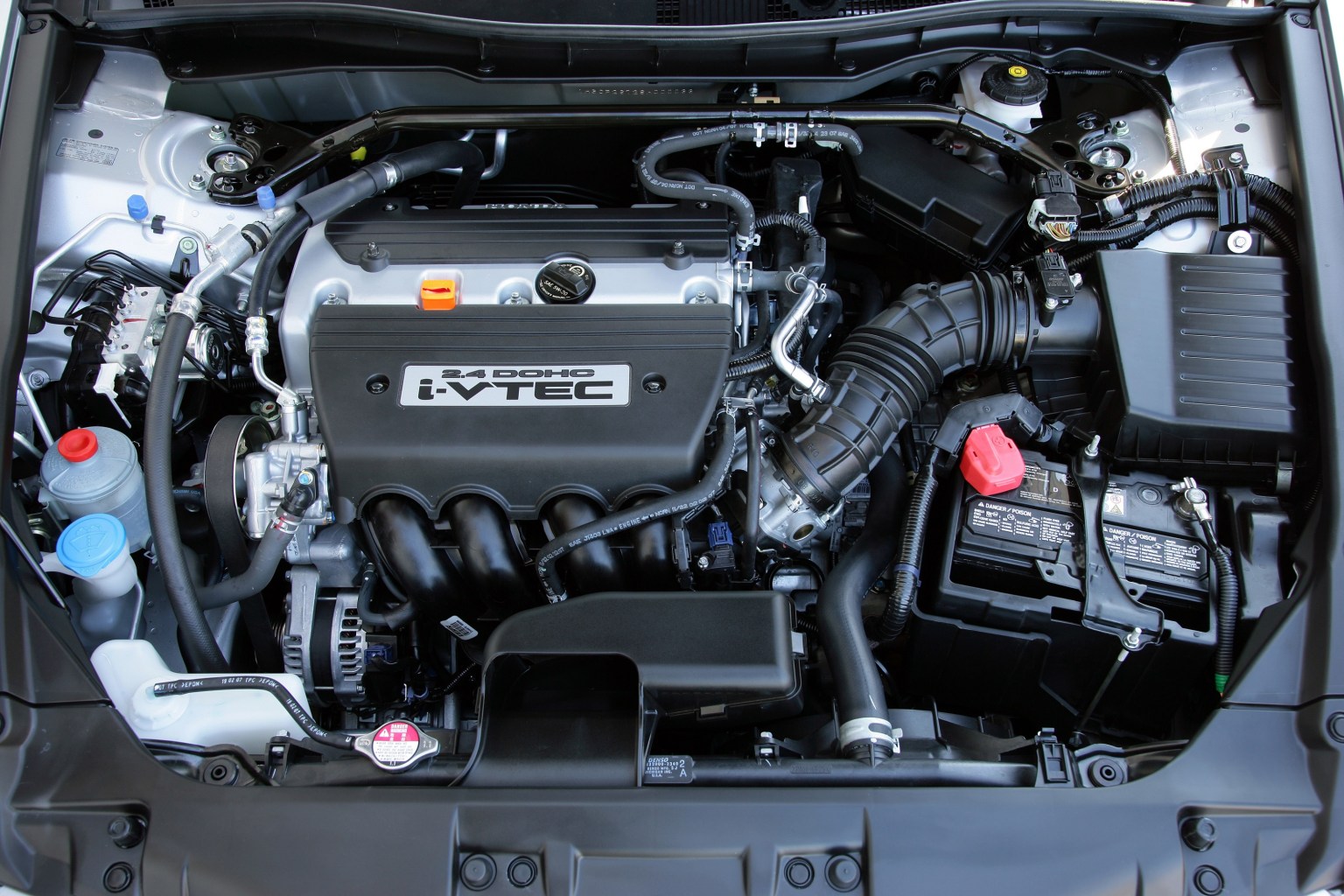
Hardware Checks: Is Your Engine Still Running?
Even the best‑tuned software can’t compensate for a failing hard drive or insufficient RAM. Use built‑in diagnostic tools (like Windows Memory Diagnostic or macOS Disk Utility) to spot hardware anomalies early. If you notice frequent disk thrashing, consider upgrading from a spinning HDD to an SSD; the difference in read/write latency is often dramatic. Likewise, adding more RAM can reduce paging and keep active applications in fast-access memory.
Fine‑Tuning the Operating System
Modern OSes come packed with background services that, while useful, may consume resources unnecessarily. Disable startup items you don’t need—Task Manager on Windows or Login Items on macOS makes this straightforward. On Linux, review systemd services and stop any that aren’t essential to your workload.
Another lever is power management. Switch from “Power Saver” to “Balanced” or “High Performance” when you need every ounce of speed. On laptops, be mindful of thermal throttling: excessive heat can force the CPU to downclock, eroding performance despite the best software settings.
Optimize Storage Access
File fragmentation, especially on older mechanical drives, can cause noticeable slowdowns. Defragmentation tools reorganize data so the read head travels less distance. For SSDs, enable TRIM (usually on by default) to maintain write performance over time.
Beyond the physical layer, consider logical organization. Store active project files on the fastest drive available, and archive older data to slower, high‑capacity storage. This reduces I/O contention when multiple applications vie for disk access.
Memory Management Strategies
When RAM fills up, operating systems resort to paging or swapping, moving data to disk—a costly operation. Monitor memory usage with tools like Resource Monitor (Windows) or Activity Monitor (macOS). If you consistently see high memory pressure, it may be time to add more RAM or close memory‑hungry background apps.
Some applications allow you to limit their memory footprint directly in settings. For example, Java‑based programs often support a -Xmx flag to cap maximum heap size, preventing them from monopolizing system memory.
CPU Performance Tweaks
Most CPUs today support dynamic frequency scaling: the core speed adjusts based on load. Enabling “Turbo Boost” (or the equivalent on AMD chips) can give a brief performance boost for demanding tasks. However, if you notice the CPU staying at high utilization for extended periods, investigate running processes—one rogue program can hog cycles.
On Windows, the “Processor Affinity” setting lets you assign specific cores to an application, which can be useful for real‑time audio or video processing where you want a dedicated CPU slice. Linux offers taskset for similar control.
Network Considerations
A sluggish network can masquerade as a system performance problem, especially for cloud‑based apps. Verify that your Ethernet cable or Wi‑Fi signal meets the speed specifications of your router. For critical workloads, consider a wired connection to eliminate wireless latency and interference.
On the software side, limit background bandwidth usage. Many operating systems let you set “metered” connections, which throttles automatic updates and cloud sync services when you’re on a limited network.
Monitoring and Ongoing Maintenance
Performance isn’t a set‑and‑forget scenario. Regularly review key metrics: CPU load, memory usage, disk I/O, and network throughput. Tools like Windows Performance Monitor, macOS Console, or open‑source solutions such as Grafana combined with Prometheus can provide real‑time insight and historical trends.
Set alerts for thresholds that indicate trouble—e.g., disk usage above 85 % or CPU temperature exceeding safe limits. Proactive response to these warnings can prevent crashes and extend hardware lifespan.
When to Seek Professional Help
If you’ve exhausted the steps above and performance is still unacceptable, it may be time to consult a specialist. Persistent kernel panics, unexplained reboots, or hardware diagnostics that return ambiguous results often require deeper expertise. A professional can perform stress tests, firmware re‑flashing, or component replacements safely.
FAQ
- What’s the biggest single factor that slows down a PC? Typically, it’s insufficient RAM combined with a traditional hard drive. Upgrading to more memory and an SSD often yields the most noticeable speed boost.
- Can I safely overclock my CPU to improve performance? Overclocking can increase speed but also raises heat output and power consumption. If you have adequate cooling and understand the risks, modest overclocking may be worthwhile; otherwise, stick to manufacturer defaults.
- How often should I clean my system’s internals? Dust accumulation can impede airflow, leading to thermal throttling. A visual inspection and gentle cleaning every six months is a good rule of thumb.
- Is disabling visual effects on Windows worth it? Turning off animations, shadows, and transparency can free a small amount of GPU and CPU cycles, which adds up on older machines. On modern hardware, the impact is minimal, but it’s a quick win if you need every millisecond.