How to Resolve Google and Safari Problems on Your iPhone
Why the Browsers Might Misbehave
Google and Safari issues on your iPhone can feel random—pages load forever, searches return blanks, or the apps crash outright. Often the culprit isn’t a broken website but something happening inside iOS itself. Understanding the typical triggers helps you avoid repeating the same steps later.
General Checks Before Diving Deeper
- Update iOS. Apple’s patches routinely fix networking bugs that affect both browsers.
- Restart the device. A quick power‑cycle clears temporary caches that may be causing glitches.
- Verify Wi‑Fi or cellular connection. Weak signals or mis‑configured DNS settings often masquerade as browser problems.
- Check date and time. An incorrect clock can break SSL certificates, leading to endless loading screens.
Troubleshooting Google (Chrome) Issues
Clear Cache and Site Data
Open Chrome, tap the three‑dot menu, choose Settings → Privacy → Clear Browsing Data. Select “Cached Images and Files” and “Cookies, Site Data,” then confirm. This removes stale files that may be corrupting page loads.
Reinstall the App
If clearing the cache doesn’t help, uninstall Chrome by holding its icon and selecting Remove App. After a brief pause, head to the App Store, download the latest version, and sign back in. A fresh install replaces any damaged binaries without affecting your Google account data.
Check Permissions and Background Refresh
Navigate to Settings → Chrome. Ensure that Location, Cellular Data, and Background App Refresh are enabled if you rely on those features. Disabled permissions can prevent pages from loading or geolocation‑based searches from completing.
Adjust DNS Settings
Sometimes the default DNS servers provided by your ISP struggle with certain sites. Go to Settings → Wi‑Fi, tap the info icon next to your network, scroll to Configure DNS, and switch to “Manual.” Adding Google’s 8.8.8.8 and 8.8.4.4 or Cloudflare’s 1.1.1.1 often restores speed.
Safari-Specific Fixes
Clear History and Website Data
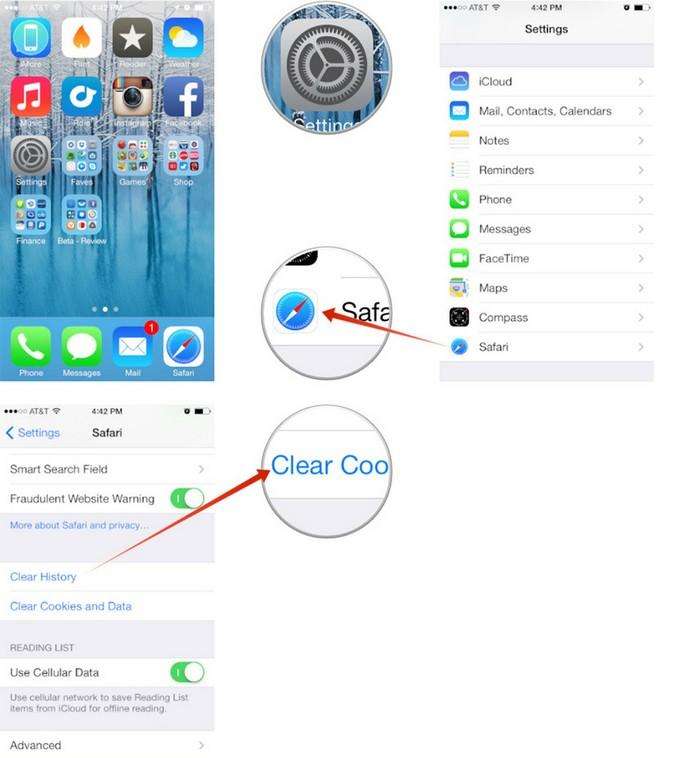
Open Settings → Safari → Clear History and Website Data. This wipes out old cookies and cached scripts that can cause pages to hang, especially after iOS updates.
Disable Content Blockers and Extensions
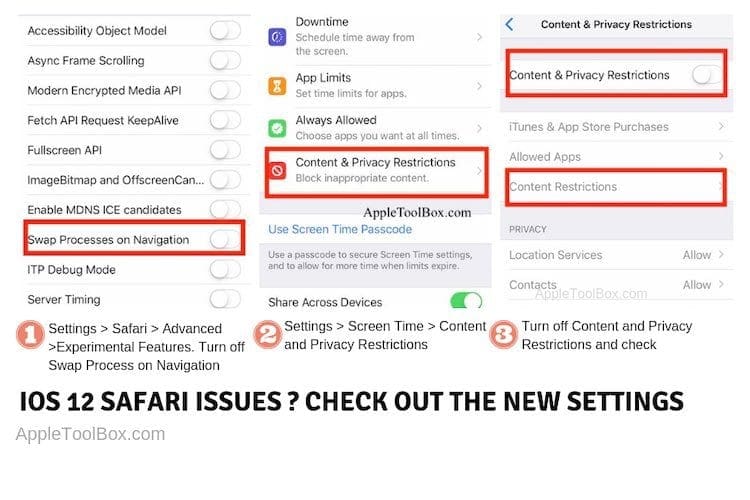
If you use third‑party content blockers, they might be incompatible with the newest Safari engine. Turn them off temporarily under Settings → Safari → Content Blockers. Should the issue disappear, consider updating or replacing the blocker.
Reset Experimental Features
Safari includes hidden “Experimental Features” for developers. Accidentally toggling one can break rendering. Open Settings → Safari → Advanced → Experimental Features and tap “Reset All to Default.”
Turn Off Private Browsing Mode
While convenient, Private Browsing disables certain caching mechanisms. If you notice frequent timeouts, exit Private mode by tapping the tabs button and selecting “Private” again to return to normal browsing.
When to Consider a Full Restore
If both browsers continue misbehaving after the above steps, the problem might lie deeper in the system. Back up your iPhone via iCloud or iTunes, then go to Settings → General → Transfer or Reset iPhone → Erase All Content and Settings. After the reset, restore from your backup and test the browsers before reinstalling any third‑party tweaks.
Quick FAQ
- Why does Safari keep crashing after an iOS update? New system files can clash with outdated website data or third‑party extensions. Clearing history, disabling extensions, and resetting experimental features usually resolves the conflict.
- Can I use Chrome without a Google account? Yes. Chrome works as a standalone browser, but signing in syncs bookmarks, passwords, and open tabs across devices.
- Is it safe to change my DNS to Google’s servers? Generally, yes—Google’s DNS is widely trusted and improves resolution speed. If privacy is a concern, Cloudflare’s 1.1.1.1 offers a similar performance boost with a stronger privacy policy.
- Do I need to reset network settings for every browser issue? Not every time. Resetting network settings (Settings → General → Reset → Reset Network Settings) is a last‑ditch effort when DNS tweaks and Wi‑Fi toggles fail.