How to Resolve HDMI Connection Issues Between Laptop and TV
If you’ve ever tried to stream a movie from your laptop to the living‑room TV only to see a black screen or garbled picture, you’re not alone. HDMI connection issues between a laptop and TV can stem from a surprisingly wide range of simple oversights to more stubborn driver problems. Below is a step‑by‑step guide that walks you through the most common culprits and how to fix them without calling tech support.
Check the Basics: Cables and Ports
Before diving into software settings, make sure the hardware chain is solid. A loose or damaged cable is the single most frequent cause of a failed link.
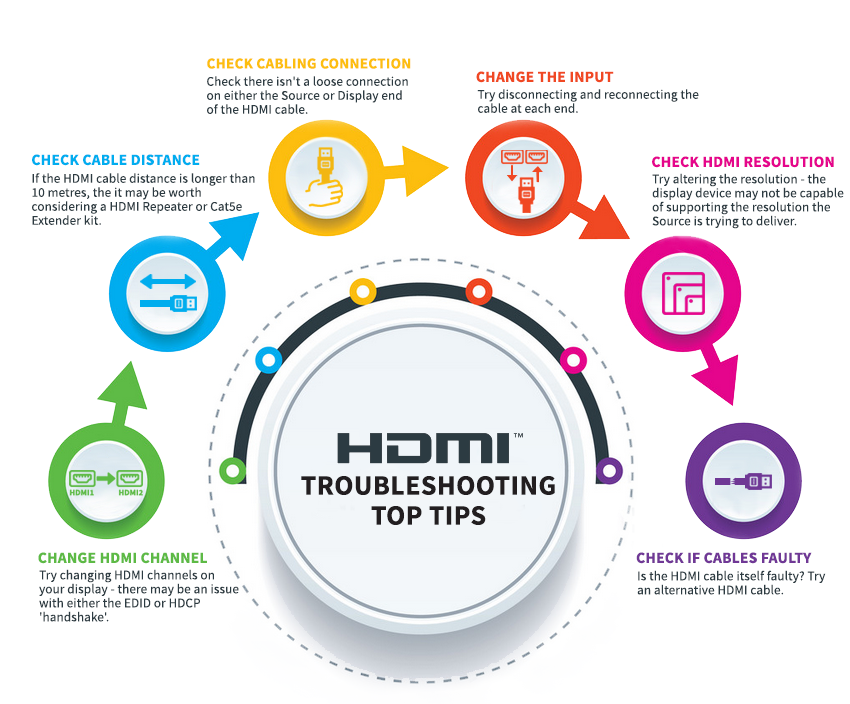
- Inspect the HDMI cable. Look for bent pins, frayed sheathing, or obvious kinks. If the cable is older than a year, try swapping it for a known‑good one.
- Secure the connections. Push the plug firmly into both the laptop’s HDMI port and the TV’s HDMI input. Some laptops have a tiny latch that must click into place.
- Test a different HDMI port on the TV. Many televisions label ports “HDMI 1,” “HDMI 2,” etc.; not all of them support the same features (e.g., ARC or 4K).
- Power cycle both devices. Unplug the TV and laptop for a minute, then plug them back in. This can clear temporary handshaking glitches.
Verify Display Settings on Your Laptop
Even with a perfect cable, the laptop might be sending the signal to the wrong output or using an unsupported resolution.
- Windows: Press Win + P and select “Duplicate” or “Extend.” If “Second screen only” is chosen, the TV will display while the laptop screen stays dark.
- macOS: Open System Settings → Displays and click “Detect Displays.” Use the “Scaled” dropdown to pick a resolution that the TV can handle (usually 1080p or 2160p).
- Check the refresh rate. A mismatch—say, 60 Hz from the laptop versus 30 Hz on the TV—can cause a blank screen.
- If the TV shows “No Signal,” try toggling the input source on the TV remote a few times.
Update or Roll Back Graphics Drivers
Outdated or corrupted graphics drivers are a hidden trap for many users. The driver acts as the translator between the laptop’s GPU and the HDMI output, so an error here can manifest as a blank screen, flickering, or distorted colors.
- Visit the official website of your GPU manufacturer (NVIDIA, AMD, or Intel) and download the latest driver for your laptop model.
- If the problem started after a recent driver update, roll back to the previous version via the Device Manager (Windows) or the “Additional Drivers” pane (macOS).
- For Windows, use the “Clean Install” option during the driver setup to wipe remnants of older files.
Adjust TV Input Settings and Compatibility Modes
Modern TVs offer a menu of HDMI “modes” that control color space, HDR, and bandwidth. Selecting the wrong mode can make the laptop’s output appear black or overly dark.
- Set the HDMI input to “PC” or “Game” mode if your TV offers those options. These modes prioritize low latency and accurate color reproduction.
- Disable “HDMI‑CEC” temporarily; some TVs try to control the laptop’s power state, causing the signal to drop.
- If the TV supports “HDMI 2.0” or “HDMI 2.1,” ensure the laptop’s output matches that standard—especially important for 4K content.
Audio Troubleshooting Tips
Even when the picture works, the sound may remain stubbornly silent because the audio output defaults to the laptop’s speakers.
- On Windows, right‑click the speaker icon, choose “Open Sound settings,” and set the TV as the default output device.
- On macOS, go to System Settings → Sound → Output and select the TV from the list.
- If you hear no audio but see a picture, check the TV’s mute status and volume level, then verify that the HDMI cable is rated for audio (most modern cables are).
When All Else Fails: Advanced Options
If the straightforward fixes haven’t restored the link, it’s time to explore a few less obvious avenues.
- Use a different video output. Many laptops include a USB‑C port that supports DisplayPort‑over‑USB‑C. A USB‑C‑to‑HDMI adapter can bypass a faulty built‑in HDMI port.
- Reset the TV to factory defaults. A corrupted TV firmware setting can block external devices; a reset restores the original HDMI handshake behavior.
- Check for firmware updates. Both laptops and TVs occasionally release patches that address HDMI compatibility issues.
- Disable fast startup (Windows). The quick‑boot feature can skip proper hardware initialization, causing the HDMI handshake to fail on the first boot.
Frequently Asked Questions
Why does my laptop show “HDMI no signal” but the TV says it’s connected?
Usually this indicates a mismatch in resolution or refresh rate. Lower the laptop’s output to 1080p @ 60 Hz and re‑detect the display.
Can a faulty graphics card cause HDMI issues?
Yes. If the GPU is failing, the HDMI port may intermittently lose signal or output a corrupted picture. Testing the laptop with an external monitor via a different port can confirm this.
Do I need a special HDMI cable for 4K content?
For 4K @ 60 Hz with HDR, you’ll need an HDMI 2.0 (or newer) cable rated at “High Speed” or “Premium High Speed.” Older “Standard” cables may only support 1080p.
Is it normal for the TV to flicker when I first connect the laptop?
A brief flicker often happens as the TV and laptop negotiate the best video mode. If the flicker persists, double‑check the HDMI mode settings on the TV.