How to Run a Minecraft LAN Server Using Radmin VPN
If you and a friend are miles apart but want the feel of a local multiplayer game, a Minecraft LAN server powered by Radmin VPN is a quick fix. The combination lets you treat a remote network as if it were on the same switch, making the game feel instant and lag‑free.
Setting Up Your Minecraft LAN Server With Radmin VPN
Before you dive into the code, keep in mind that both computers need the same version of Minecraft and Radmin VPN installed. Once those prerequisites are sorted, follow these steps:
- Launch Radmin VPN on both PCs and create a shared account.
- Use the same login credentials on each machine; the software will automatically create a virtual network.
- Open Minecraft on the host machine, start or join a world, then hit Open to LAN in the pause menu.
- Choose the game mode and difficulty you prefer; the default “Allow Cheats” setting is handy for testing.
- Once the server appears, note the port number displayed at the bottom.
- On the client side, open Minecraft and select Multiplayer → Add Server.
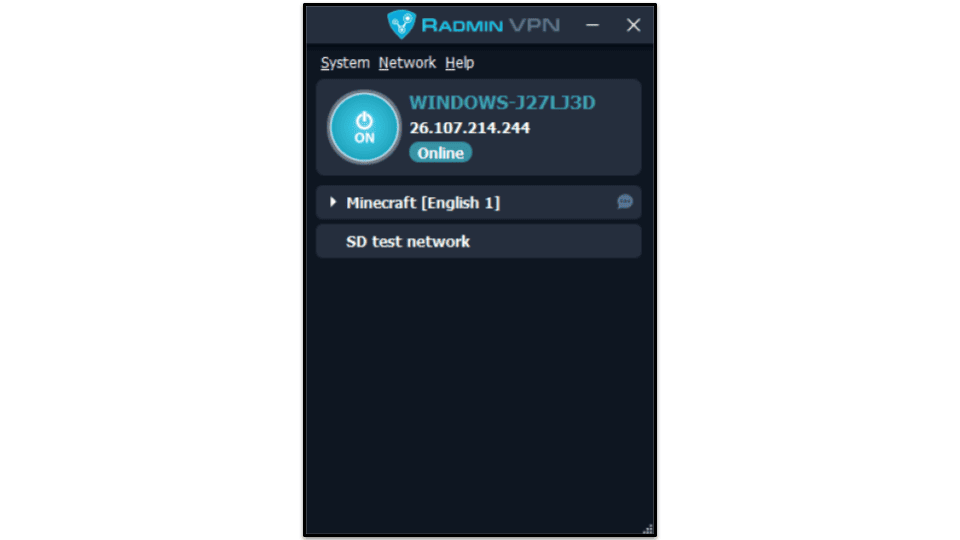
- Enter the host’s IP address (visible in Radmin VPN’s list) followed by the port, e.g., 192.168.10.1:25565.
- Click Done and hit Join Server. If all goes right, you’re in.
Because Radmin VPN bridges the gap between local and remote, the game treats the two computers as if they were on the same LAN. Latency drops dramatically, and you can share worlds without complicated port‑forwarding setups.
Why Radmin VPN Beats Traditional Port Forwarding
Port forwarding on your router can be a headache: you must open specific ports, secure your firewall, and ensure your ISP hasn’t blocked them. Radmin VPN sidesteps those headaches by creating a secure, encrypted tunnel. The result? No configuration on your router, no exposure to the wider internet, and a stable connection that feels local.
Troubleshooting Common Issues
- IP Address Mismatch – Double‑check that you’re using the correct IP shown in the Radmin VPN window; it often looks like 192.168.10.x.
- Firewall Blocking – Even though the VPN handles traffic, Windows Firewall can still block Minecraft. Add an exception for MinecraftLauncher.exe and javaw.exe.
- Server Not Visible – If the host’s LAN server doesn’t show up, confirm that the Open to LAN option is still active and that no other game instance is using the same port.
- High Ping After a While – Radmin VPN can lose packets if the underlying Internet connection is unstable. Switch to a wired connection or try a different VPN server location if lag recurs.
- Version Mismatch – Both sides must run the same Minecraft version. The “Open to LAN” feature only works if the game files are identical.
Advanced Tips for Larger Groups
Once you’re comfortable with two players, you can expand the network by adding more friends. Each new player simply logs into Radmin VPN with the same credentials. The host can open the LAN server to the public, and any client can join using the same IP and port. If you anticipate dozens of players, consider allocating a dedicated port (e.g., 25570) to avoid conflicts.
For persistent worlds, run the host machine as a dedicated server. Install minecraft_server.jar and launch it with a command like java -Xmx2G -Xms1G -jar minecraft_server.jar nogui. Then point Radmin VPN to the server’s IP and expose the chosen port. Players can join directly without having to open a world first.
Security Considerations
Radmin VPN encrypts traffic, but the server remains as secure as the host machine. Keep your operating system and Minecraft updated, and avoid sharing the VPN credentials with strangers. For extra safety, create a unique Radmin VPN account solely for gaming sessions.
Alternative VPN Solutions
While Radmin VPN is a popular choice, other services like Hamachi or ZeroTier also enable LAN-like multiplayer. Each has its own learning curve, but the core idea remains: create a virtual local network that Minecraft can see.
FAQ
- Can I use Radmin VPN with Minecraft Bedrock Edition? Bedrock relies on Xbox Live, so the VPN trick doesn’t apply directly. Stick with Java Edition for LAN‑style multiplayer over VPN.
- Is Radmin VPN free? Yes, there is a free tier with unlimited connections, but a paid plan unlocks advanced features like VPN bandwidth limits and server status monitoring.
- Do I need to open ports in my router? No. Radmin VPN bypasses the router entirely by establishing an encrypted tunnel between the two machines.
- What happens if my internet connection drops? The VPN will disconnect, and the Minecraft session will end. Re‑establish the VPN connection first, then reconnect to the server.


/i.s3.glbimg.com/v1/AUTH_08fbf48bc0524877943fe86e43087e7a/internal_photos/bs/2025/4/M/h2tjdeQZGEMxnTW9iyqA/radmin-vpn.png)



.jpg)