How to Scan QR Codes From Photos on Your iPhone
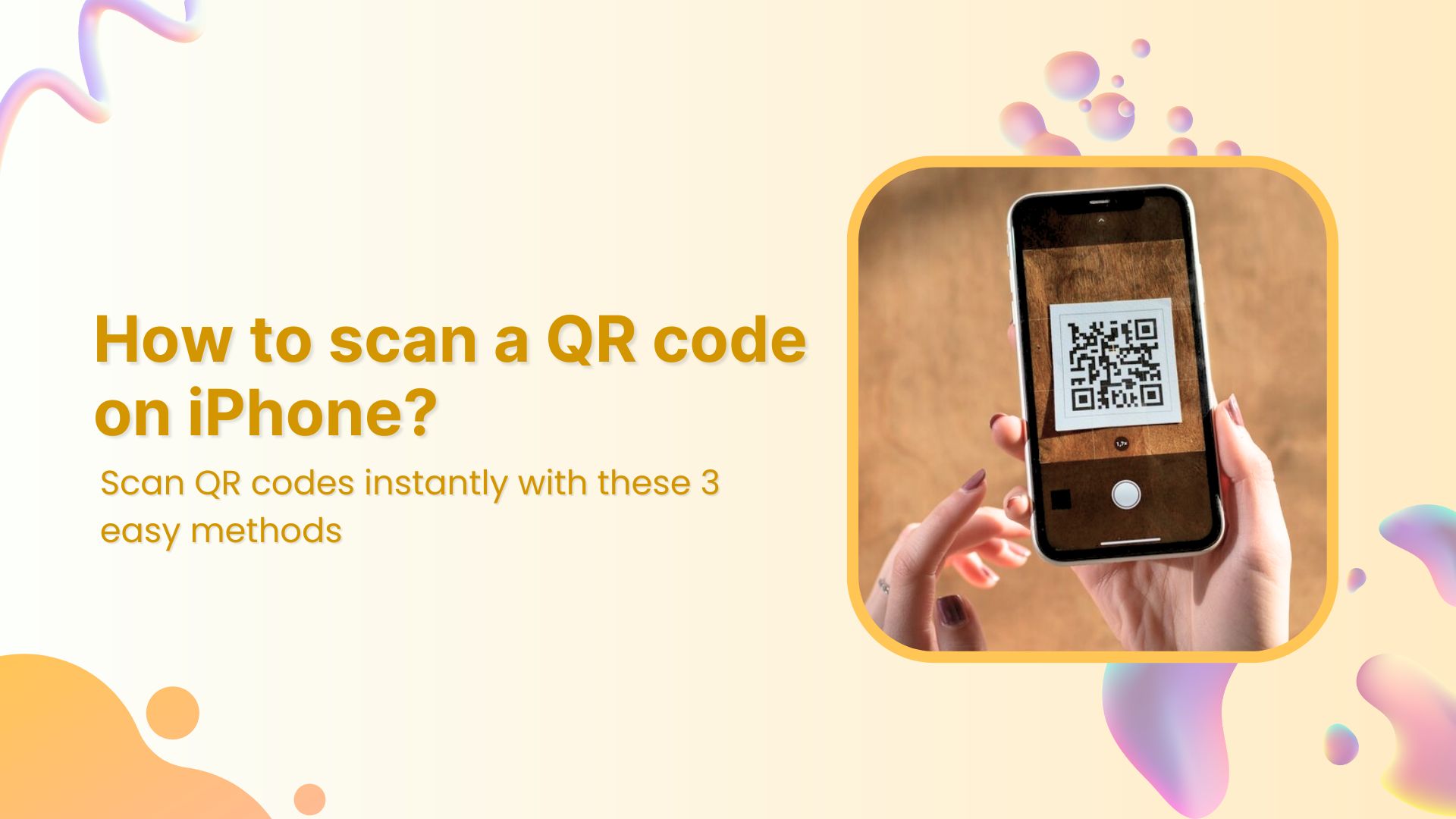
If you’ve ever saved a QR code as a screenshot or received it as an image attachment, you know the frustration of not being able to tap it directly. Fortunately, iPhone users have a few reliable ways to scan QR codes from pictures without needing a separate scanner app. Below we’ll walk through the built‑in methods, recommend a couple of third‑party tools, and share tips for getting a clean read every time you need to scan QR codes from pictures on your iPhone.
Why Scan a QR Code From a Photo?
QR codes aren’t limited to printed flyers; they often appear in emails, chat screenshots, or saved web images. Being able to decode them from a saved picture means you can quickly join a Wi‑Fi network, open a link, or add a contact without hunting down the original source. It also helps when the code is part of a receipt or ticket you’ve already archived.
Built‑In Options in iOS
Apple quietly added QR‑code support to the Camera app years ago, but the native scanner only works on live views. For pictures, you’ll need to rely on the Photos app’s “Live Text” feature (iOS 15 and later). When you open an image containing a QR code, iOS will automatically recognize the code and display a notification at the bottom of the screen.
- Open the photo in the Photos app.
- Tap the “Live Text” button that appears in the top‑right corner, or simply press and hold on the QR code.
- Select “Open” from the pop‑up to follow the link or perform the associated action.
If the QR code isn’t recognized, try zooming in a bit; the algorithm sometimes needs a larger portion of the code to be clearly visible.
Third‑Party Apps That Do the Job
When the built‑in scanner falls short—especially with low‑resolution images—several free apps step in. QR Code Reader – QR Scanner** and Quick Scan – QR Code Reader** both let you import a picture from your library and decode it instantly. These apps tend to have more robust error‑correction handling, meaning they can read codes that are partially obscured or printed on glossy surfaces.
Most of these tools follow the same simple workflow: choose “From Photo,” select the image, and let the app process it. They usually display the decoded content alongside options to copy, share, or open it directly.
Step‑by‑Step Guide Using the Photos App
Here’s a quick, no‑download method that works on any iPhone running iOS 15 or newer:
- Locate the image containing the QR code in Photos.
- Tap the image to view it full‑screen, then press and hold on the QR code.
- If iOS detects the code, a yellow “Open” button will appear near the bottom.
- Tap “Open” and the system will launch the associated URL or action.
Should the yellow banner not show up, try the “Live Text” icon (a rectangle with lines) in the top‑right corner. This forces iOS to run its text‑recognition engine, which includes QR‑code detection.
Using Shortcuts for Power Users
If you prefer a one‑tap solution, the Shortcuts app can automate the process. Create a new shortcut with these actions:
- “Select Photo” – lets you pick an image from your library.
- “Run JavaScript on Web Page” – uses a tiny script to extract QR data.
- “Open URLs” – launches the link directly.
Save the shortcut to your home screen, and you’ll have a custom QR‑scanner that works entirely offline.
Tips for Clear Scans and Common Pitfalls
Even the best scanners can stumble on fuzzy or distorted codes. Keep these pointers in mind:
- Good lighting matters. Natural light reduces glare, especially on glossy screens.
- Zoom in until the QR code fills most of the frame, but avoid digital zoom that pixelates the image.
- If the code is partially covered, rotate the photo; sometimes a slight angle helps the algorithm isolate the pattern.
- For screenshots, make sure the QR code isn’t compressed too heavily—send the original file if possible.
When all else fails, ask the sender for a fresh image or a plain‑text version of the link. It’s quicker than wrestling with a stubborn scan.
When to Choose a Dedicated App Over Native Tools
Native tools are convenient, but they aren’t omnipotent. Dedicated apps shine when you need batch processing—scanning multiple QR codes from a photo album at once—or when dealing with older iOS versions that lack Live Text. They also often include history logs, so you can revisit previously scanned codes without reopening the images.
FAQ
Can I scan a QR code without an internet connection?
Yes. The iPhone’s native scanner and most third‑party apps decode the pattern locally. However, if the QR code links to an online resource, you’ll need a connection to actually open the destination.
Do QR‑code scanners read hidden data like passwords?
Only if the QR code intentionally contains that data. Scanners treat the code as plain text; they won’t magically reveal encrypted or password‑protected information unless it’s explicitly encoded.
What if the QR code is blurry or partially cut off?
Blurry codes often fail because error‑correction can’t compensate for missing pixels. Try enhancing the image—adjust brightness, contrast, or crop out unnecessary borders—before scanning again. If the code is severely damaged, you may need to request a cleaner version.