How to Secure Excel Macros on a Mac: A Simple Guide
Why Macro Security Matters on macOS
Excel macros are powerful snippets of VBA code that can automate repetitive tasks, but that power also makes them a common vector for malware. On a Mac, the operating system’s sandboxing adds a layer of protection, yet a rogue macro can still access files, modify data, or launch external programs. Understanding the security model built into Excel for macOS helps you keep your spreadsheets safe without sacrificing the convenience of automation.
Default Macro Settings in Excel for Mac
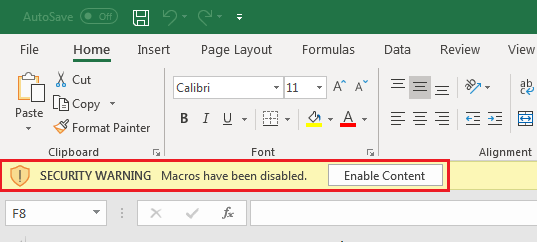
When you first install Microsoft Office on a Mac, Excel’s macro security is set to “Disable all macros with notification.” This means macros won’t run automatically, but you’ll see a yellow warning bar whenever a workbook contains VBA code. The default strikes a balance: you stay protected unless you explicitly trust a file.
If you open a macro‑enabled workbook (*.xlsm) for the first time, the warning bar offers three actions: Enable Content, Disable Content, or Open in Protected View. Choosing “Enable Content” tells Excel that you trust the source, and the macros will run for that session.
Changing Macro Security Levels
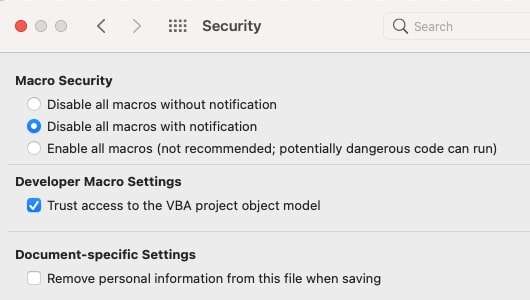
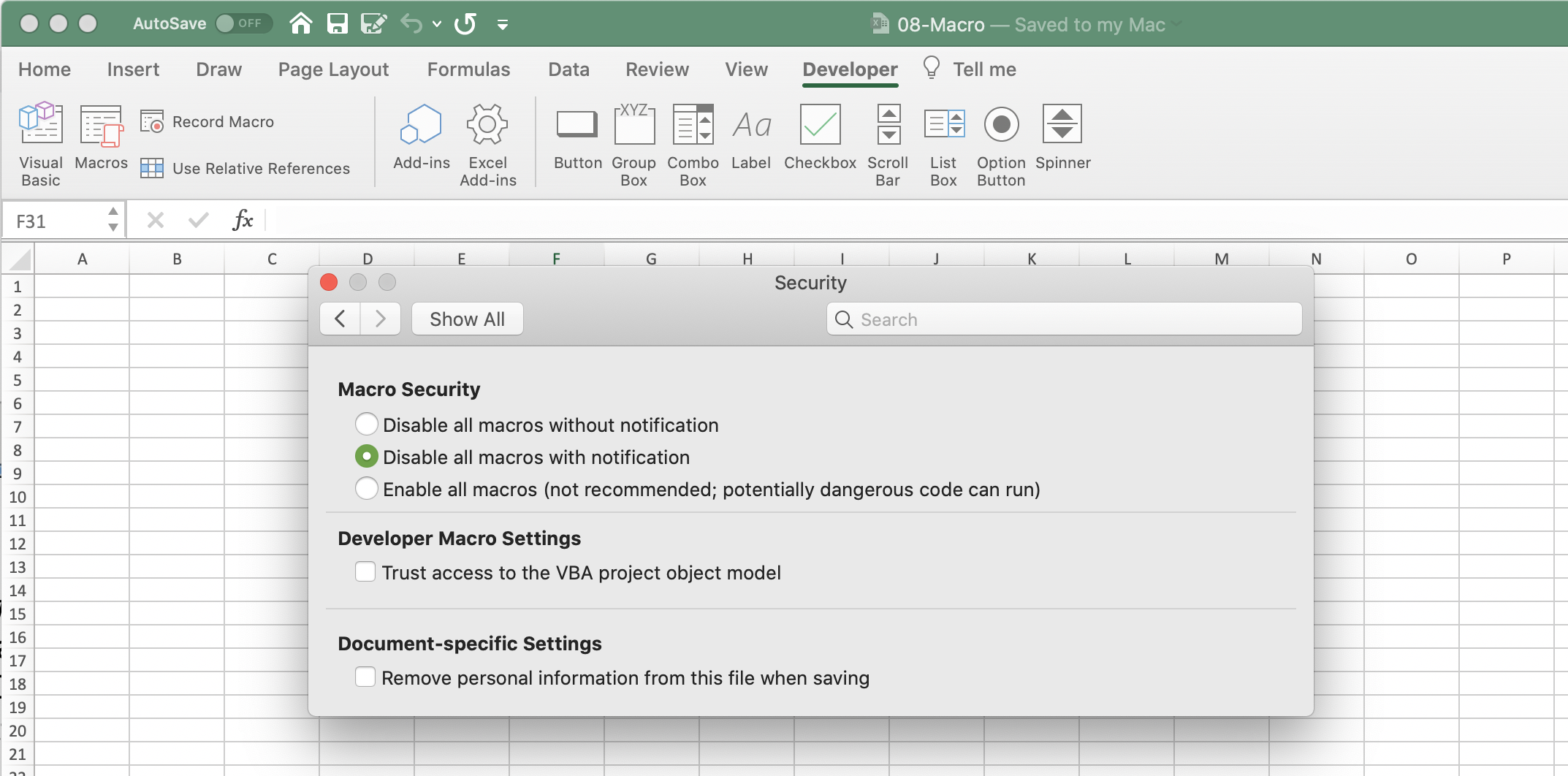
To adjust the security level, go to Excel > Preferences > Security & Privacy. You’ll see three options:
- Disable all macros without notification – the strictest setting; macros never run, even if you click the warning.
- Disable all macros with notification – the default; you decide per‑workbook.
- Enable all macros (not recommended) – runs any macro automatically; only use this in a controlled, offline environment.
Most users stick with the default. Switching to “Disable all macros without notification” can be useful in a high‑risk environment, but it also means you’ll need to manually edit the VBA project to run anything you truly need.
Trusted Locations on macOS
Excel allows you to mark specific folders as “trusted,” meaning any macro file saved there runs without the warning bar. To add a trusted location, open Excel > Preferences > Security & Privacy and click “Trusted Locations.” Then click the plus sign and select a folder—perhaps a shared network drive used by your finance team.
Be selective: a trusted location should be a folder you control and that isn’t writable by random users. Otherwise you could inadvertently grant malicious code the same level of trust.
Using Digital Signatures
VBA projects can be signed with a code‑signing certificate. When a macro is signed, Excel checks the certificate’s validity before allowing it to run. On a Mac, you can create a self‑signed certificate using the Keychain Access app, then assign it to a macro via the VBA editor (Tools > Digital Signature).
Signed macros give you an extra layer of confidence, especially when sharing files across a team. If a user’s certificate expires or is revoked, Excel will flag the macro and refuse to run it automatically.
Disabling Macros for Specific Workbooks
Sometimes you want to keep the global security setting permissive but block macros in a particular workbook. Open the workbook, go to the VBA editor (⌥⌘F11), and in the Project Properties set the “Protection” checkbox. Then add a password. This doesn’t stop macros from executing, but it prevents casual users from opening the VBA project and altering the code.
Best Practices for Macro Safety
- Keep Office updated. Microsoft regularly patches macro‑related vulnerabilities.
- Limit macro use to trusted sources. If a spreadsheet arrives from an unknown email, treat the macro with suspicion.
- Back up critical files. A rogue macro can delete or corrupt data; version control mitigates the damage.
- Document macro purpose. Clear comments inside the VBA code help reviewers understand intent and spot anomalies.
- Use digital signatures. They provide a tamper‑evident seal that’s easy for end‑users to verify.
Troubleshooting Common Issues
When a macro refuses to run, the first place to look is the warning bar. If you’ve already clicked “Enable Content” and the code still won’t execute, check the following:
- Macro security level. Make sure you haven’t inadvertently switched to “Disable all macros without notification.”
- Trusted locations. If the workbook resides in a network folder that isn’t marked as trusted, Excel may still block the macro.
- Missing references. VBA projects sometimes rely on external libraries that aren’t installed on macOS (e.g., Windows‑only COM objects). Open the VBA editor, choose Tools > References, and look for any “Missing” items.
- File format. Saving a macro‑enabled workbook as a regular .xlsx strips the VBA code. Ensure the file extension is .xlsm.
Fixing any of these items usually restores functionality without lowering your overall security posture.
FAQ
Can I run Windows‑only Excel macros on a Mac?
Most VBA code works on both platforms, but macros that call Windows‑specific APIs (such as Declare statements for user32.dll) will fail. You’ll need to rewrite those parts using macOS‑compatible libraries or avoid them altogether.
What happens if I open a macro‑enabled file from the internet?
Excel treats internet‑downloaded files as potentially unsafe and shows the warning bar even if the security level is set to “Enable all macros.” It’s best to scan the file with antivirus software and verify the sender before enabling the macros.
Is “Enable all macros” ever safe?
Only in a closed, offline environment where every workbook is vetted manually. In most cases, the performance gain is not worth the security risk.
Do Macros work in Excel for iPad or iPhone?
No. The mobile versions of Excel do not support VBA, so macro‑enabled workbooks open in read‑only mode. You’ll need a desktop Mac or Windows PC to edit or run the code.