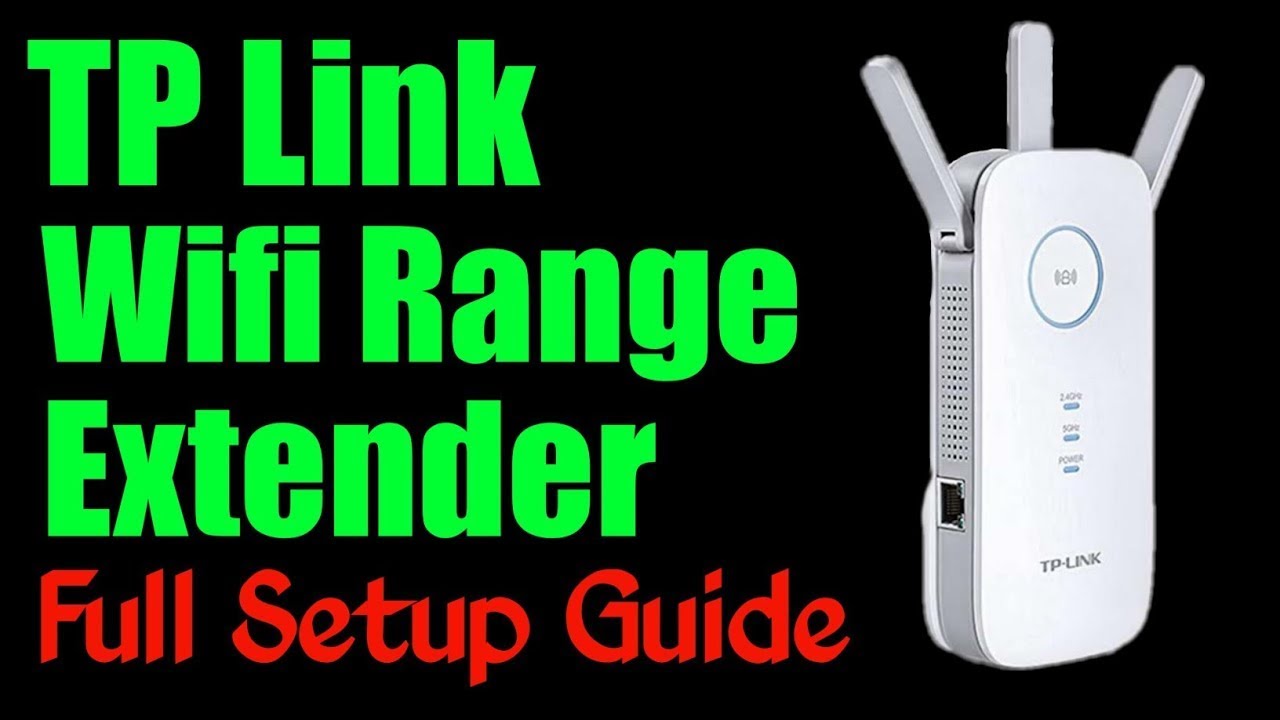
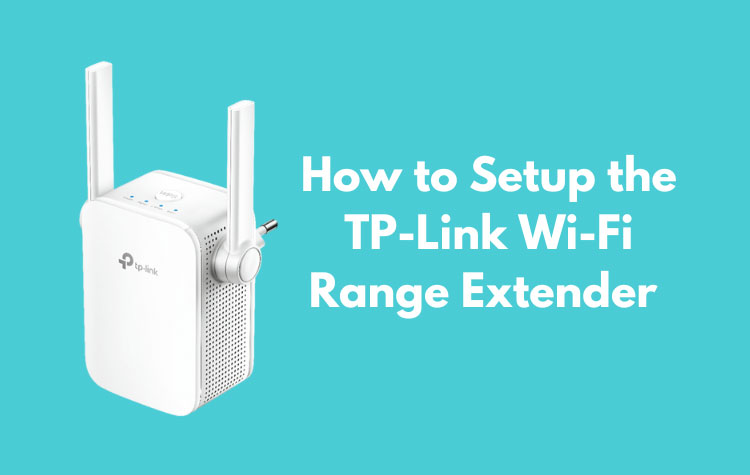
How to Set Up a TP‑Link Range Extender Quickly
If you’re wrestling with dead zones or a sluggish Wi‑Fi signal, a TP‑Link range extender can be a lifesaver—once it’s configured properly. Below is a concise, step‑by‑step guide that walks you through the whole process, from unboxing to enjoying a stronger network across your home or office.
TP‑Link Range Extender Setup: What You’ll Need
- Power outlet near your existing router (ideally within half the distance to the farthest device you want to cover).
- The extender’s quick‑start guide (or the TP‑Link Tether app on your smartphone).
- Access to the router’s Wi‑Fi password.
- A device capable of connecting to Wi‑Fi—smartphone, tablet, or laptop.
Step‑by‑Step Configuration
1. Plug the extender into a power source
Choose a location that still receives a decent signal from your primary router. If the LED indicator shows a weak or no connection, move the unit a few feet closer and try again.
2. Connect to the extender’s temporary network
After a few seconds the extender will broadcast its own SSID, usually named TP‑Link_Extender_XXXX. Open your device’s Wi‑Fi settings and join that network. No password is required at this stage.
3. Launch the setup interface
Most models redirect you automatically to http://tplinkrepeater.net or a similar address. If not, open a web browser and type the address shown in the quick‑start guide. You’ll be prompted for a username and password—both are typically admin unless you changed them.
4. Choose your existing Wi‑Fi network
Within the extender’s interface, select “Quick Setup” or “Clone Router.” A list of nearby networks appears; pick the one you want to extend and enter its password. The extender will now attempt to negotiate a connection.
5. Verify the connection
When the LED turns solid green (or whichever color indicates success for your model), the extender has linked to the router. At this point you can disconnect from the temporary SSID and reconnect to your regular home network, which now includes the extender’s extended coverage.
6. Fine‑tune the settings (optional)
If you prefer a distinct SSID for the extended zone, navigate to “Wireless Settings” and rename it. You can also set a separate password or enable features like “Band Steering” if your extender supports dual‑band operation.
7. Test the extended coverage
Walk around with a device that displays signal strength. You should notice a smoother, stronger connection in areas that previously struggled. If a spot still feels weak, try relocating the extender a bit farther from the router but still within the original signal’s reach.
Common Hurdles and How to Overcome Them
LED stays amber or blinking. This usually means the extender can’t reach the router. Move it closer, reset the device (press the reset button for 10 seconds), and repeat the setup.
Can’t access the setup page. Double‑check that your device is connected to the extender’s temporary SSID. Some smartphones automatically switch back to the stronger home network; manually select the extender’s network if needed.
Performance drops after a few days. Firmware updates often resolve stability issues. Log into the extender’s admin page, locate the “Firmware Upgrade” section, and follow the on‑screen instructions.
FAQ
Do I need a separate app to set up a TP‑Link range extender?
No, the web interface works without any additional software. However, the TP‑Link Tether app can simplify the process, especially for users who prefer a mobile‑first experience.
Can I use a range extender with a mesh Wi‑Fi system?
Yes, but it may not be optimal. Mesh networks already handle coverage extension internally, so adding a traditional extender can create overlapping SSIDs and occasional handoff glitches.
Will the extender double my internet speed?
Not exactly. The extender repeats the existing signal, so you’ll see improved coverage, but the maximum throughput will be lower than the router’s native speed, especially on older 2.4 GHz models.
Is it safe to leave the extender plugged in 24/7?
Absolutely. These devices are designed for continuous operation and consume only a few watts of power.