How to Set Up Google Login in Supabase Auth Quickly
If you’ve ever wrestled with OAuth integrations, you’ll appreciate how Supabase Auth login with Google streamlines the whole process. In a few minutes you can let users sign in with their Google accounts, sidestepping password fatigue while keeping your data secure. Below we walk through the setup step by step, sprinkle in a few best‑practice tips, and troubleshoot the hiccups that tend to pop up.
Why Choose Google Sign‑In for Supabase?
Google is the most common third‑party identity provider on the web, so offering it as a login option instantly boosts conversion rates. Users trust the familiar Google consent screen, and Supabase handles the token exchange behind the scenes, meaning you don’t have to write custom OAuth code. Plus, Google returns a verified email address, which simplifies user management on your end.
Supabase Auth: Login With Google Simplified
Before you start, make sure you have a Supabase project and a Google Cloud project ready. The following checklist covers everything you’ll need:
- A Supabase project URL and anon key.
- A Google Cloud Console project with the OAuth Consent Screen configured.
- Both the Client ID and Client Secret from Google’s Credentials page.
Once those items are in place, the actual integration takes just a handful of steps.
1. Configure Google as an External Provider in Supabase
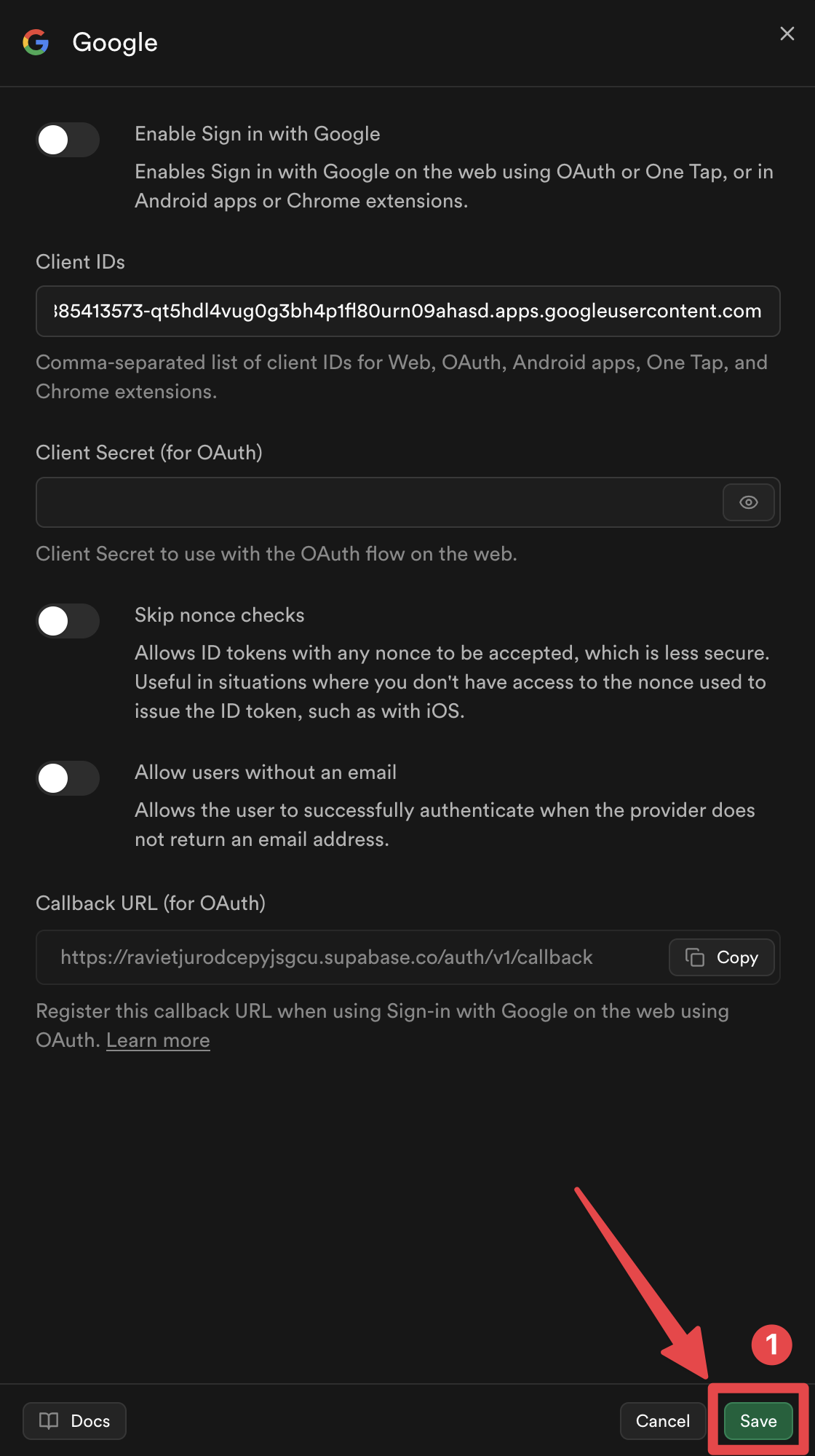
Log into the Supabase dashboard, navigate to Authentication → Settings → External OAuth Providers, and toggle the Google switch. Paste the Client ID and Client Secret you copied from Google Cloud. Remember to save the changes before moving on.
2. Set Up Redirect URLs
Supabase expects a specific callback URL after Google authenticates the user. By default it looks like https://YOUR-PROJECT.supabase.co/auth/v1/callback. Add this exact URL to the “Authorized redirect URIs” list in the Google Cloud Console. If you’re developing locally, also include http://localhost:3000/auth/v1/callback (or whatever port your dev server uses).
3. Install the Supabase JavaScript Client
If you haven’t already, add the client library to your project:
- For npm:
npm install @supabase/supabase-js - For Yarn:
yarn add @supabase/supabase-js
Import and initialise it with your project URL and anon key:
import { createClient } from '@supabase/supabase-js'const supabase = createClient('https://YOUR-PROJECT.supabase.co', 'YOUR-ANON-KEY')
4. Trigger the Google Sign‑In Flow
When a user clicks a “Sign in with Google” button, call the signInWithOAuth method:
async function signInWithGoogle() {const { error } = await supabase.auth.signInWithOAuth({
provider: 'google',
})
if (error) console.error('OAuth error:', error.message)
}
This opens Google’s consent screen, and after the user approves, they’ll land back on your app with a Supabase session automatically created.
5. Handle the Session in Your UI
Supabase exposes a onAuthStateChange listener that fires whenever the auth state updates. Hook it into your state management so the UI can react to sign‑ins and sign‑outs instantly:
supabase.auth.onAuthStateChange((event, session) => {if (event === 'SIGNED_IN') {
// Store session, update UI, fetch user data, etc.
}
})
Common Pitfalls and How to Avoid Them
Even with a straightforward flow, a few snags can trip you up.
- Mismatched redirect URLs: Google will reject the OAuth request if the callback URL isn’t an exact match. Double‑check for stray slashes or http vs. https.
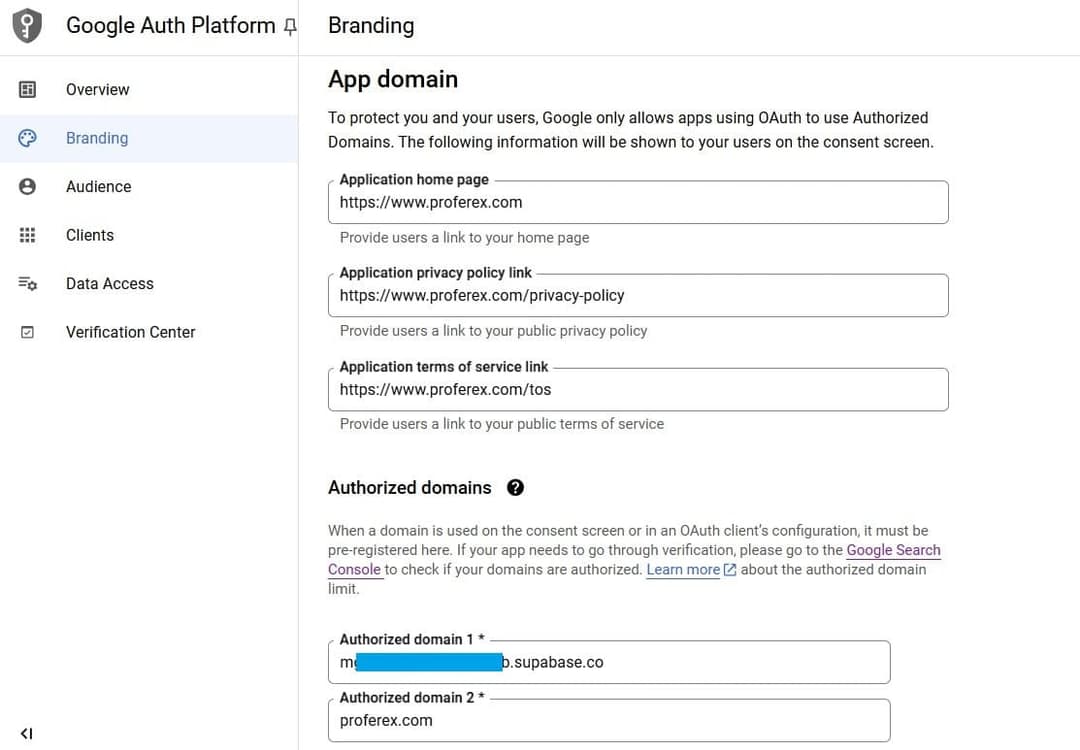
- Missing consent screen fields: Google requires you to fill out the “Application name” and “Support email” before the OAuth client becomes active. Skipping these fields results in a “Unauthorized” error.
- Using a service account instead of OAuth client: Service accounts are for server‑to‑server calls, not user sign‑in. Ensure you created an “OAuth 2.0 Client IDs” credential.
- Expired client secret: If you rotate secrets, remember to update Supabase’s provider settings; otherwise users will see a generic “OAuth error”.
Next Steps After a Successful Login
Once Google has authenticated the user, Supabase gives you a JWT that contains the user’s email, provider ID, and a unique Supabase user ID. You can use this token to:
- Restrict access to protected routes on the client side.
- Call Supabase Edge Functions that need the user’s identity.
- Store additional profile information in a
profilestable, linking it via theauth.uidcolumn.
Because the token refreshes automatically, you rarely need to worry about expiration unless you’re building a long‑lived background job. In that case, exchange the JWT for a refresh token using Supabase’s server‑side libraries.
FAQ
Can I use Supabase Auth login with Google on a mobile app?
Yes. The same signInWithOAuth method works in React Native, Flutter, or native iOS/Android SDKs. Just ensure your redirect URI uses a custom scheme that your app can capture.
Do I need to enable “Google+ API” for this integration?
No. The older Google+ API has been deprecated; the plain OAuth 2.0 flow is sufficient for basic profile information and email verification.
What if I want to support multiple Google accounts?
Supabase treats each Google account as a distinct user. If a user signs in with a different Google address, a new Supabase user record is created unless you merge them manually.
Is the Google token stored on my server?
Supabase never stores the raw Google access token. It exchanges it for a JWT that contains only the data you need, keeping the process compliant with most privacy regulations.





:quality(30):format(webp):focal(0.5x0.5:0.5x0.5)/tribunnews/foto/bank/originals/film-kemah-terlarang-kesurupan-massal.jpg)