How to Use YouTube Music on Galaxy Watch 4: The Ultimate Guide
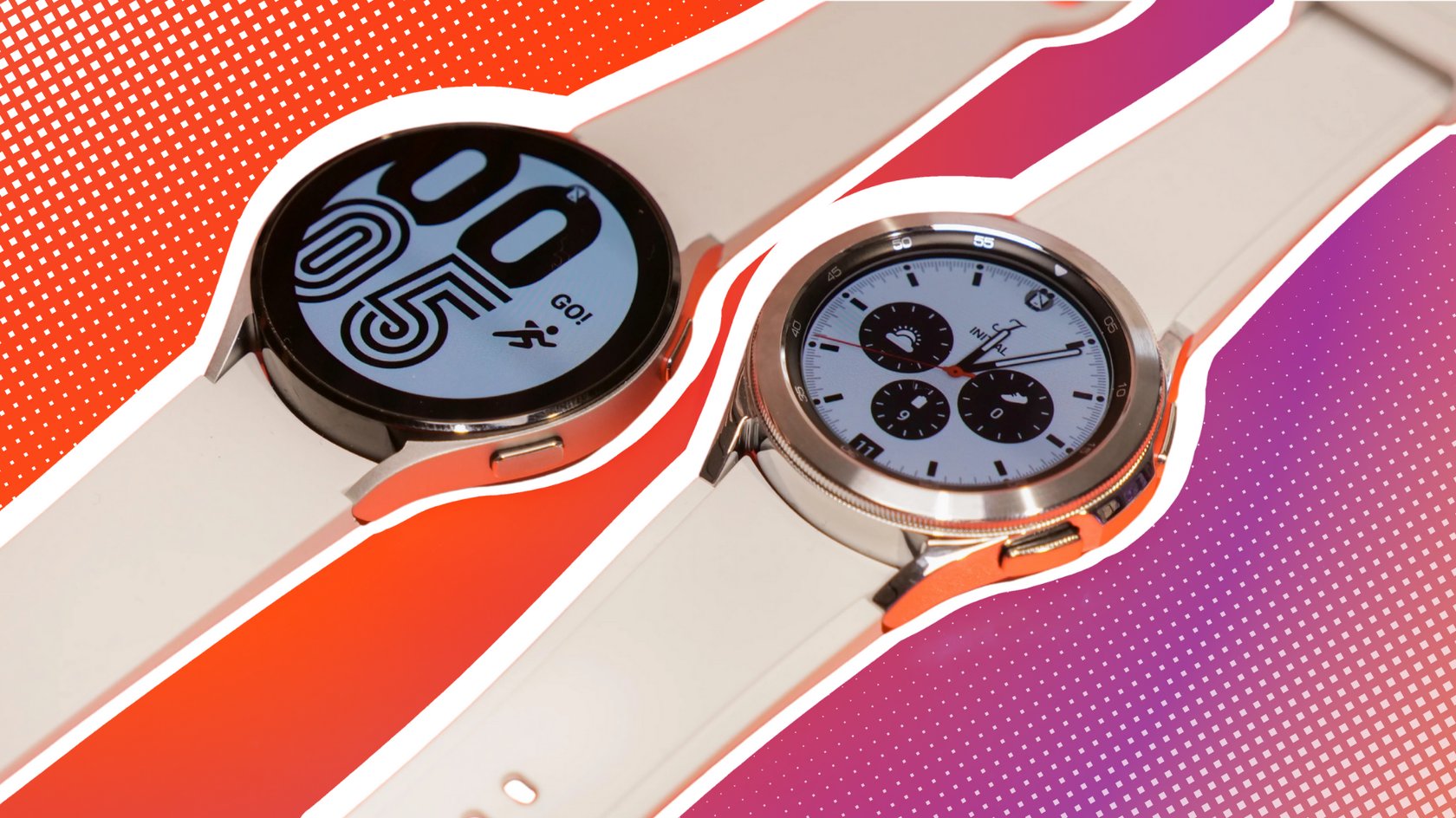
Ever wondered if you can stream your favorite playlists without pulling out your phone? With YouTube Music on the Galaxy Watch 4, you can enjoy a surprisingly full listening experience right from your wrist. This guide walks you through everything you need to know—from initial setup to off‑line playback—so you can hit play whenever the moment calls.
Why Put YouTube Music on a Wearable?
Convenience is the headline act. A watch‑sized player lets you skip tracks during a run, adjust volume on a commute, or catch a quick podcast while your hands are busy. Because the Watch 4 runs Wear OS, it supports a broad range of apps, and YouTube Music is no exception. The result? A seamless bridge between your phone’s library and the tiny screen on your arm.
Setting Up YouTube Music on Your Galaxy Watch 4
First things first: you’ll need the companion app on both devices.
- On your phone, open the Google Play Store (or Galaxy Store) and install YouTube Music if you haven’t already.
- Next, launch the Galaxy Wearable app, tap Watch settings, then Apps → Store. Locate YouTube Music and hit Install.
- After the watch confirms the installation, open the app on the watch. You’ll be prompted to sign in with the same Google account used on your phone.
Once logged in, the watch syncs your library, liked songs, and playlists. The process usually takes a minute or two, depending on how many tracks you have stored in the cloud.
Navigating Playback Controls on the Small Screen
The interface is intentionally simple. Swipe left or right to switch between the Now Playing view and your library. Tap the center of the screen to play or pause, and use the side button for next/previous track shortcuts. You can also access quick controls by swiping down from the top edge, where you’ll find volume sliders and a mini‑player that stays visible while you check notifications.
For those who like a more visual cue, the watch displays album art in full color—though it may dim to save battery after a few minutes of inactivity.
Downloading Songs for Offline Listening
If you often find yourself in a subway or a place with spotty data, offline playback is a lifesaver. Here’s how to queue up tracks without needing your phone:
- On your phone, open YouTube Music, locate the song or playlist you want offline, and tap the three‑dot menu.
- Select Download to device. The download will automatically sync to your Watch 4 when it’s on the same Wi‑Fi network.
- On the watch, go to Library → Downloads to see what’s available. Tap any track to start listening instantly.
Remember, offline files occupy storage on the watch—generally a few hundred megabytes, depending on the quality you choose. You can manage space in the Wearable app’s storage settings.
Battery and Data: What to Expect
The Watch 4’s battery typically lasts around 40 hours with moderate use. Streaming music via a cellular connection or Bluetooth can shave off an hour or two, especially at higher bitrates. If you’re mindful of power, consider these tweaks:
- Set streaming quality to “Standard” rather than “High” in the YouTube Music app settings.
- Enable “Battery Saver” mode on the watch, which dims the screen and limits background sync.
- Prefer offline downloads for long trips; they consume virtually no extra power once stored.
Data usage mirrors what you’d see on the phone: roughly 150 MB per hour at high quality. If you have a limited plan, keep an eye on the watch’s data counter in the Wearable app.
Troubleshooting Common Hiccups
Even a well‑designed system can throw a curveball. Below are a few quick fixes you can try before digging deeper.
- App won’t open: Restart the watch (press and hold the side button, then select Power off and turn it back on). This often clears a stuck process.
- No sound despite playback: Check that the watch’s volume isn’t muted. Swipe down to reveal the quick settings and adjust the slider.
- Sync delays: Make sure both devices are on the same Wi‑Fi network, then force a sync by opening the Wearable app, tapping Apps, and selecting Refresh next to YouTube Music.
- Bluetooth dropout: If you’re using Bluetooth headphones, ensure they’re paired directly with the watch rather than the phone. This reduces latency and improves reliability.
When issues persist, the official Google support page for YouTube Music on Wear OS offers step‑by‑step diagnostics, and the Samsung community forums are a good place to see if a particular firmware version has known bugs.
Making the Most of Your Watch’s Music Features
Beyond basic playback, the Galaxy Watch 4 offers a few hidden gems that can enhance your listening routine:
- Voice commands: Say “Hey Google, play my workout playlist” while the watch is on your wrist. The watch will cue the music without you needing to touch the screen.
- Smart reminders: Pair the watch’s fitness tracking with YouTube Music’s “Workout Mix” suggestions. The watch can automatically start a high‑tempo playlist when it detects you’ve begun a run.
- Cross‑device continuity: If you pause on the watch and later open the app on a phone or smart speaker, playback resumes where you left off, thanks to YouTube Music’s cloud‑based queue.
These integrations make the watch feel less like a secondary screen and more like an active part of your audio ecosystem.
FAQ
Can I use YouTube Music on a Galaxy Watch 4 without a phone?
Not entirely. The initial sign‑in and library sync require a phone, but once everything is set up you can stream or play downloaded tracks directly from the watch, even when the phone is turned off.
Does YouTube Music work with Bluetooth earbuds that are paired to the watch?
Yes. Pairing earbuds directly with the watch bypasses the phone, giving you a smoother, lower‑latency experience for both music and calls.
Is a YouTube Premium subscription required?
For ad‑free streaming and background playback, a Premium or YouTube Music Premium plan is needed. The free tier still works, but you’ll encounter occasional ads and limited offline downloads.
Will using the watch’s music features void my warranty?
No. Using official apps from the Play Store or Galaxy Store doesn’t affect your device’s warranty. Just avoid rooting or installing unofficial firmware if you want to keep coverage intact.