How to Wake Up Bixby Using Your Voice – A Quick Guide
If you’ve ever fumbled for the Bixby button on your Samsung phone, you’ll be glad to know you can simply say “Hi, Bixby” to fire up the assistant. Waking up Bixby with your voice is faster, hands‑free, and feels a bit futuristic. Below we’ll walk through the exact steps, the settings you need to tweak, and a few troubleshooting tips so you can start chatting with Bixby without ever touching the screen.
Why Voice Activation Matters
Voice activation eliminates the need to locate a small button or swipe through menus, which is especially handy when you’re juggling a coffee cup, a bag, or driving. It also makes Bixby more competitive with other assistants that have long supported “Hey Siri” or “OK Google.” By enabling the feature, you get instant access to reminders, translations, smart‑home commands, and more—just by speaking.
Prerequisites: What You Need First
- Samsung device running One UI 3.0 or later (most recent Galaxy phones, tablets, and watches).
- A working internet connection for the initial setup.
- Microphone permissions granted to Bixby in your device’s settings.
- Clear, audible voice—background noise can interfere with recognition.
If any of these are missing, the voice wake‑up may not function reliably.
Step‑by‑Step: Enabling Voice Wake‑Up
Follow these instructions in order. Each step is short, so you won’t get lost in a maze of menus.
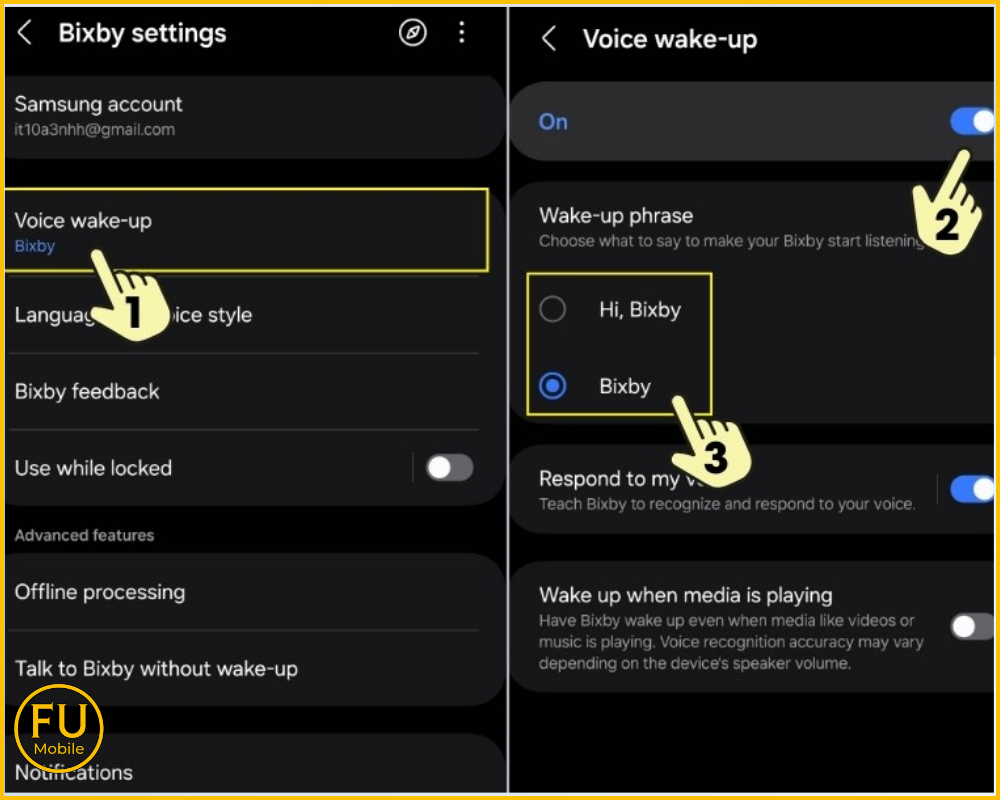
1. Open Bixby Settings
Swipe up from the bottom of the screen (or press the Bixby button if it’s still active) and tap the three‑dot menu in the upper‑right corner. Choose Settings from the dropdown.
2. Locate Voice Wake‑Up
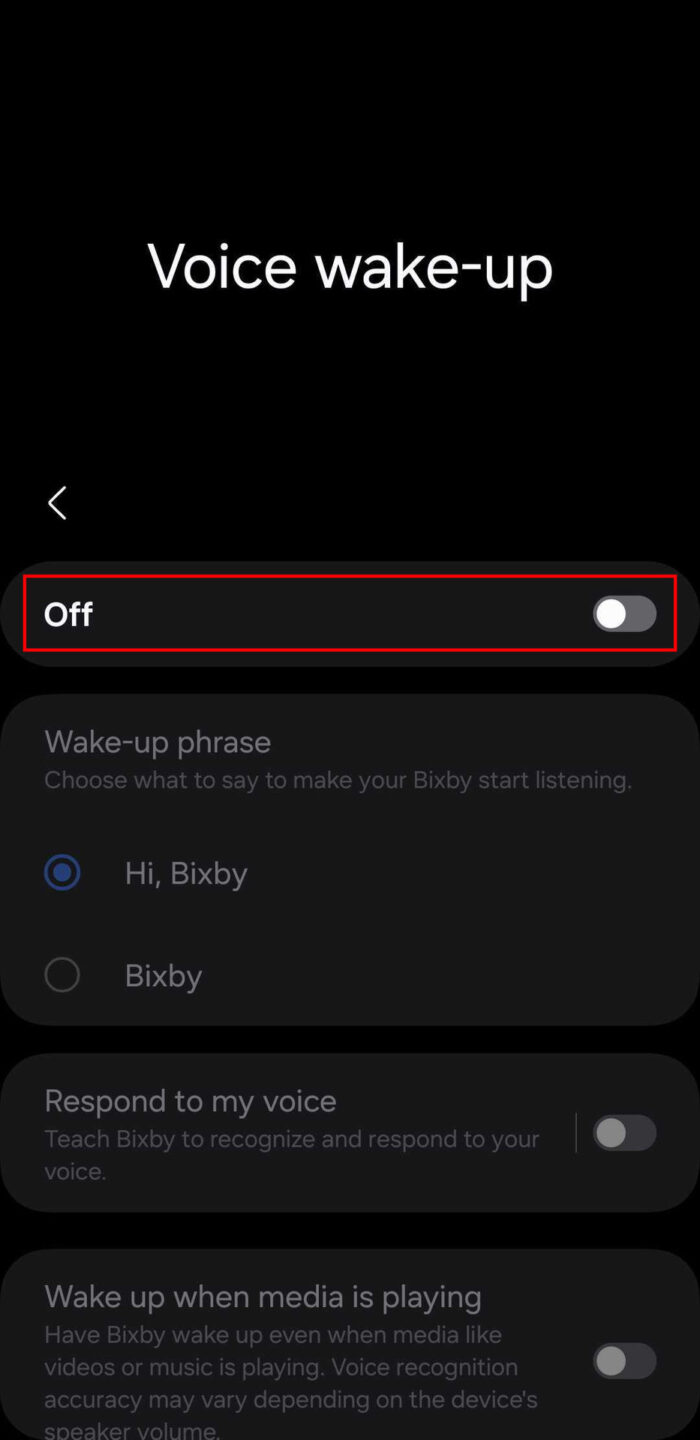
Scroll down until you see the Voice wake‑up toggle. It’s usually under the “Voice” or “Advanced” section.
3. Turn the Feature On
Slide the toggle to On. The first time you enable it, you’ll be prompted to train your voice. This helps Bixby differentiate your “Hi, Bixby” from other sounds.
4. Train Your Voice
- Tap Train voice model.
- Repeat the phrase “Hi, Bixby” three times, speaking naturally.
- Listen for the confirmation beep—if it sounds off, try again in a quieter environment.
5. Adjust Sensitivity (Optional)
Some devices let you choose a sensitivity level. If you notice false activations (e.g., TV sounds triggering Bixby), lower the sensitivity. Conversely, raise it if Bixby seems unresponsive.
6. Test It Out
Put the phone down, say “Hi, Bixby,” and watch the assistant appear. If it doesn’t, double‑check that your microphone isn’t muted and that the device isn’t in “Do Not Disturb” mode, which can suppress voice commands.
Fine‑Tuning and Common Pitfalls
Even after a successful setup, you might run into hiccups. Here are some practical fixes.
- Background Noise: Use Bixby in a relatively quiet room; excessive chatter or music can drown out your command.
- Battery Saver Mode: Some power‑saving settings restrict background microphones. Disable “Battery optimization” for Bixby in the app info screen.
- Software Updates: Keep your device’s OS and Bixby app up to date. Samsung occasionally refines the voice model in patches.
- Multiple Users: If the device is shared, each person can add their own voice model under Settings → Voice wake‑up → Add voice.
Beyond “Hi, Bixby”: Using Voice Commands Effectively
Once Bixby is awake, you can ask it to do a surprising range of tasks. Try these to get the most out of the assistant:
- “Set a reminder for 3 p.m. to call Alex.”
- “Show me the weather forecast for this weekend.”
- “Translate ‘Where is the nearest pharmacy?’ to Spanish.”
- “Turn off the living‑room lights.” (requires a compatible smart‑home hub.)
Practicing a few commands a day will make the interaction feel natural, and you’ll quickly notice how much time you save.
FAQ
Q: Can I use “Hey Bixby” instead of “Hi, Bixby”?
A: The default wake phrase is “Hi, Bixby,” but you can change it in Settings → Voice wake‑up → Wake‑up phrase if your region supports alternatives.
Q: Does voice wake‑up work when my phone is locked?
A: Yes, as long as the lock screen permits Bixby access. You may need to enable “Allow Bixby on lock screen” in the security settings.
Q: I’m hearing random activations. What should I do?
A: Lower the sensitivity or retrain your voice model in a quieter environment. Also, check that other apps aren’t using the microphone simultaneously.
Q: Will enabling voice wake‑up drain my battery?
A: The impact is minimal; Bixby only listens for the specific wake phrase, not continuous audio. However, turning off the feature when you don’t need it can extend battery life marginally.