Live Streaming Tech 101: How Beginners Can Get Started
Why Live Streaming Matters
Whether you want to showcase a hobby, host a virtual class, or build a brand, live streaming has become a go‑to way to connect with audiences in real time. The immediacy of a live broadcast creates a sense of community that pre‑recorded videos often lack, and platforms like Twitch, YouTube Live, and LinkedIn Live make it easy to reach viewers wherever they are. For newcomers, the biggest hurdle isn’t the audience—it’s figuring out which pieces of live streaming tech actually belong in a starter kit.
Core Components of a Live Stream Setup
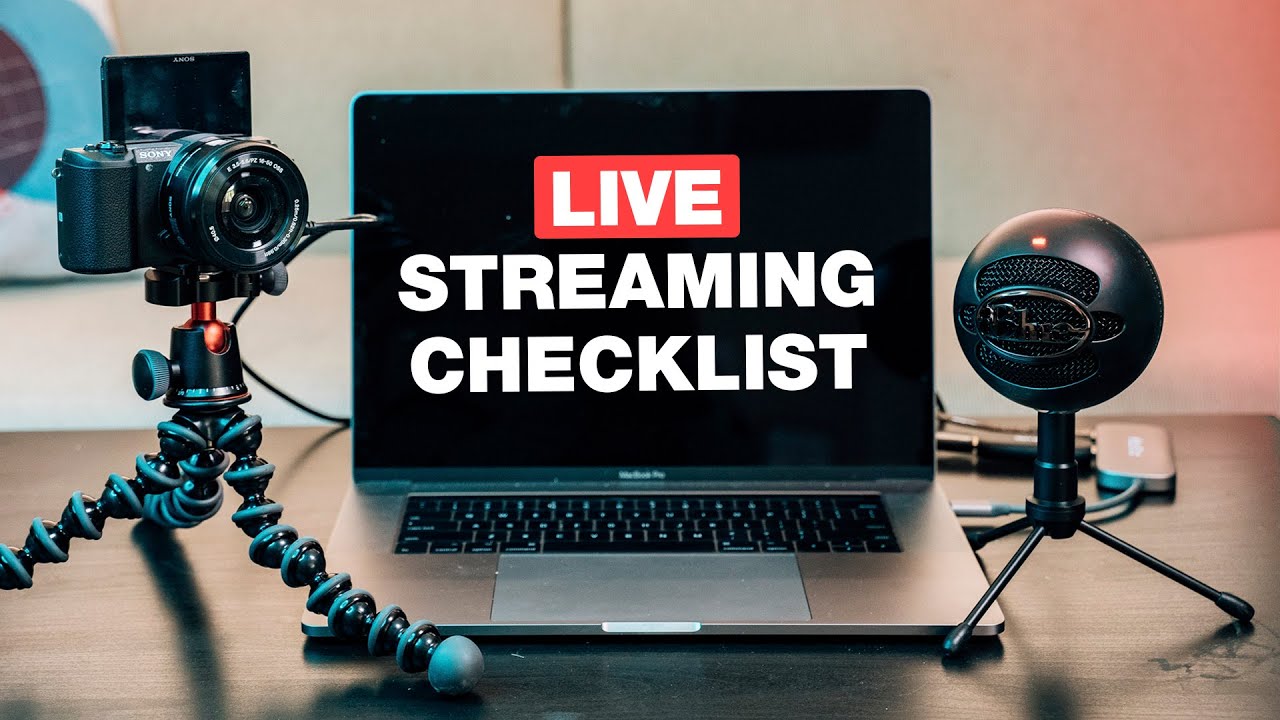
A functional stream boils down to four essential parts: video capture, audio capture, encoding, and the distribution platform. Each component can be as simple or as sophisticated as you need, but understanding the role each plays will keep you from buying gear you’ll never use.
- Video source: webcam, DSLR, mirrorless camera, or even a smartphone.
- Audio source: built‑in mic, USB condenser, or a dedicated shotgun mic.
- Encoder: hardware box or software that converts raw footage into a streamable signal.
- Platform: the service that receives your signal and delivers it to viewers.
Choosing the Right Camera
If you’re just testing the waters, a decent 1080p webcam will do the trick. Modern USB webcams often include auto‑focus and built‑in microphones, cutting down on the number of cables you have to manage. When you start craving better low‑light performance or a more cinematic look, a mirrorless or DSLR paired with a capture card becomes a logical upgrade.
Key things to watch for:
- Resolution (1080p is a comfortable baseline; 4K is optional for high‑budget streams).
- Frame rate (30 fps feels smooth for most talk‑style streams; 60 fps adds fluidity for fast‑action content).
- Connectivity (USB‑C or HDMI output works best with most encoders).
Audio Essentials
Audio quality often makes or breaks a broadcast. Listeners can tolerate a blurry picture, but a crackly voice will turn them away in seconds. For a starter setup, a USB condenser microphone like the Blue Yeti offers plug‑and‑play simplicity and respectable sound. If you’re streaming from a desk with background noise, consider a cardioid or dynamic mic that isolates your voice.
Don’t forget a pop filter to tame plosives, and place the mic a few inches from your mouth—close enough to be clear, far enough to avoid breath sounds.
Encoding and Software Options
Encoding is the process of turning your camera and mic feeds into a data stream that the internet can carry. Two popular pathways exist:
- Software encoders like OBS Studio or Streamlabs OBS run on your computer, giving you full control over scenes, overlays, and alerts. They’re free, but they do require a reasonably powerful CPU or GPU.
- Hardware encoders such as the Elgato Cam Link or dedicated streaming boxes offload the work from your PC. They’re pricier, yet they provide consistent performance and free up your computer for other tasks.
When you first set up, stick with a software encoder. The learning curve is modest, and you can experiment with layouts without buying extra gear.
Getting Your First Stream Online
With video, audio, and encoder ready, the next step is linking everything to a platform. Most services generate a unique stream key—think of it as a password that tells the platform “this is my broadcast.” Paste that key into your encoder’s settings, hit “Start Streaming,” and you should see a preview within a few seconds.
Before you go live, run a private test. Check that your audio levels stay in the green zone, that the video isn’t lagging, and that chat interactions appear as expected. A quick rehearsal helps you spot glitches without the pressure of a live audience.
Troubleshooting Common Hurdles
Even a well‑planned stream can hit snags. Here are a few frequent issues and straightforward fixes:
- Lag or choppy video: Lower your output resolution or bitrate. A stable upload speed of at least 5 Mbps is recommended for 1080p at 4500 kbps.
- No sound: Verify that the correct audio device is selected in both your OS and encoder. Mute buttons on headphones can be sneaky culprits.
- Overheating PC: Close unnecessary applications and consider a cooling pad if you’re streaming from a laptop.
- Platform rejects stream key: Double‑check you copied the entire key and that you’re streaming to the right server (some platforms have regional endpoints).
Building a Sustainable Stream Routine
Consistency beats flashiness for most beginners. Pick a realistic schedule—once a week or bi‑weekly—and stick to it. Over time, you’ll gather viewer feedback that points you toward the next upgrade, whether it’s a better mic, a lighting kit, or a more polished overlay.
Remember, the goal isn’t to launch a perfect production on day one; it’s to create content you enjoy and that resonates with a small, growing audience. As you become comfortable with the basics, you’ll naturally discover which pieces of live streaming tech deserve a place in your evolving toolkit.
Frequently Asked Questions
Do I need a high‑speed internet connection to stream? A stable upload speed of at least 5 Mbps will comfortably handle 1080p streams at common bitrates. Faster is better, but you can drop the resolution to 720p if your connection is slower.
Can I stream directly from my phone? Yes—many apps let you go live from a smartphone, but you’ll lose the flexibility of separate audio and video sources. It’s a handy backup, not a long‑term solution for serious creators.
What’s the difference between bitrate and resolution? Resolution defines the size of the video (e.g., 1920×1080), while bitrate determines how much data is transmitted each second. Higher bitrates improve quality but require more bandwidth.
Is OBS the best free encoder? OBS Studio is the most widely used free option and offers a robust set of features. Alternatives like Streamlabs OBS add built‑in alerts and themes, but they may be heavier on system resources.
.jpg)