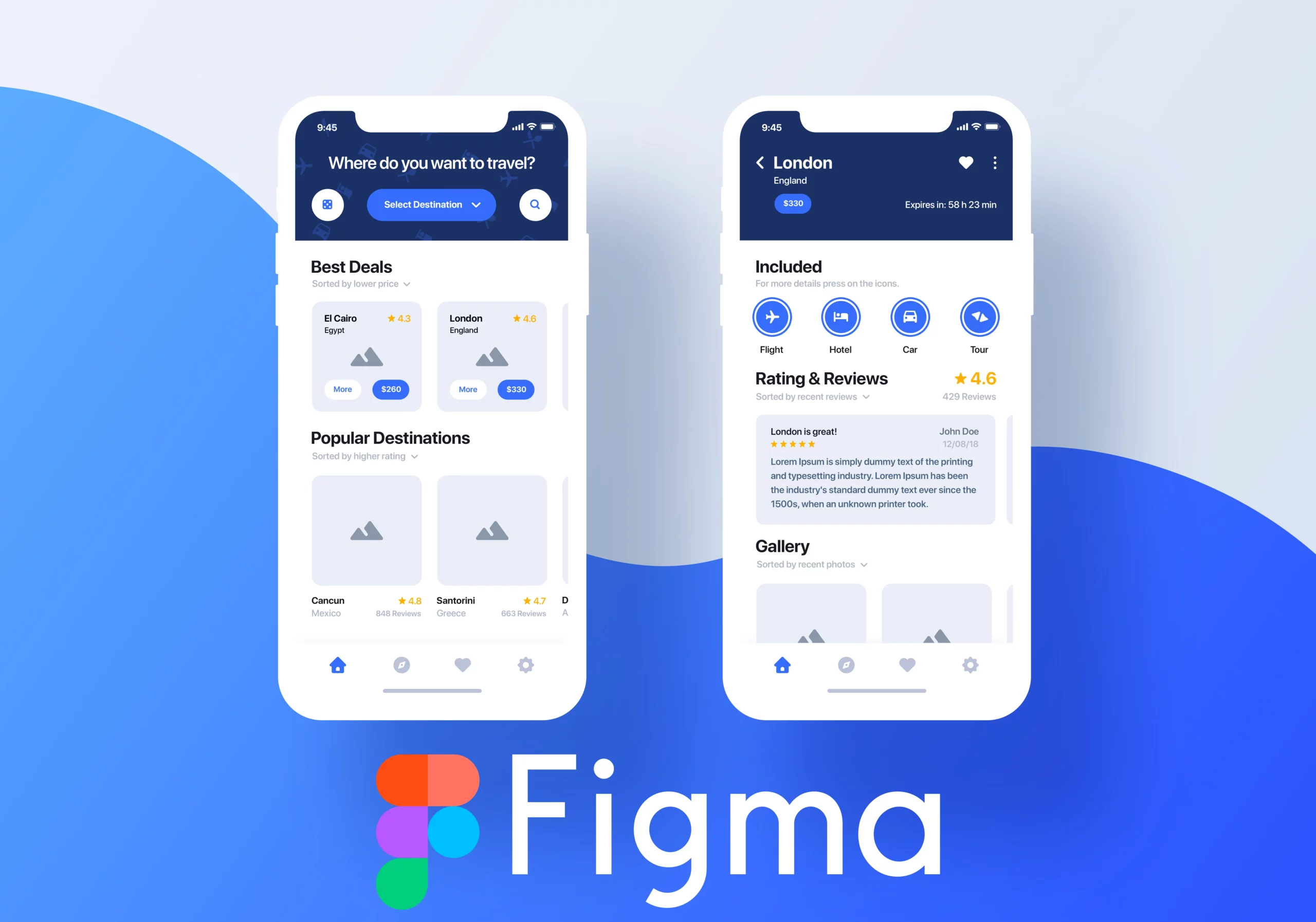
Master Figma: A Complete UI/UX & Web Design Guide
When you hear designers talk about “mastering Figma,” they’re usually referring to a mix of fluency in the interface, a solid workflow, and the confidence to hand off polished assets to developers. Whether you’re a fresh graduate, a self‑taught creator, or a seasoned visual designer branching into interaction work, this guide walks you through the essentials and a few pro tricks that turn a curious clicker into a comfortable, collaborative Figma user.
Why Figma Stands Out for UI/UX and Web Projects
First, let’s acknowledge the elephant in the room: there are plenty of design tools out there, yet Figma has become the default for many teams. The biggest advantage is its browser‑based nature, which means you can jump into a file from any computer without worrying about version control. Real‑time collaboration feels more like Google Docs than a static design app—multiple stakeholders can comment, edit, and prototype simultaneously. Moreover, the plugin ecosystem adds everything from accessibility checks to data‑driven mockups, letting you extend the core product without leaving the canvas.
Getting Started: Setting Up Your Workspace
Before you dive into frames and components, spend a few minutes customizing your workspace. Here are the steps most designers overlook but that pay off quickly:
- Choose a file structure. Create separate pages for research, wireframes, high‑fidelity screens, and prototypes. This keeps the file tidy and speeds up handoff.
- Set up a design system page. Even a modest system—colors, typography, spacing tokens—gives you consistency and reduces the need to re‑type values.
- Adjust preferences. Turn on “Snap to geometry” for precise alignment, and enable “Show layout grids” to stay on rhythm.
These habits feel small at the start but they prevent the dreaded “where did that style come from?” moment later on.
Core Tools You’ll Use Every Day
Figma’s toolbar is intentionally compact, but each icon packs layers of functionality. Below is a quick refresher that helps you avoid hunting through menus:
- Frames – Think of them as artboards; they define the bounds of a screen or component.
- Auto Layout – The secret sauce for responsive UI. It lets you stack items, define padding, and let content dictate size.
- Components – Reusable building blocks. When you edit the master component, every instance updates automatically.
- Prototype links – Drag a connector from one frame to another, set interaction triggers, and you’ve got a clickable flow.
Practice by recreating a simple login screen: frame the device, add text fields as components, apply auto layout for spacing, then link “Forgot password?” to a new screen. The process reinforces each tool’s purpose.
From Wireframes to High‑Fidelity Mockups
Most teams start with low‑fidelity sketches to test concepts before committing to colors and imagery. In Figma, you can toggle visibility of design system layers, allowing you to focus on layout first. Once the structure feels solid, switch to a high‑fidelity mode by applying your color palette, typography styles, and component library. Remember to keep the file organized: rename layers, group related elements, and use descriptive component names like Button/Primary/Small.
Prototyping: Turning Static Screens into Interactive Journeys
Prototyping in Figma is more than a slideshow. It supports:
- Overlay modals that appear without leaving the current frame.
- Smart animate transitions that automatically tween between matching layers.
- Conditional navigation using “After Delay” or “On Click” triggers.
A handy tip is to use “Preserve scroll position” for long pages; this prevents the prototype from snapping back to the top each time you navigate. When sharing a prototype, you can generate a view‑only link or embed it directly into a product documentation site, keeping stakeholders in the loop without extra software.
Collaboration Features That Save Time
Real‑time comments are a staple, but Figma offers more subtle ways to keep communication clear:
- Version history. Every change is saved, and you can name milestones like “v1.0 UI Kit” for easy rollback.
- Branching. For larger redesigns, create a branch, experiment, then merge back once approved—much like Git for design.
- Developer handoff. The Inspect panel reveals CSS, iOS, and Android code snippets, and you can export assets with a single click.
When you combine comments with component documentation (using Figma’s description fields), developers get both the visual and the rationale behind each decision.
Exporting Assets Without the Headache
Export settings in Figma are granular enough to satisfy most front‑end pipelines. Here’s a quick workflow:
- Select the component or frame you need to export.
- In the right‑hand panel, click “Export” and choose formats: PNG for raster, SVG for vectors, and PDF for print‑ready assets.
- Set scaling options (1×, 2×, 3×) to cover standard device densities.
- Give the file a descriptive name—Figma will automatically add the scale suffix, e.g., icon‑close@2x.svg.
For large design systems, consider using the “Export Settings” plugin, which batch‑exports all icons or components based on naming conventions.
Advanced Techniques: Auto Layout Mastery and Component Variants
Auto Layout can feel intimidating at first, but mastering it unlocks true responsiveness. Try building a navigation bar where items resize based on label length. Set the parent frame to “Horizontal” auto layout, add padding, and enable “Space between” to distribute items evenly. Now, when you change a label from “Home” to “Dashboard”, the bar adapts without manual adjustments.
Component variants let you bundle related states—think a button with default, hover, and disabled versions—into a single component set. This reduces clutter and makes swapping states a drag‑and‑drop operation. To create variants, select a component, click “+ Add Variant” in the right panel, and define a property like “State: Default / Hover / Disabled”.
Continuing Your Figma Education
No single article can cover every nuance, so consider these resources for ongoing growth:
- The official Figma Help Center—concise articles and searchable topics.
- Community files—download UI kits, icon sets, and learn by reverse‑engineering.
- Webinars and workshops—many design conferences now feature live Figma sessions.
- Plugins such as “Figmotion” for basic animation or “Design Lint” for spotting inconsistencies.
Pair regular practice with feedback loops; ask a teammate to review your components for naming consistency, or present a prototype to a non‑designer and gauge whether the flow feels intuitive.
FAQ
Is Figma really free for professional use?
Figma offers a robust free tier that includes unlimited viewers, three projects, and community plugins. Teams that need advanced permissions, design system libraries, or unlimited projects typically upgrade to the Professional or Organization plans.
Can I work offline with Figma?
Yes—desktop apps cache recent files, allowing you to edit them without an internet connection. Changes sync automatically once you’re back online.
How do I keep my design system consistent across multiple files?
Publish a shared library from a master file. Team members can then enable that library in their own projects, ensuring that components, colors, and text styles stay in sync.
What’s the best way to hand off designs to developers?
Use the Inspect panel to provide code snippets, enable “Export Settings” for assets, and add clear component documentation. Sharing a prototype link alongside the design file gives developers a live view of interactions.