Master Google Translate’s Chrome Extension: A Complete Guide
If you’ve ever stumbled over a foreign website or needed a quick translation while surfing the web, the Google Translate Chrome Extension can turn your browsing experience from a linguistic puzzle into a seamless conversation. This guide walks you through every step—from installation and setup to advanced customization—so you can translate on the fly, without ever leaving your favorite tabs.
Why Choose the Google Translate Extension?
Unlike the standalone Google Translate app, the Chrome extension sits right in your browser’s toolbar, ready to translate any page or selected text with a single click. Its advantages include:
- Speed: Instantly translate entire webpages or highlighted phrases.
- Convenience: No need to copy URLs into a separate window.
- Accuracy: Powered by the same neural machine translation engine that powers Google Translate’s web service.
- Customization: Adjust default languages, translation options, and privacy settings to match your workflow.
How to Install the Google Translate Chrome Extension
Getting the extension is as simple as adding a new app to Chrome. Follow these steps to set up the tool:
- Open the Chrome Web Store.
- Search for “Google Translate” in the search bar.
- Locate the official extension from Google LLC and click Add to Chrome.
- Confirm by clicking Add extension in the pop‑up dialog.
- Once installed, an icon will appear on your toolbar—usually a blue “G” or a small flag.
That’s it. You’re now ready to translate pages with a click.
Using the Extension: Quick‑Start Tips
The extension offers three primary ways to translate content:
- Translate Entire Page: Click the icon, then tap Translate this page. Chrome will load the same page in your chosen language.
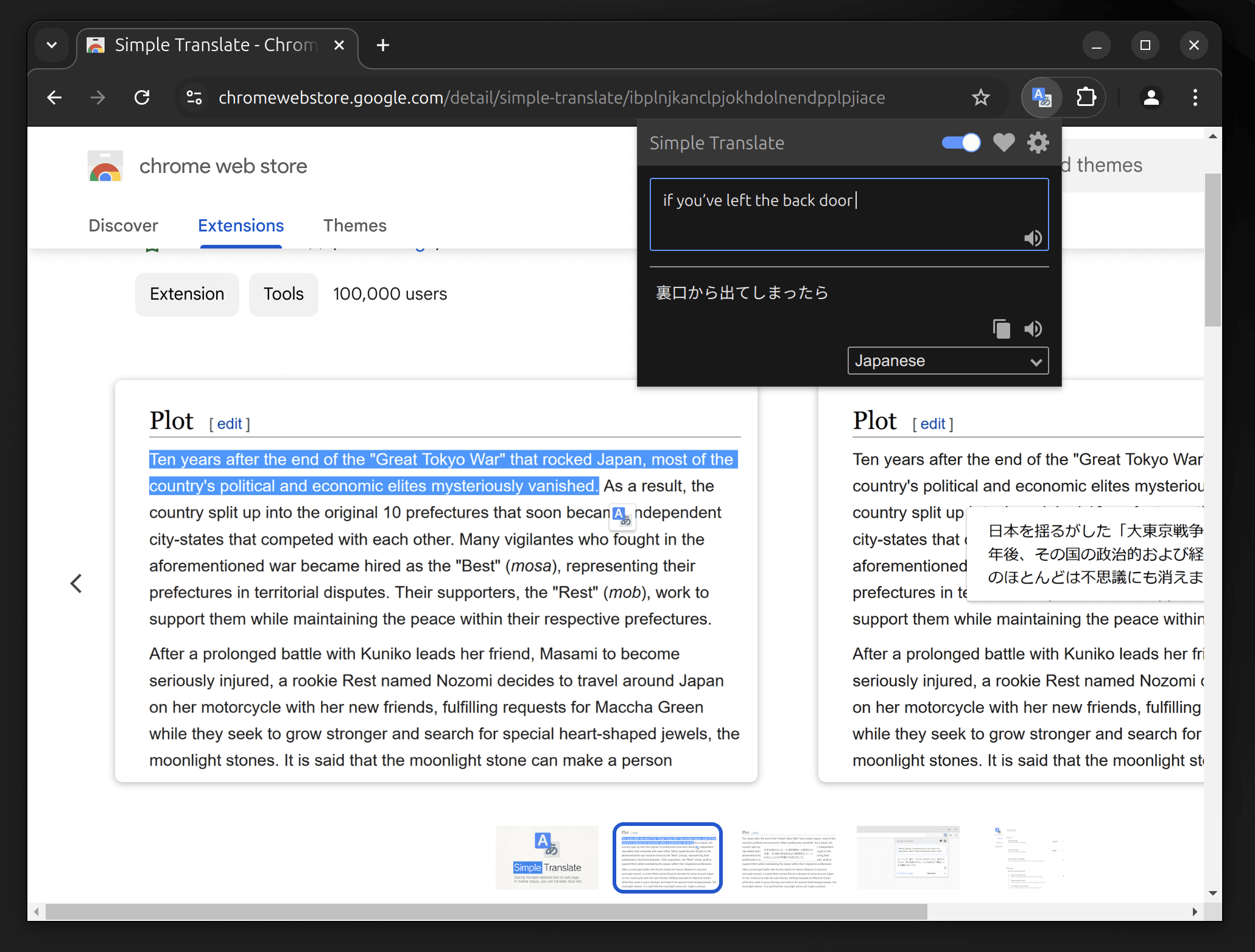
- Translate Selected Text: Highlight any words or sentence, right‑click, and select Translate selection. The translation pops up in a small box.
- Context Menu: Right‑click any link or image, and choose Translate link or Translate image for instant results.
Feel free to experiment—most users find the combination of page translation and on‑the‑spot text translation to be the most efficient workflow.
Changing Default Languages
By default, the extension detects the language of the page and translates it into your browser’s language setting. If you’d rather always translate into a different language:
- Click the extension icon.
- Click the gear icon (settings) in the popup.
- Under Translate to, choose your preferred language from the drop‑down list.
- Optional: Turn on Detect language automatically to keep the feature active.
These changes apply across all tabs and sessions.
Translating URLs and PDFs
When you hover over a link, the extension displays a small translation button. Clicking it opens a new tab with the translated page. For PDFs, Chrome’s built‑in PDF viewer works with the extension, so just open the PDF and the icon will translate the document as you view it.
Advanced Customization: Settings and Privacy
Beyond basic translation, the extension’s settings let you fine‑tune how it behaves. Open the settings menu via the gear icon in the popup or by navigating to chrome://extensions and clicking Details for the Translate extension.
- Translate on Page Load: Automatically translate every page you visit that’s not in your default language.
- Show Translation Button on Hover: Displays a small icon whenever you hover over foreign text.
- Accept Cookies and Site Data: If you want a more accurate language detection, enable cookies for Google Translate’s servers.
- Clear Translation History: The extension stores a short history of translations for convenience; clear it if you value privacy.
Keyboard Shortcuts
Speed is king for power users. Assign shortcuts via chrome://extensions/shortcuts. Common shortcuts include:
- Ctrl+Shift+T (Windows/Linux) or Cmd+Shift+T (macOS) to translate the current page.
- Ctrl+Shift+Space (or macOS equivalent) to translate selected text.
Customizing these keys can shave seconds from every translation.
Integrating with Other Chrome Features
Many users enjoy combining the Translate extension with productivity tools:
- Language Learning: Use the Translate selection feature while reading news articles in your target language. The popup often includes a “Listen” button to hear pronunciation.
- Developer Tools: Inspect a foreign website’s HTML and right‑click any text to translate it in real time—useful when debugging international sites.
- Screen Readers: For visually impaired users, the translation pop‑up can be navigated with keyboard shortcuts and read aloud by screen readers, providing accessibility parity.
Common Troubleshooting Tips
While the extension is generally reliable, some hiccups can occur. Try the following if you notice errors:
- Clear Chrome’s cache and cookies: Settings > Privacy > Clear browsing data.
- Disable conflicting extensions: Some language‑oriented or ad‑blocking extensions may interfere.
- Check your network connection: The extension needs a stable internet link to request translations.
- Update Chrome to the latest version: Newer releases often contain bug fixes for extensions.
Most issues resolve quickly with these steps.
FAQ
Q: Does the Translate extension store my browsing history?
A: The extension only stores a short, local cache of translation requests to speed up repeated translations. It does not share data with Google unless you explicitly opt into Google’s services.
Q: Can I use the extension on mobile Chrome?
A: The official Translate extension is designed for desktop Chrome. On mobile, you can use the built‑in Google Translate app or the web version.
Q: Is there a limit to how many words I can translate?
A: The extension uses Google Translate’s free API, which does not impose a daily word limit for casual use. However, heavy commercial usage may trigger temporary throttling.
Q: How do I remove the extension if I no longer need it?
A: Go to chrome://extensions, find Google Translate, and click Remove.
With these insights, you’re ready to harness the full power of the Google Translate Chrome Extension, turning language barriers into mere curiosities.