Master Overclocking with GPU Tweak III: The Ultimate OSD Guide
If you’ve ever wondered how to squeeze every last megahertz out of your graphics card, you’re in the right place. This guide walks you through using the built‑in OSD (On‑Screen Display) features of GPU Tweak III to safely overclock, monitor, and fine‑tune performance. Whether you’re a seasoned enthusiast or just curious about a modest boost, the steps below will give you a clear roadmap.
What Is GPU Tweak III and Why Use Its OSD?
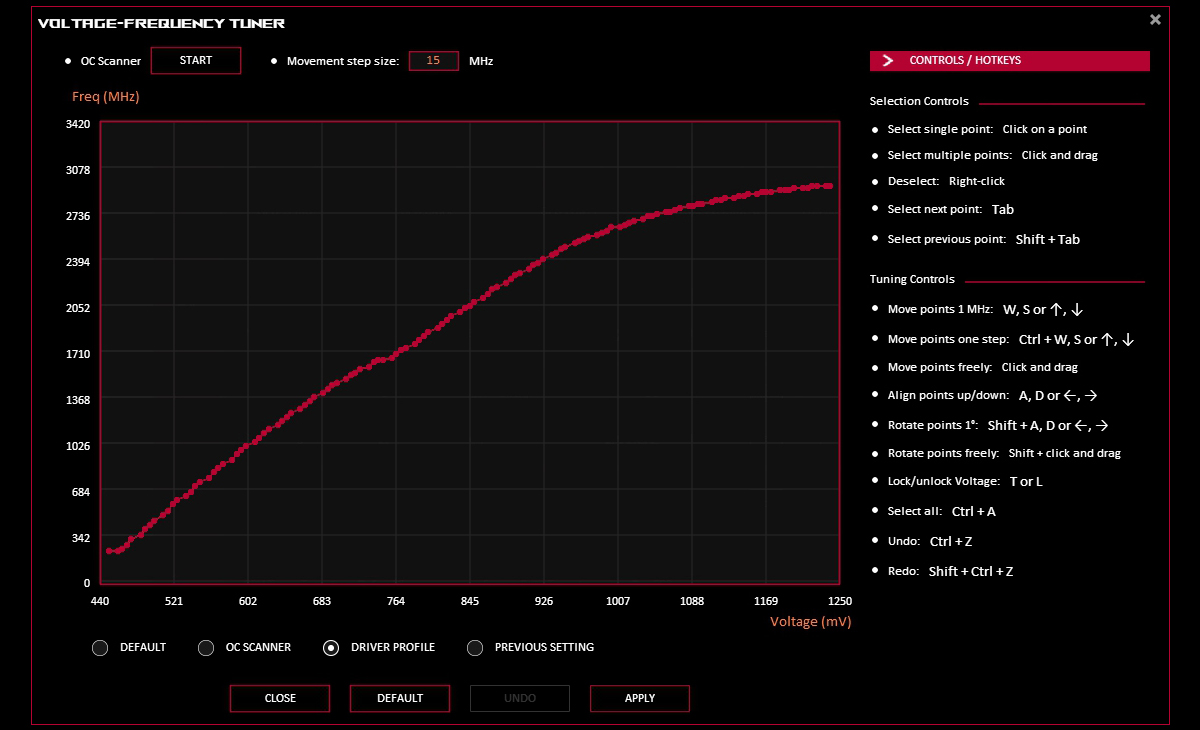
GPU Tweak III is ASUS’s proprietary utility for Radeon and GeForce cards. It bundles a sleek UI with real‑time OSD overlays that show clock speeds, voltage, temperature, and frame rate without leaving your game. The OSD is more than a convenience—it’s a live safety net that alerts you when you’re flirting with thermal or power limits.
- Instant feedback: See changes the moment you tweak a slider.
- Profile management: Switch between “Gaming,” “Eco,” or custom profiles on the fly.
- Granular control: Adjust core, memory, and voltage independently.
Because the OSD updates every few frames, you can test stability in‑game rather than guessing from static screenshots.
Getting Started: Setting Up the OSD for Overclocking
Before you crank the clocks, configure the overlay so it shows the data you need:
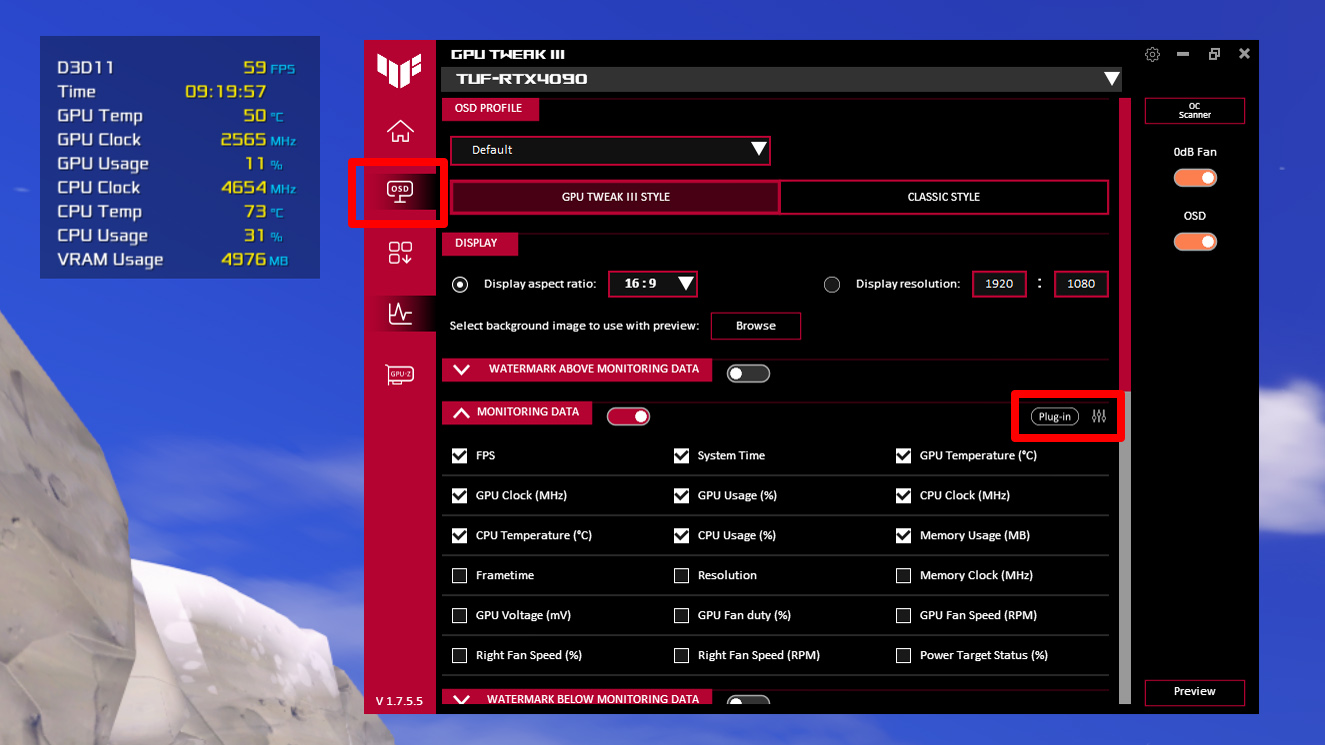
- Open GPU Tweak III and head to the OSD tab.
- Select the Custom preset—this lets you pick which metrics appear.
- At a minimum, enable GPU Core Clock, Memory Clock, Voltage, Temperature, and FPS. Adding Power Limit is useful for later fine‑tuning.
- Adjust the OSD position (top‑right corner works well for most games) and opacity so it stays readable without obscuring the view.
Save the preset and give it a name like “OC Test.” You’ll now see those numbers overlaid the next time you launch a game or benchmark.
OSD GPU Tweak 3: Overclocking Basics
The core idea is simple: increase the GPU core clock, then the memory clock, while keeping temperature and power within safe margins. Here’s a step‑by‑step routine that works for most modern cards.
1. Baseline Benchmark
Run a quick benchmark (e.g., 3DMark Time Spy or a favorite title) and note the OSD readings: core clock, memory clock, voltage, and temperature at idle and load. This gives you a reference point for measuring gains.
2. Raise the Core Clock
Increase the core clock by 20‑30 MHz increments. After each bump, start a short stress test—say, a 5‑minute loop of Unigine Heaven. Watch the OSD: if the temperature climbs above ~85 °C or you see frame‑time spikes, dial the clock back by the same step.
3. Tweak the Voltage (Optional)
If you hit a stability wall before reaching your desired clock, you can nudge the voltage up by 10‑15 mV. Most cards have a safe ceiling around 1.15 V for mainstream GPUs; exceeding that can shorten lifespan, so proceed cautiously.
4. Push the Memory Clock
Once the core is stable, move to the memory. Like the core, raise it in 25‑50 MHz steps, testing after each adjustment. Memory overclocking often yields noticeable FPS bumps in texture‑heavy games.
5. Adjust Power Limit
If you notice the card throttling (clocks dropping under load), raise the power limit by 5‑10 %. The OSD will display the current power draw, so you can ensure the card isn’t constantly hitting the ceiling.
Fine‑Tuning: Temperature Management and Stability Checks
Even a modest overclock can raise temperatures by 5‑10 °C. Keep the following in mind:
- Fan curves: In GPU Tweak III’s fan tab, set a curve that ramps to 80 % fan speed by 70 °C. This prevents sudden spikes.
- Case airflow: Ensure intake vents aren’t blocked and consider adding a rear exhaust fan.
- Long‑run testing: After you settle on a stable clock, run a 30‑minute gaming session or a prolonged benchmark. Watch the OSD for any gradual temperature creep or occasional frame‑time hiccups.
If you spot instability, backtrack the last successful clock step and re‑test. The goal isn’t the highest number possible, but a balance between performance gain and thermal headroom.
Common Pitfalls and How to Avoid Them
Overclocking sounds straightforward, yet many newcomers trip over a few recurring issues:
- Ignoring the OSD: Turning off the overlay might seem tidy, but you lose real‑time data. Keep it on during the entire tuning process.
- Relying on a single game: Some titles stress the GPU differently. Test at least two genres (e.g., a fast‑paced shooter and a GPU‑heavy simulator) to confirm universal stability.
- Over‑volting: A few extra millivolts can help, but beyond the manufacturer’s recommended maximum you risk permanent damage.
- Neglecting power limits: The card will throttle if it can’t draw enough power, making your overclock moot. Adjust the power limit before assuming a clock is “unstable.”
Saving and Switching Profiles
Once you’ve landed on a stable configuration, click “Save Profile” in GPU Tweak III. Name it something descriptive—like “OC‑1080‑85C.” The next time you sit down to game, you can instantly apply that profile without re‑tweaking sliders. The OSD will continue to display live data, reminding you that you’re still within safe limits.
FAQ
Q: How much performance can I realistically expect?
A: Gains vary by silicon quality, but most users see 5‑15 % higher FPS in demanding titles after a modest core‑and‑memory overclock.
Q: Will overclocking void my GPU warranty?
A: ASUS’s warranty typically covers hardware defects regardless of overclocking, provided you revert to default settings before seeking service. Check your specific warranty terms to be sure.
Q: Is it safe to run the OSD overlay while streaming?
A: Absolutely—GPU Tweak III’s OSD has negligible performance impact. Just ensure the overlay isn’t covering critical UI elements in your stream.
Q: Can I overclock a laptop GPU with GPU Tweak III?
A: The tool works on many laptop GPUs, but thermal headroom is tighter. Use smaller clock increments and monitor temperatures closely.

![[Graphic Card] ASUS GPU Tweak III介紹 | 官方支援 | ASUS 台灣](https://kmpic.asus.com/images/2022/07/18/07c68432-1616-4e7d-ad70-146302a2fa05.png)