Mastering MSTSC: The Ultimate Remote Desktop Guide
What is MSTSC and Why It Still Matters
When you hear MSTSC, you’re talking about the Microsoft Terminal Services Client, the built‑in Remote Desktop client that ships with every Windows PC. Despite the rise of third‑party tools and cloud‑based solutions, MSTSC remains a reliable, lightweight way to connect to another computer over a network. Whether you’re troubleshooting a server, accessing a home workstation from the office, or simply learning the fundamentals of remote connections, MSTSC gives you full control without extra licensing or installation.
Getting Started: Launching MSTSC
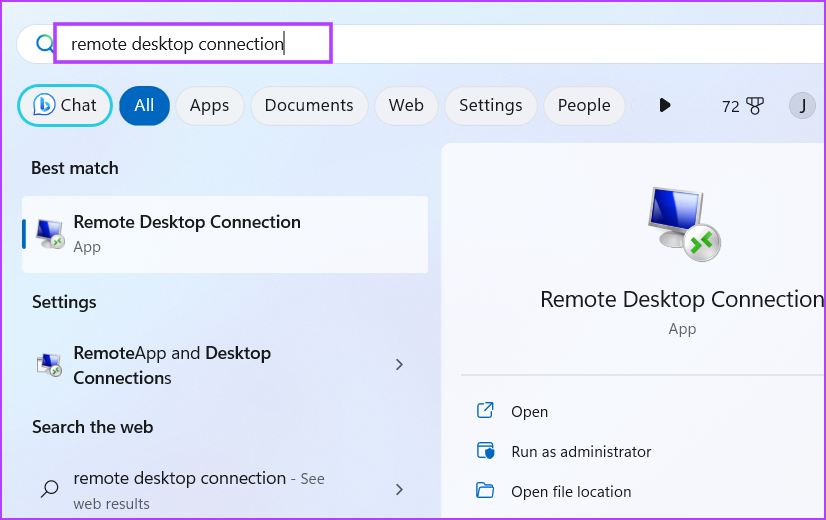
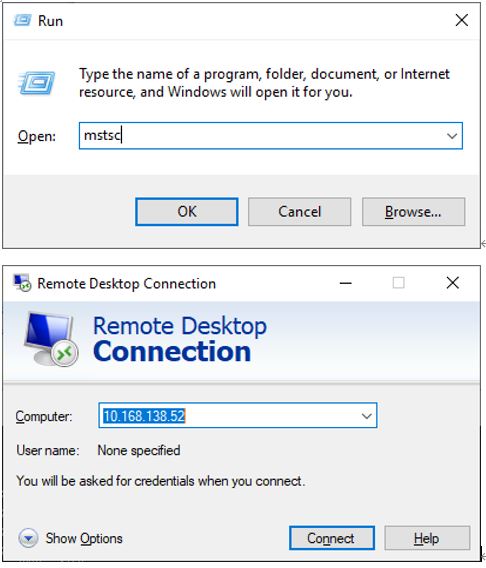
Open the Run dialog (Win + R), type mstsc, and hit Enter. The Remote Desktop Connection window will appear. At first glance, it looks plain, but a few tweaks unlock a lot of power:
- Show Options – Expands the UI to reveal settings like experience, display, local resources, and advanced options.
- Save – Store frequently used connections in an .rdp file for quick reuse.
- Connect – Initiates the session; you’ll be prompted for credentials unless you pre‑store them.
Fine‑Tuning the Experience
The “Experience” tab lets you balance speed and visual fidelity. If you’re on a bandwidth‑constrained link, uncheck features such as desktop background, font smoothing, or animations. On a fast 10 Gbps LAN, enable all visual effects for a near‑native feel.
Display Settings
Choose the resolution that suits your workflow. For dual‑monitor setups, select “Use all monitors in full‑screen mode” to stretch the session across both screens. If you need a specific resolution, pick “Remote desktop size” or enter custom values.
Local Resources
Redirect local devices—like printers, clipboard, or smart cards—so they’re available in the remote session. For most users, enabling the clipboard and audio playback is enough to keep a smooth workflow.
Advanced Features: Beyond the Basics
Once you’re comfortable with the UI, dive into the “Advanced” tab. Here, you can configure gateway settings, credentials caching, and more.
Remote Desktop Gateway (RD Gateway)
RD Gateway encrypts traffic over the public internet, adding a layer of security. To use it, provide the gateway server address and your credentials. The gateway then tunnels your RDP session through HTTPS, protecting data from eavesdroppers.
Credential Delegation
When you connect to a remote machine that in turn needs to access another resource (like a file share), enable “Allow this computer to delegate credentials” under “Advanced”. This keeps your session authenticated across the network stack.
Security Tips for Safe Remote Sessions
Remote Desktop can expose sensitive data if not configured properly. Follow these practices to keep your connections secure:
- Use strong, unique passwords for every account you access remotely.
- Enable Network Level Authentication (NLA) to require credentials before the session fully loads.
- Limit access by IP in your firewall or RD Gateway configuration.
- Keep your systems updated; patches often fix RDP vulnerabilities.
Common Troubleshooting Steps
Even a well‑configured environment can encounter hiccups. Here’s a quick checklist:
- Connection refused – Verify that the Remote Desktop service is running on the target machine and that the firewall allows inbound RDP traffic (default port 3389).
- Poor performance – Try lowering the color depth or disabling visual effects in the Experience tab.
- Authentication failures – Double‑check user rights and the domain the account belongs to; ensure the target machine is joined to the same domain.
- Clipboard issues – Confirm that the clipboard is enabled in Local Resources, and that both machines are on compatible Windows versions.
Alternative Use Cases
MSTSC isn’t limited to desktop access. It can also serve as a lightweight SSH wrapper if you install an SSH client on the remote side and configure port forwarding. Additionally, you can use it to manage Windows servers in a data center without installing any extra software.
Exporting and Importing .rdp Files
Once you’ve set up a session, click Save to store the configuration as an .rdp file. These files are plain text and can be edited manually to tweak settings that aren’t exposed in the GUI. To connect to a saved session, simply double‑click the .rdp file or launch MSTSC with the file path as an argument.
FAQ
Can I use MSTSC on non‑Windows clients?
No, MSTSC is a Windows‑only client. However, many cross‑platform RDP clients (like Remmina or FreeRDP) support the same protocol, so you can connect to a Windows host from Linux or macOS.
Is it safe to enable clipboard redirection?
Generally yes, but avoid copying sensitive data over insecure networks. When using RD Gateway, the traffic remains encrypted, making clipboard sharing safer.
How do I enable Remote Desktop on a Windows Server?
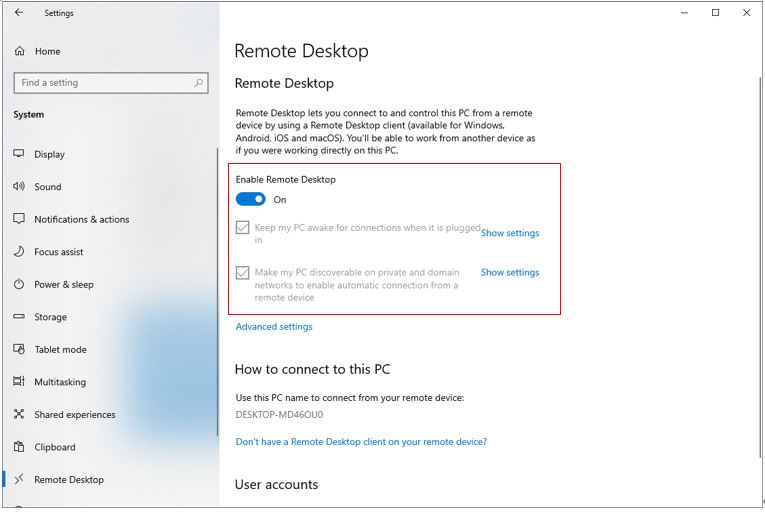
Open Server Manager → Local Server → Remote Desktop → Enable. Ensure the server’s firewall allows inbound RDP and that the target user has Remote Desktop access rights.