Mastering Project Management with ClickUp: A Complete Guide
Why ClickUp Stands Out in the Project‑Management Landscape
When teams talk about “ClickUp for project management,” they’re usually impressed by the platform’s blend of flexibility and depth. Unlike niche tools that lock you into a single methodology, ClickUp lets you toggle between Kanban, Gantt, list, and calendar views without leaving the workspace. That adaptability means the same system can serve a software sprint, a marketing campaign, and a product‑launch timeline—all under one roof.
Setting Up Your Workspace for Success
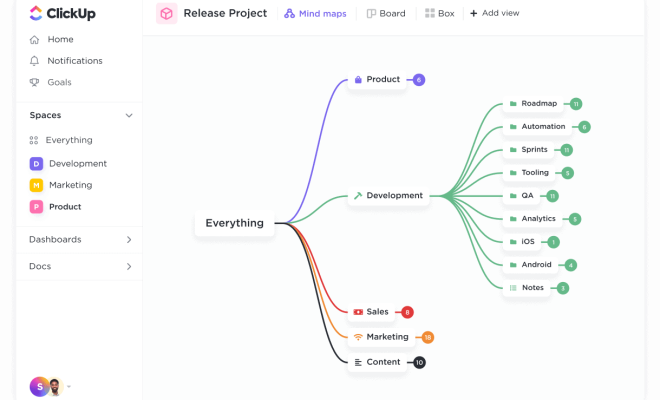
The first step is creating a workspace that mirrors your organization’s hierarchy. Start with Spaces for broad departments—Marketing, Engineering, Operations—then drill down to Folders for projects and Lists for individual tasks. By nesting items logically, you’ll keep the navigation clean and make permissions easier to manage.
Define Roles and Permissions Early
ClickUp offers granular role settings, from Full Access to Guest. Assign owners to each Space so they can control who sees what. This prevents accidental data leaks and ensures that every stakeholder only interacts with relevant information, a small habit that pays big dividends as the team scales.
Core Features That Power Project Management
At the heart of ClickUp are tasks, subtasks, and checklists. Each task can hold due dates, priority flags, assignees, and custom fields that capture project‑specific data—budget, risk level, or client approval status. Use the built‑in time‑tracking widget to log hours directly on tasks, eliminating the need for a separate timesheet app.
Views: Visualizing Work the Way You Need
The List view offers a spreadsheet‑like overview for detail‑oriented managers, while the Board view mimics a classic Kanban board for visual flow. For longer timelines, the Gantt view lets you map dependencies and spot bottlenecks before they become crises. Switching between views is a single click, so you never feel boxed in.
Customizing Views and Automations
ClickUp’s custom fields let you tailor each task to your project’s language. Need a “Client Approval” dropdown? Add it, and then create an automation that moves a task to “Ready for Review” when the field changes to “Approved.” Automations can also send Slack notifications, update statuses, or even trigger recurring tasks—saving minutes that add up to hours each week.
Dashboards for Real‑Time Insight
Dashboards pull data from any Space, presenting metrics like burndown charts, workload distribution, and overdue tasks on a single screen. Because dashboards are shareable, executives can glance at high‑level health without digging through individual lists, while project leads can drill into the details they need.
Best Practices and Common Pitfalls
One common mistake is over‑customizing. Adding too many custom fields or statuses can create confusion rather than clarity. Aim for a balance: keep the core workflow simple, and reserve extra fields for truly unique data points. Another tip is to archive completed tasks regularly; a cluttered hierarchy slows down search and hampers reporting.
Maintain Consistent Naming Conventions
When every task follows a predictable pattern—e.g., “[Client] – Feature – Sprint #”—search filters become far more effective. Consistency also helps new team members get up to speed quickly, as they can infer task purpose from the title alone.
Integrations That Extend ClickUp’s Reach
ClickUp connects natively with Slack, Google Drive, Outlook, and many other SaaS tools. Use the Zapier bridge for apps that aren’t directly supported—say, pushing new ClickUp tasks to a Trello board for external collaborators. Integrations keep data flowing, reducing the manual copy‑paste that often erodes productivity.
Measuring Success: KPIs to Track in ClickUp
Identify the metrics that matter most to your project—cycle time, on‑time delivery rate, or resource utilization. Configure custom widgets on a dashboard to surface these KPIs in real time. When the numbers dip, the visual cue prompts a quick retrospective, turning data into immediate action.
FAQ
- Can ClickUp replace separate tools like Asana or Trello? Often, yes. Because ClickUp bundles task management, time tracking, and reporting in one platform, many teams consolidate their stack and reduce licensing costs.
- Is ClickUp suitable for agile and waterfall methodologies? Absolutely. You can run sprints in Board view while simultaneously mapping long‑term milestones in Gantt view, allowing hybrid approaches within a single workspace.
- How does ClickUp handle security and data privacy? ClickUp offers SOC 2 compliance, two‑factor authentication, and granular permission controls, making it a viable option for enterprises that need strict data governance.