Mastering Windows Task Scheduler: Automate Your PC with Ease
Ever find yourself repeating a routine command or script each time your computer boots up? Windows Task Scheduler lets you hand off those chores to the operating system, turning mundane tasks into silent, timely assistants. In this guide we’ll walk through what it is, why it matters, and how to set up, manage, and troubleshoot tasks so you can focus on what really matters.
What is Windows Task Scheduler?
Task Scheduler is a built‑in Windows utility that runs programs, scripts, or scripts at predefined times or in response to specific system events. Think of it as a programmable alarm clock for your computer, but instead of waking you up, it launches files, sends emails, or cleans temporary folders. It’s part of Windows’ core automation framework, available in every desktop edition and Server version.
Why Use Task Scheduler?
Manual repetition is a productivity killer. Scheduling tasks offers:
- Reliability: Once configured, a task runs automatically, reducing human error.
- Efficiency: Background jobs can be set to run during off‑peak hours, keeping your PC responsive.
- Security: You can assign specific user accounts and permissions, limiting what the task can do.
- Flexibility: Triggers can be time‑based, event‑based, or user‑initiated.
Whether you’re a power user, IT administrator, or just trying to keep your backup script on schedule, Task Scheduler brings consistency to the chaos.
Getting Started: Opening the Scheduler
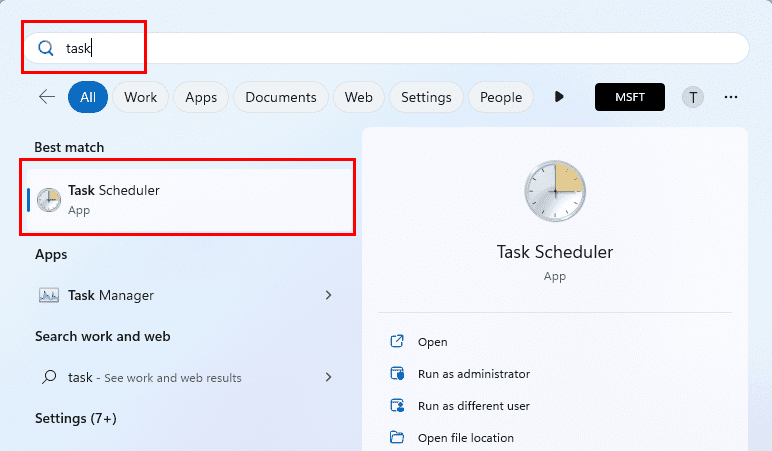
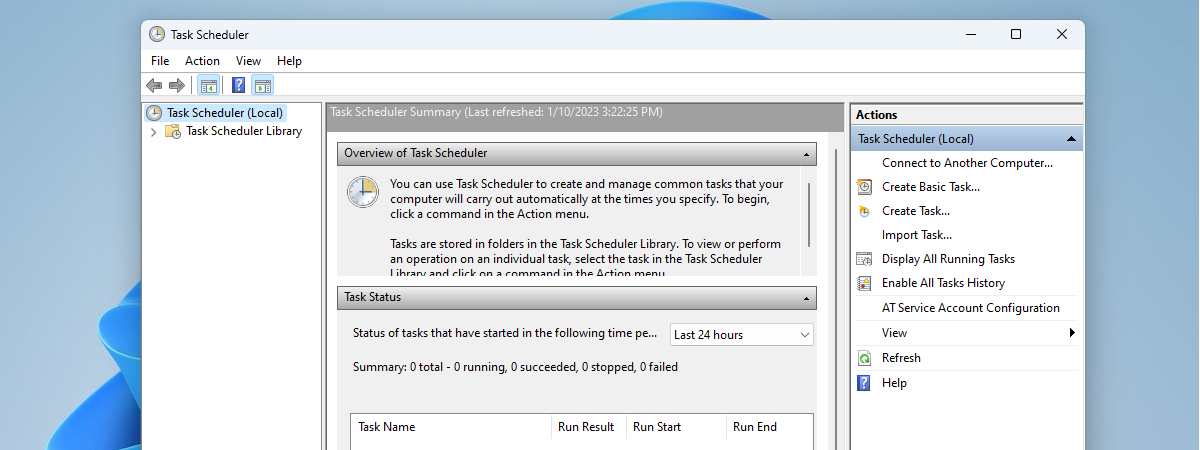
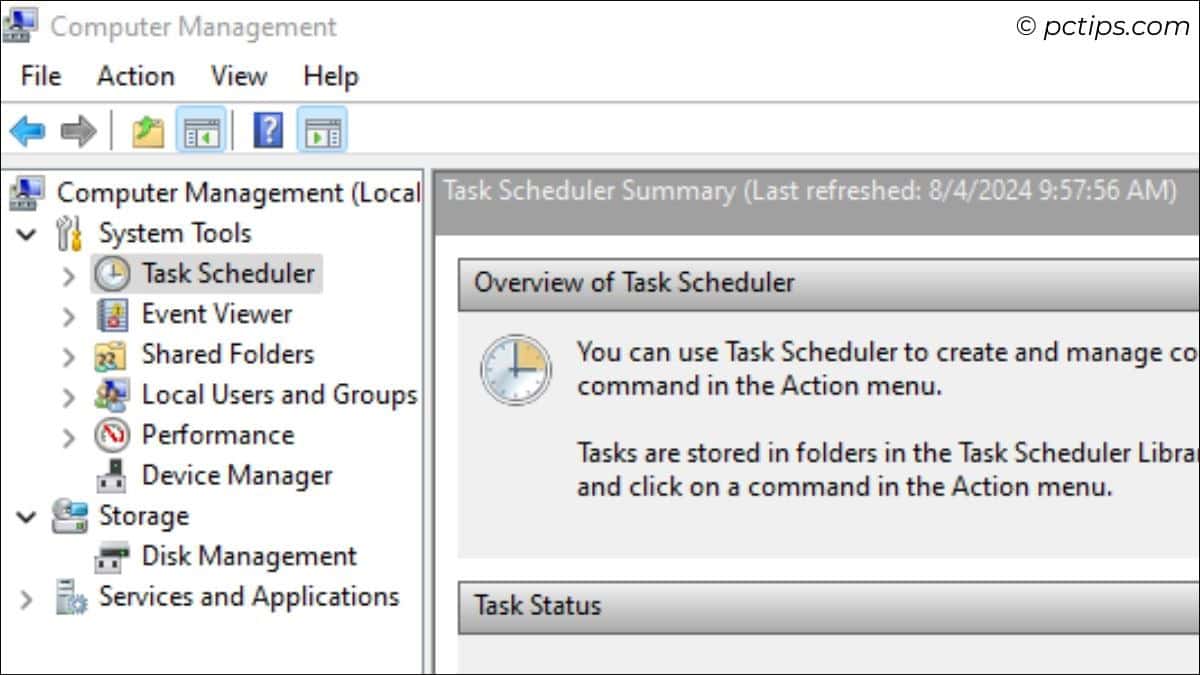
Launch the tool by typing taskschd.msc into the Run dialog (Win + R) or searching for “Task Scheduler” in the Start menu. The console opens with a left pane of folders, a middle pane of tasks, and a right pane showing details. Familiarize yourself with the layout: Task Scheduler Library holds all tasks, while Action and View menus provide quick access to common functions.
Creating Your First Task
Click Action → Create Basic Task… to launch a guided wizard. This approach is ideal for beginners and covers the essentials.
Choosing a Trigger
Decide when the task should run: daily, weekly, on system startup, or when you log on. For example, a daily backup at 3 a.m. would be set under “Daily” and scheduled to the nearest minute.
Setting an Action
Choose “Start a program” and browse to the executable, batch file, or script you want to run. If your action requires command‑line arguments, enter them in the Add arguments (optional) field.
Configuring Conditions
Here you can refine when the task runs. Options include “Start only if the computer is idle” or “Wake the computer to run this task.” These settings help conserve power and avoid interference with user work.
Finishing Up
Review the summary and click Finish. The task appears in the library and will run automatically at the next trigger.
Managing Existing Tasks
Every task can be edited, deleted, or disabled. Right‑click a task and choose Properties to modify triggers, actions, or conditions. To pause a task, simply disable it. Deleting removes the task permanently, so double‑check before clicking Delete.
Advanced Features
For more complex automation, use the full Create Task… dialog instead of the basic wizard.
- Multiple Triggers: Add more than one trigger so a task can run under different circumstances.
- Action Variants: Beyond Start a program, you can send an e‑mail, display a message, or run a custom action.
- Security Options: Choose a specific user or system account, and specify “Run whether user is logged on or not.” This is crucial for tasks that need to run in the background without user interaction.
- History & Logging: Enable history to view successes and failures. Log details aid in troubleshooting.
Troubleshooting Common Issues
Even the best setup can encounter hiccups. Here are quick fixes:
- Task never runs: Verify the trigger time, confirm the user account has permission, and ensure the computer is on and not in hibernation.
- Action fails: Double‑check the program path and arguments. Test the command manually in a command prompt first.
- Permissions errors: If the task requires elevated rights, select “Run with highest privileges” and supply the correct credentials.
- No history recorded: In the main window, click Enable All Tasks History from the right‑hand Actions panel.
Tips for a Smooth Automation Workflow
Adopting a disciplined approach saves time later:
- Document your tasks: Keep a spreadsheet listing task names, triggers,