Retrieving WhatsApp Web Chat History: A Step‑by‑Step Guide
When you open WhatsApp Web, it mirrors everything that lives on your phone: messages, media, and the history of every conversation. If you’re looking to revisit an old chat, see a missed media file, or simply want to keep a record, understanding how WhatsApp Web history works and how to access it is the first step.
How WhatsApp Web Syncs Your History
WhatsApp Web doesn’t store a separate copy of your chats. Instead, it streams data in real time from the WhatsApp server to the browser that is linked to your mobile device. Every message that appears on the web page was already saved on your phone, and the server acts as a relay. This design guarantees that you never see a conversation that you haven’t stored on your phone, but it also means that if your phone is offline or you delete a conversation, the web view will lose that history.
Finding Old Conversations on WhatsApp Web
Once you’re logged in, scrolling is your friend. If you remember the topic or the contact, use the search bar at the top right:
- Type a keyword, phone number, or the contact’s name.
- Press Enter to jump straight to the relevant chat.
- Within the conversation, scroll upward to load earlier messages.
WhatsApp Web lazily loads messages as you scroll, so the first few dozen lines appear instantly while older messages load progressively. If you’re looking for a specific date, scroll until you reach the approximate month; the date markers are shown above the messages.
Using the “Download All Media” Feature
For bulk media retrieval, open the chat, click the three dots next to the contact name, choose Media, Links & Docs, then hit Download all. The files will be saved locally on your computer in the folder you specified for your browser’s downloads. This approach works for photos, videos, and documents, but it does not export text messages.
Exporting Chats from Your Phone
Because WhatsApp Web can’t export a conversation to a text file on its own, you’ll need to use the phone’s export feature:
- Open the desired chat on your phone.
- Tap the contact’s name or group title, then scroll to Export chat.
- Select whether to include media. The app will create a .txt file (and media files, if requested) and let you share it via email, cloud, or USB.
- Transfer the file to your computer and open it in any text editor.
Once the chat is on your PC, you can keep it for personal records or share it with others as needed.
Recovering Deleted or Lost Chats
If you accidentally delete a conversation, WhatsApp Web will no longer display it because the data lives on the server and the phone. Fortunately, you can restore a deleted chat from a recent backup:
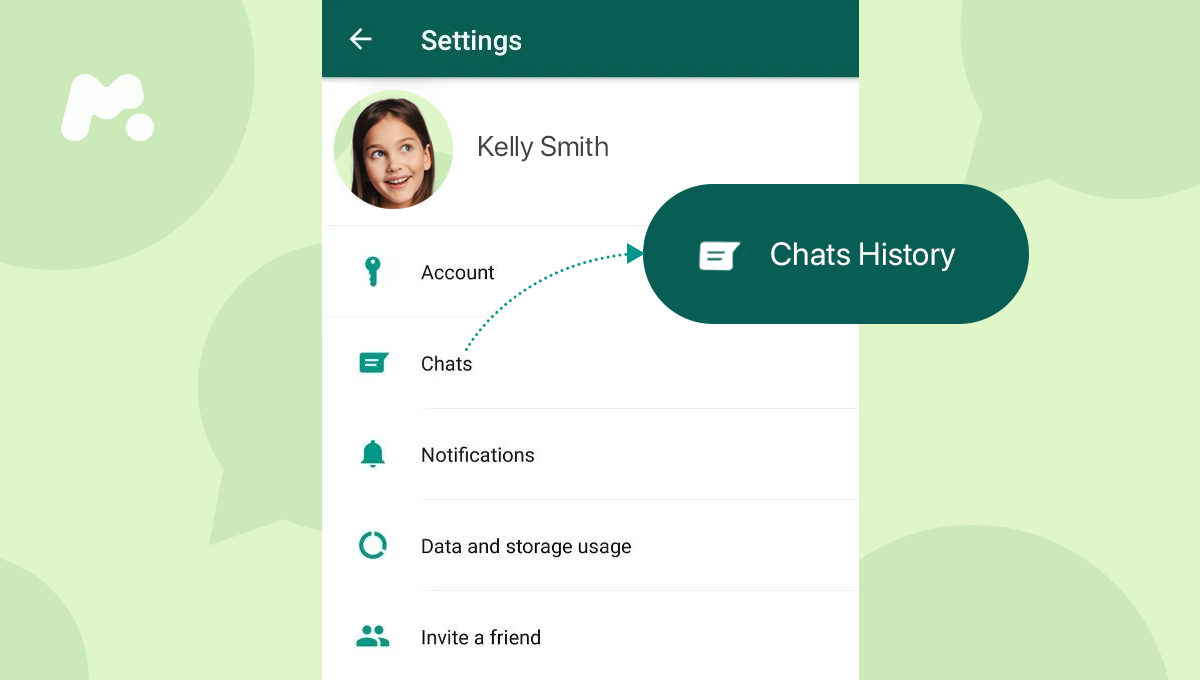
- On Android, go to WhatsApp Settings > Chats > Chat backup and tap Restore to recover the last backup.
- On iOS, install the same phone number on a fresh device and choose to restore from iCloud during setup.
After restoration, relaunch WhatsApp Web, and the conversation will reappear.
Why Some Chats Aren’t Visible on WhatsApp Web
There are a few reasons:
- Your phone is turned off or offline.
- The conversation was deleted or cleared on the phone.
- WhatsApp’s “Keep My Data” policy has removed the chat from the server because it was older than 30 days and not backed up.
In any of these cases, the only way to retrieve the messages is to recover a backup from the phone or cloud.
Keeping Your History Accessible
To avoid missing important chats:
- Enable Chats > Backup on your phone to back up daily.
- Keep the WhatsApp Web page open while you’re active on your phone; the web view refreshes automatically.
- Use the Search bar rather than scrolling through dozens of conversations.
These simple habits keep your history synchronized and readily searchable.
FAQ
Can I view my WhatsApp Web history after I log out?
No. When you log out, the browser removes the session, and the server no longer serves your data to that device.
Is there a way to save a screenshot of an entire chat?
WhatsApp does not provide a built‑in “full screenshot” feature. You can use a browser extension that captures scrolling pages, but it will be an image of the chat, not editable text.
Will downloading all media from a chat delete the files from my phone?
No. The export process copies the media; it does not remove them from your device.
Can I access my WhatsApp Web history on a public computer without logging in again?
Only if the computer was previously logged in and you keep the session active. Once you log out or the browser cache clears, you must scan a new QR code from your phone.


![How to Get WhatsApp Chat History of Any Number [2025 Updated] - Root ...](https://root-nation.com/wp-content/uploads/2024/12/whatsapp-export-chat-012.jpg)


:max_bytes(150000):strip_icc():focal(2529x1438:2531x1440)/90-Day-Fiance-The-Other-Way-Sean-Joanne-4ebe4bd859284fd29c354c605bf1700b.jpg)