Understanding Your Phone’s Status Bar: Icons, Alerts & Tips
What the status bar actually is
The status bar sits at the top edge of your smartphone’s screen, acting like a quick‑glance dashboard. It constantly displays tiny symbols that tell you about network strength, battery level, time, and any active alerts. Because it lives in a narrow strip, the icons are deliberately simple, but each one packs a lot of information if you know how to read them.
Decoding the most common icons
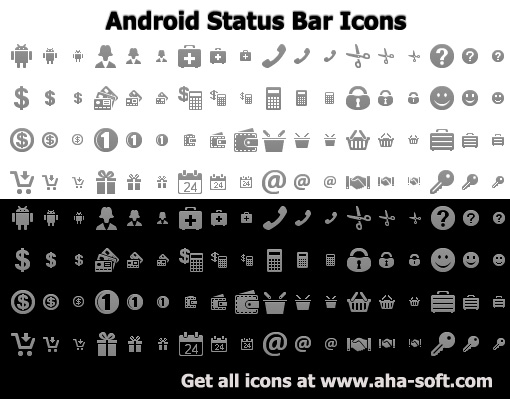
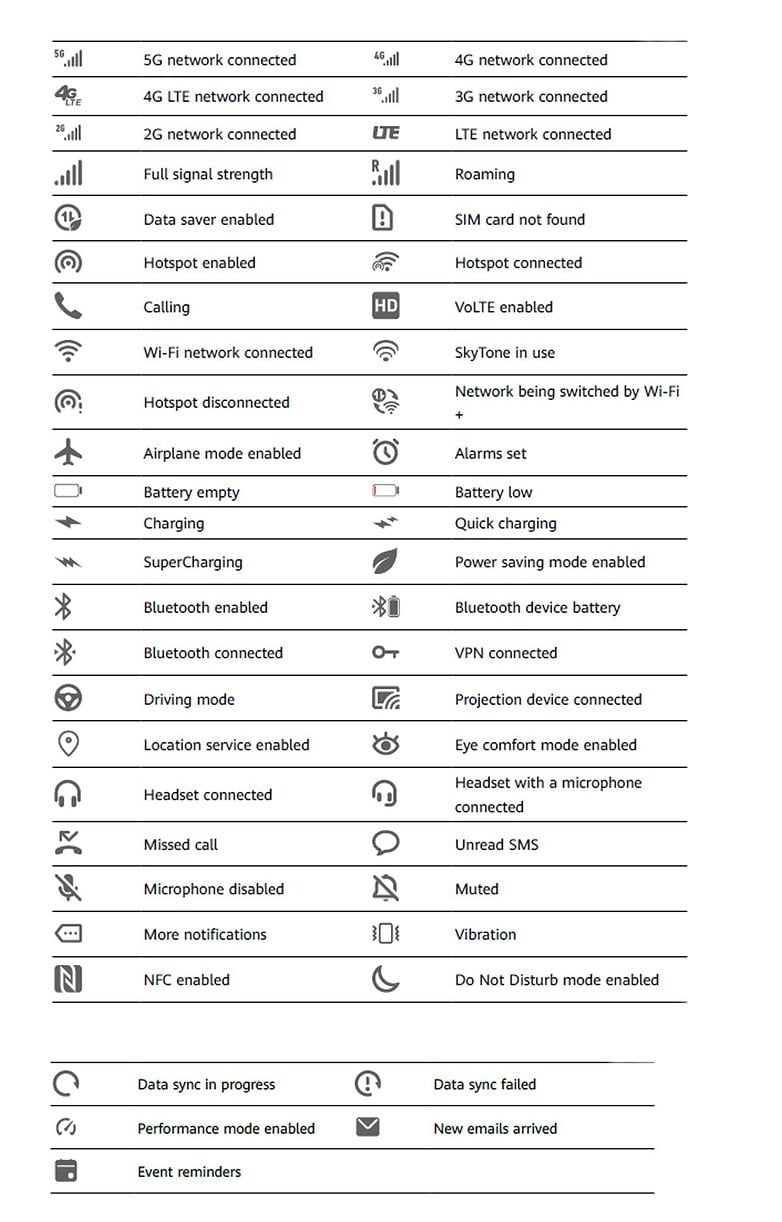
Even if you’ve glanced at the bar a hundred times, you might still wonder what a particular glyph means. Below is a quick guide to the symbols you’ll encounter on most Android and iOS devices.
- Signal bars – Horizontal lines that grow in height as cellular reception improves. A single bar usually indicates a weak connection, while five bars mean you’re in a strong coverage zone.
- Wi‑Fi waves – Curved lines that appear when you’re connected to a wireless network. The more arcs you see, the stronger the signal.
- Battery icon – A rectangle that fills up as the charge increases. A lightning bolt overlay signals that the device is currently charging.
- Time – Usually centered and shown in a 12‑ or 24‑hour format, depending on your regional settings.
- Do‑not‑disturb (DND) moon – A small crescent that appears when notifications are silenced.
- Airplane mode – An airplane silhouette that tells you all radios are turned off.
- Location pin – A needle‑like icon indicating that an app is actively using GPS.
Notification icons: The subtle alarm bells
Whenever an app wants to get your attention, it drops a tiny badge into the status bar. These icons differ from the static system symbols because they appear only while there’s something new to see.
For example, a messaging app might show a speech bubble with a number, while a calendar event adds a small calendar page. Some platforms let you expand the bar to reveal a preview of the notification; others keep it hidden until you swipe down from the top.
Managing what shows up
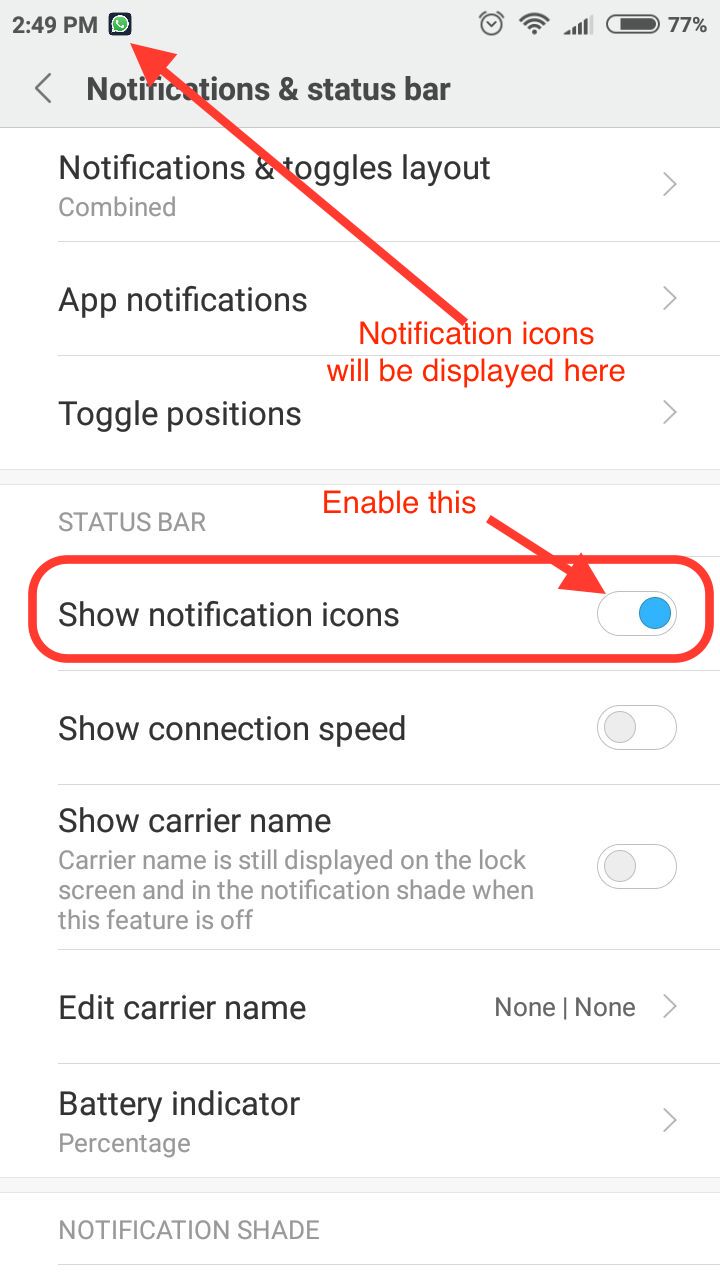
Most phones let you control which apps can place icons in the status bar. On Android, you’ll find the option under Settings → Notifications → Status bar. iOS users go to Settings → Notifications and toggle “Show in Status Bar” for each app.
Disabling non‑essential icons can declutter the bar and even save a few milliseconds of battery life, since the system doesn’t have to redraw them constantly.
Customizing the look and feel
If you’re after a more personalized experience, both major OSes offer ways to tweak the status bar’s appearance. Android’s “System UI Tuner” (often hidden behind a long‑press on the Settings gear) reveals options to move the clock, hide the battery percentage, or change the icon color theme.
iOS is more restrictive, but you can still choose a light or dark status bar style, and certain third‑party launchers let you replace the default icons with custom packs.
Practical tips for everyday use
- Spot a missing battery icon? Swipe down to open the quick settings panel; if the battery percentage is hidden, you can re‑enable it in the display settings.
- Strange signal icon after a software update? A quick reboot often forces the radio module to reset and display the correct bars.
- Too many notification badges? Use the “Do Not Disturb” schedule to silence low‑priority alerts during work hours.
- Want to see data usage at a glance? Some Android skins add a tiny arrow next to the signal bars that fills as you consume mobile data.
When the status bar misbehaves
Occasionally, the bar may freeze on an old icon or fail to update after a change in connectivity. A soft reset (holding the power button for ten seconds) usually clears the glitch. If the problem persists, clearing the system cache partition (Android) or resetting all settings (iOS) can restore normal behavior without erasing personal data.
FAQ
What do the icons in the status bar mean?
They are compact visual cues for system status—signal strength, Wi‑Fi, battery, time, and active alerts like Do‑Not‑Disturb or location services. Each platform follows a similar visual language, though specific designs may vary by manufacturer.
How can I customize which notifications appear in the status bar?
Navigate to your phone’s notification settings, select an app, and toggle the option to show its icon in the status bar. Some Android skins also let you group icons or hide them completely.
Why does my battery icon disappear sometimes?
Most OSes hide the battery percentage by default to save space. If the entire icon vanishes, it’s often a temporary UI glitch; a quick restart or opening the quick‑settings panel usually brings it back.
Can I change the color of status bar icons?
On Android, the System UI Tuner or third‑party launchers allow you to switch between light and dark icon sets, or even apply custom colors. iOS limits this to light vs. dark mode, which automatically adjusts icon color for readability.
![How to Show/Hide Notification icons in Status bar [Android 14] - YouTube](https://i.ytimg.com/vi/Rjrf8nG6M9o/maxresdefault.jpg)


:max_bytes(150000):strip_icc():focal(2529x1438:2531x1440)/90-Day-Fiance-The-Other-Way-Sean-Joanne-4ebe4bd859284fd29c354c605bf1700b.jpg)