Uninstall Edge Quickly with PowerShell: A Step‑by‑Step Guide
Microsoft Edge ships as a core Windows component, so most users never consider removing it. However, if you prefer another browser or simply want to free up disk space, PowerShell offers a clean, scriptable path to uninstall Edge. This guide walks you through the entire process, from identifying the package to cleaning up residual files.
Why Uninstall Edge via PowerShell?
Using PowerShell gives you granular control: you can target specific user profiles, remove the provisioned system image, and avoid the clutter that sometimes comes with GUI uninstallers. Scripts run faster, can be repeated across machines, and provide clear logs for troubleshooting.
Prerequisites Before You Begin
- Run PowerShell as Administrator. Right‑click the PowerShell icon and choose “Run as administrator.”
- Verify you’re on a supported Windows version (10 or 11). PowerShell 5.1 or later is required.
- Back up important data. While Edge isn’t critical to core Windows functions, removing it can affect features that rely on the Chromium engine.
Step 1: Identify the Edge Package
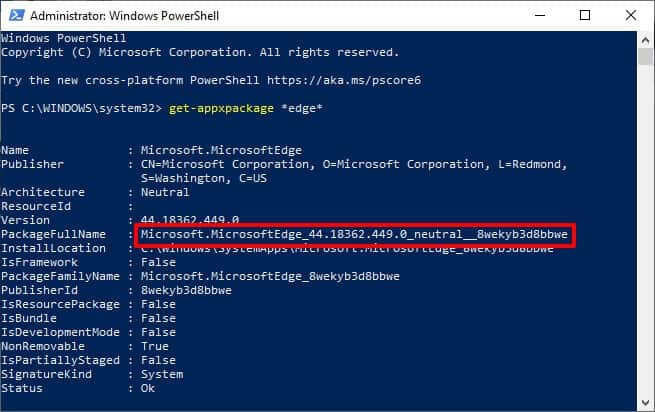
Open PowerShell and query the installed Edge package with:
Get-AppxPackage *Edge* | Select Name, PackageFullNameTypical output lists “Microsoft.MicrosoftEdge” and its full package name. Note the PackageFullName; you’ll need it for removal.
Step 2: Remove Edge From the Current User Profile
Run the following command to uninstall Edge for the logged‑in user:
Remove-AppxPackage -Package "Microsoft.MicrosoftEdge_8wekyb3d8bbwe"Replace the package name with the one you captured in Step 1. If you see a “cannot be found” error, the package may already be removed or provisioned at a different level.
Removing the System Provisioned Version
Edge can be provisioned as part of the OS image. To strip it from all future user profiles, execute:
Get-AppxProvisionedPackage -Online | Where-Object {$_.DisplayName -eq "Microsoft.MicrosoftEdge"} | Remove-AppxProvisionedPackage -OnlineThis command removes Edge from the system image, ensuring that new user accounts won’t inherit it.
Step 3: Clean Up Leftover Files
Even after removing the package, some directories linger in the system folder. Delete them manually:
Remove-Item -Recurse -Force "$env:ProgramFiles\WindowsApps\Microsoft.MicrosoftEdge_*\*"For Windows 11, Edge’s files reside in %ProgramFiles%\WindowsApps. Adjust the path if your OS uses a different location.
Step 4: Verify Edge is Gone
Check the Start menu for “Microsoft Edge.” It should no longer appear. You can also run:
Get-AppxPackage *Edge*to confirm that no packages return. Additionally, search the registry for MicrosoftEdge under HKLM\Software\Microsoft\Windows\CurrentVersion\App Paths. If entries remain, delete them carefully.
Common Issues and Troubleshooting
- Permission errors: Make sure PowerShell is elevated. If you still fail, run the command from an elevated command prompt using
powershell -ExecutionPolicy Bypass -Command "& {Remove-AppxPackage ...}". - Edge appears as the default browser: After removal, Windows may prompt you to choose another default. Select your preferred browser.
- Re‑installation after a Windows update: Some updates restore provisioned apps. Re‑run the removal steps immediately after updating.
Alternatives to PowerShell
If you’re uncomfortable with scripts, you can remove Edge through the Settings → Apps → Apps & features panel, but the system often blocks it. Third‑party uninstallers might succeed, but they may leave orphaned files or registry entries.
FAQ
Can I reinstall Edge after uninstalling it? Yes. Re‑install it via Windows Features or by downloading the latest installer from Microsoft’s site.
Will uninstalling Edge break other Windows components? Not usually. Edge is optional; core OS functions remain intact. However, some enterprise policies or features that rely on Chromium may be affected.
Does this remove the entire Microsoft Edge or just the Chromium build? The script targets the installed Edge package, which on modern Windows is the Chromium‑based version. The legacy EdgeHTML engine was removed in Windows 10 Anniversary Update.
Is this safe on Windows 11? Absolutely. The removal process is the same as on Windows 10, but always back up your system before making large changes.