Why Your Cosmos Fan Stalls and How to Fix It
If your Cosmos fan isn’t spinning, you’re probably hearing a louder whirr from the rest of the system or feeling heat creep up where it shouldn’t. It’s a frustrating hiccup, especially when you rely on that fan to keep your hardware cool and quiet. Below we’ll walk through the most common culprits, give you a practical step‑by‑step checklist, and let you know when it’s smarter to hand the job off to a professional.
Common Reasons a Cosmos Fan Won’t Spin
Before you start unscrewing anything, consider these typical offenders. In many cases the fix is as simple as a quick dust‑off.
- Dust and debris – A layer of grime can block the blades or jam the bearing.
- Loose power connector – Vibration over time may loosen the fan’s 3‑pin or 4‑pin plug.
- Faulty fan controller – The motherboard or dedicated fan hub might be sending the wrong PWM signal.
- Power supply issues – An inadequate or failing PSU can starve the fan of voltage.
- Mechanical wear – Bearings wear out after months of continuous use.
Step‑by‑Step Troubleshooting Guide
Grab a screwdriver, a can of compressed air, and a bit of patience. Follow these steps in order; you’ll often solve the problem without needing to replace the fan.
1. Power Down and Unplug
Never work on a live system. Shut down the computer, disconnect the power cord, and press the power button for a few seconds to discharge any lingering charge.
2. Inspect Visually
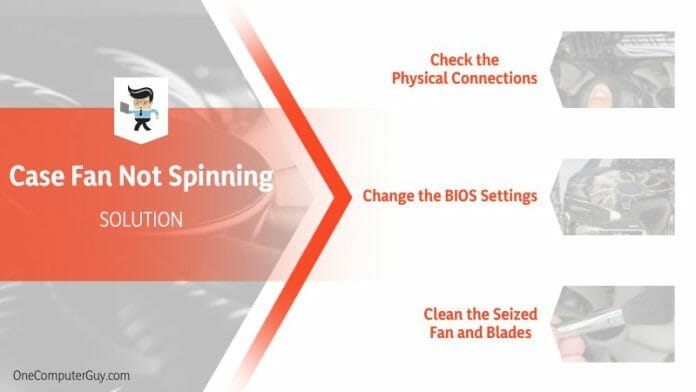
Remove the side panel (or the fan’s housing if it’s an external unit). Look for obvious blockages: hair, lint, or a loose screw lodged near the blades. If you see anything, gently clear it with a brush or compressed air.
3. Test the Connector
Detach the fan’s power plug and re‑seat it firmly. If your Cosmos fan uses a PWM (4‑pin) connector, make sure the extra pin aligns correctly. A quick “wiggle test” can reveal a loose connection.
4. Spin It Manually
Give the blades a gentle spin with your fingertip. If they turn freely, the motor is likely okay; resistance suggests bearing wear. A stuck fan will usually feel gritty or won’t move at all.
5. Check BIOS/UEFI Settings
Boot into the BIOS and navigate to the hardware monitoring section. Most modern boards let you control fan curves. Set the fan to a fixed 100 % speed temporarily; if it still won’t spin, the issue is hardware‑related.
6. Use a Multimeter (Optional)
If you have a multimeter, measure the voltage at the fan’s connector while the system is on. A typical 12 V fan should read close to 12 V when set to full speed. A significantly lower reading points to a power delivery problem.
7. Replace the Fan
When all else fails, swapping the fan is the most straightforward remedy. Match the size (e.g., 120 mm), connector type, and airflow rating. Install the new fan the same way you removed the old one, and reconnect the power cable.
When to Call a Professional
Most fan hiccups are DIY‑friendly, but there are scenarios where a trained technician saves you time and money.
- If the fan’s failure coincides with random system crashes, the motherboard or PSU may be the root cause.
- When the fan is integrated into a sealed enclosure (such as some all‑in‑one PCs), opening it could void the warranty.
- If you’re uncomfortable handling electrical components or lack basic tools, a professional can perform a safe diagnosis.
Preventive Maintenance Tips
Keeping a Cosmos fan happy is largely about regular care.
- Schedule a dust‑clearance routine every three to six months.
- Use low‑noise fan curves in BIOS to reduce constant high‑speed operation.
- Consider adding a small silicone anti‑vibration pad under the fan mount to lessen wear.
FAQ
Q: My Cosmos fan spins intermittently—what’s happening?
A: Intermittent spinning often signals a failing bearing or an inconsistent power signal. Try the manual spin test; if the blades feel gritty, replace the fan.
Q: Can I use a generic replacement fan?
A: Yes, as long as it matches the original’s size, voltage, and connector type. Check the label on the old fan for specs before buying.
Q: Why does my system still overheat after I fixed the fan?
A: A non‑spinning fan can damage thermal paste or cause dust buildup elsewhere. Re‑apply paste on the CPU/GPU and verify that other cooling components (heatsinks, case vents) are clear.
Q: Is it safe to run the fan at full speed all the time?
A: Full speed is fine for short periods, but constant maximum speed can wear out bearings faster. Use a balanced fan curve that ramps up only when temperatures rise.