How to Join the Mobile Legends Google Play Beta Program
Mobile Legends continues to roll out fresh heroes, balance tweaks, and new events, but many players want a sneak peek before the changes hit the live servers. Google Play offers a beta channel that lets you test upcoming content while it’s still in development. Below is a practical, step‑by‑step guide to getting onto the Mobile Legends Google Play beta, plus what to expect once you’re in.
Why Join the Mobile Legends Google Play Beta?
Betas serve as a sandbox where developers gather real‑world feedback. By joining, you’ll:
- Play new heroes and skins before they’re released to the public.
- Experience balance adjustments that may improve your win rate.
- Help the team spot bugs, which ultimately makes the final release smoother for everyone.
Because the beta runs on the same servers as the main game, you’ll still be matched with regular players, giving you a realistic feel for how the upcoming changes will play out.
How to Enroll in the Google Play Beta for Mobile Legends
The enrollment process is straightforward, but a few details can trip up new users. Follow these steps carefully to avoid common pitfalls.
Step 1: Verify Your Google Play Account
Make sure you’re signed in to the Google account you use on your Android device. The beta enrollment is tied to the account, not the device, so switching accounts later may require a fresh enrollment.
Step 2: Find the Mobile Legends Page on Google Play
Open the Google Play Store app, tap the search bar, and type “Mobile Legends: Bang Bang.” Open the game’s main page—do not click on any promotional banners that might redirect you elsewhere.
Step 3: Scroll to the “Join the Beta” Section
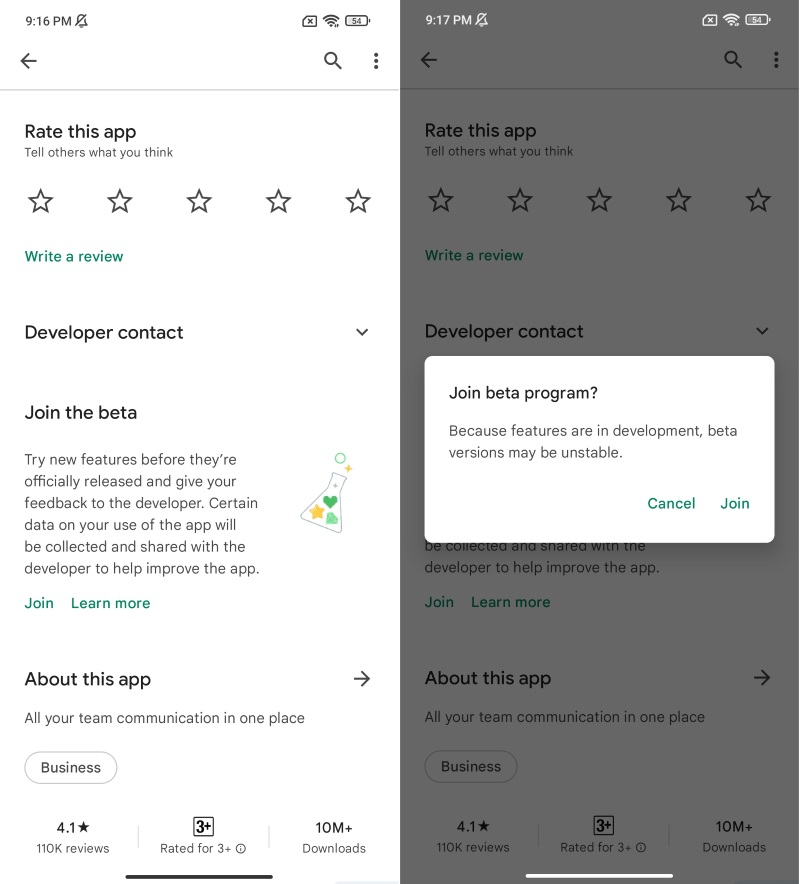
Scroll down past the screenshots and description until you see a section titled “Join the beta.” If the button says “Join,” tap it. If it reads “Leave,” you’re already part of the beta and can skip to the next step.
Step 4: Confirm Your Choice
A pop‑up will ask you to confirm that you want to become a beta tester. Tap “Join” again. Google Play will now process your request; this usually takes a few minutes, but in rare cases it may take up to 24 hours.
Step 5: Update or Install the Game
After the enrollment is confirmed, return to the Mobile Legends page. You’ll see an “Update” button if you already have the game installed, or an “Install” button if you don’t. Install the beta version, which may be labeled as “Beta” in the version number.
Step 6: Launch and Play
Open Mobile Legends as you normally would. You’re now in the beta environment. Look for a small “Beta” badge on the main menu—this confirms you’re testing the pre‑release build.
Remember that beta builds can be less stable than the public release. Expect occasional crashes or performance hiccups, especially after major content drops.
What to Expect Once You’re in the Beta
Being a beta tester isn’t just about early access; it also comes with a set of responsibilities. Here’s what you’ll typically see:
- New Content Rotation: Developers often rotate test content weekly. A hero might appear for a few days before being swapped out for another.
- Feedback Prompts: In‑game prompts may appear after matches, asking you to rate balance changes or report glitches.
- Limited Support: Since the beta is a testing ground, official support is minimal. Community forums and Discord channels become your primary help sources.
If you encounter a bug that breaks gameplay, the quickest way to report it is through the “Feedback” button in the game’s settings. Attach screenshots if possible; the more detail you provide, the more useful it is for the developers.
Common Issues and How to Fix Them
Beta versions can behave unpredictably. Below are a few frequent problems and simple fixes.
- Game Won’t Launch: Uninstall the beta, clear the Google Play Store cache (Settings → Apps → Google Play Store → Storage → Clear Cache), then reinstall.
- Matchmaking Errors: Restart the app and ensure you have a stable internet connection. If the problem persists, leave the beta, wait a few hours, and rejoin.
- Missing In‑Game Purchases: Purchases made on the stable version may not appear in the beta. Log out and back in, or temporarily switch back to the public build to verify your inventory.
When in doubt, check the official Mobile Legends social channels. Developers often post known issues and estimated fix timelines there.
FAQ
Do I need a specific Android version to join the beta?
Generally, the beta supports the same minimum OS level as the stable release (Android 5.0 Lollipop or newer). However, newer features may require Android 8.0 or higher for optimal performance.
Can I switch back to the regular version?
Yes. On the Google Play page, tap “Leave the beta.” After a short processing period, the “Install” button will revert to the stable version.
Will my progress carry over between beta and stable?
Progress, such as level and unlocked heroes, is tied to your Moonton ID, so it syncs across both versions. Occasionally, temporary desyncs occur, but a simple relogin usually resolves them.
Is there any reward for beta testing?
Moonton occasionally offers exclusive skins or in‑game currency as a thank‑you. These rewards are typically announced on the official forums when a beta cycle ends.