How to Log Into YouTube’s Desktop Dashboard Using Chrome
Whether you’re a content creator tracking analytics or just a power user who prefers the larger interface, the YouTube desktop dashboard offers more tools than the mobile view. Accessing it through Chrome is straightforward, but a few browser settings can trip you up if you’re not aware of them. Below is a practical walk‑through that covers the basics, common hiccups, and a couple of tips to keep your login smooth.
Why Choose Chrome for the YouTube Dashboard?
Chrome is Google’s own browser, so it naturally syncs with YouTube’s authentication system. Features like automatic cookie handling, built‑in password managers, and frequent security updates make it a reliable choice for staying signed in without constant re‑verification. If you already use Chrome for everyday browsing, you’ll notice the login experience feels seamless compared with other browsers.
Preparing Chrome Before You Log In
Before you dive into the dashboard, take a moment to check a few settings. These steps help avoid the dreaded “You’ve been signed out” message that sometimes appears after a short period.
- Enable Cookies: YouTube relies on first‑party cookies to remember your session. Go to Settings → Privacy and security → Cookies and other site data and select “Allow all cookies” or at least “Block third‑party cookies in incognito.”
- Update Chrome: An outdated version may lack the latest security protocols. Click the three‑dot menu, choose “Help → About Google Chrome,” and let it update if needed.
- Clear Old Cache (Optional): If you’ve recently switched Google accounts, a quick cache clear can prevent session conflicts. Use Ctrl+Shift+Delete and choose “Cached images and files.”
Step‑By‑Step: Logging Into the Desktop Dashboard
Once Chrome is ready, follow these steps to reach the dashboard without a hitch.
- Open a new Chrome window and navigate to youtube.com. If you see a sign‑in button in the top right, you’re already on the right track.
- Click “Sign in.” A Google login page appears—enter the email address associated with your YouTube channel.
- Enter your password. If you’ve enabled two‑factor authentication, complete the verification using your phone or authenticator app.
- After successful sign‑in, hover over your profile picture in the top right corner and select “YouTube Studio.” This is the gateway to the desktop dashboard.
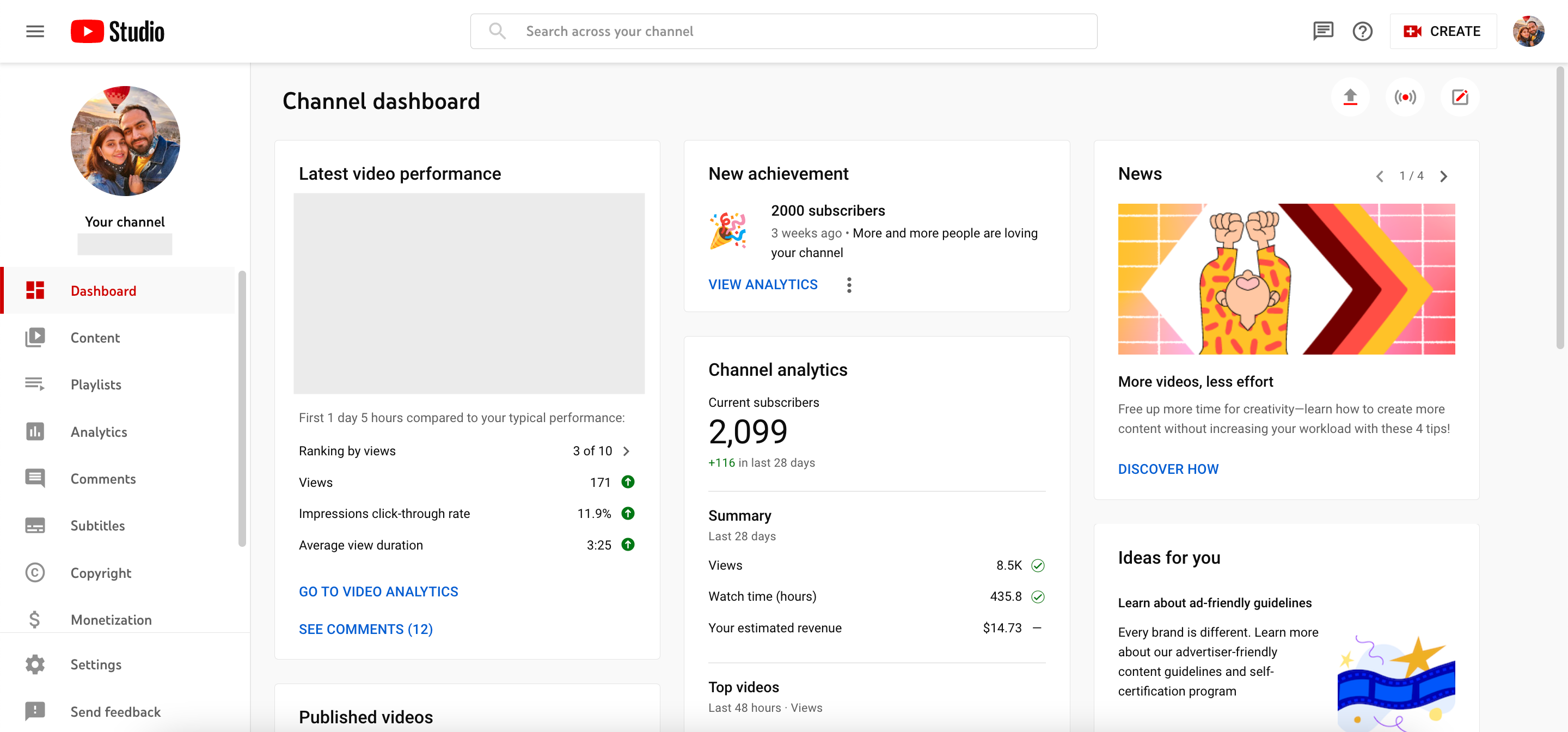
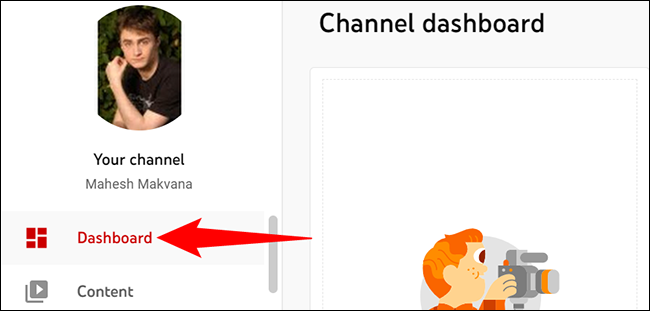
- The Studio interface loads with tabs for Dashboard, Content, Analytics, and more. The “Dashboard” tab gives you a quick snapshot of recent activity, latest comments, and upload status.
Understanding the Dashboard Layout
The dashboard isn’t a single page; it’s a collection of widgets that surface the most relevant data at a glance. Typically you’ll see:
- Channel Analytics Overview: Views, watch time, and subscriber change over the past 28 days.
- Recent Uploads: Status indicators for processing, scheduled, or public videos.
- Comments & Community: Highlights of recent comments needing replies.
- Monetization Alerts: Notices about ad revenue thresholds or policy issues.
Each widget is clickable, taking you deeper into the respective section for detailed reports.
Dealing With Common Login Problems
Even with Chrome’s smooth integration, a few roadblocks can appear. Here’s how to troubleshoot them.
1. “Sign‑in Prompt Keeps Reappearing”
Often this stems from blocked third‑party cookies. Double‑check the cookie setting you adjusted earlier, and ensure you haven’t added YouTube to any “Never allow” list under site settings.
2. “Your Account Has Been Disabled” Message
If YouTube flags a policy violation, the dashboard will refuse access until the issue is resolved. Log in to the main YouTube site, look for a banner explaining the restriction, and follow the provided appeal steps.
3. “Two‑Step Verification Not Working”
Make sure the time on your phone or authenticator app is accurate. A drift of even a minute can cause a mismatch. Re‑sync the time settings on your device if needed.
Tips for a Faster, More Secure Experience
Now that you’re up and running, consider these optional tweaks to improve speed and protect your account.
- Use Chrome Profiles: Create a separate profile for your YouTube channel. This isolates cookies and extensions, reducing the chance of accidental sign‑outs.
- Enable “Stay Signed In”: When prompted during the login flow, tick the box to keep your session active across restarts.
- Turn on “Enhanced Safe Browsing”: Found under Settings → Privacy and security → Security, this feature adds an extra layer against phishing attempts that target Google accounts.
- Install the “YouTube Studio” Extension: Though optional, the extension adds a quick‑access button to your toolbar, opening the dashboard with a single click.
Accessing the Dashboard on Multiple Devices
If you switch between a desktop at work and a home computer, Chrome’s sync feature can keep you logged in across both. Just sign into Chrome itself with the same Google account, and your cookies, extensions, and saved passwords travel with you. Remember, though, that shared computers should always use “Incognito” mode for privacy.
When to Consider Alternative Browsers
While Chrome is the default recommendation, some users prefer browsers that block trackers more aggressively. If you opt for Firefox or Edge, the login steps remain identical, but you may need to manually allow YouTube cookies and disable any aggressive ad‑blocking extensions that interfere with the Studio scripts.
Quick Recap of the Process
To sum up in a few bullets: open Chrome, enable cookies, sign into your Google account, navigate to YouTube Studio, and explore the dashboard widgets. If you hit a snag, check cookie settings, update Chrome, or clear the cache.
Frequently Asked Questions
Can I stay logged into the YouTube dashboard on Chrome without a Google password saved?
Yes. As long as cookies are allowed, Chrome will retain the session token even if you choose not to store the password. Just avoid clearing cookies or using private browsing mode.
Why does the dashboard sometimes show outdated analytics?
YouTube updates its analytics in near‑real‑time, but the dashboard may cache data for a few minutes to improve loading speed. Refreshing the page or clearing the cache forces a fresh pull.
Is it safe to use Chrome’s built‑in password manager for my YouTube account?
Google encrypts saved passwords and syncs them across devices using your Google account credentials. For most users, it offers a good balance of convenience and security, especially when paired with two‑factor authentication.
Do I need a special Chrome extension to access advanced YouTube Studio features?
No. All core features are available directly through the web interface. Extensions can provide shortcuts or extra metrics, but they’re not required for the standard dashboard.