How to Recover After Effects Projects After a Crash
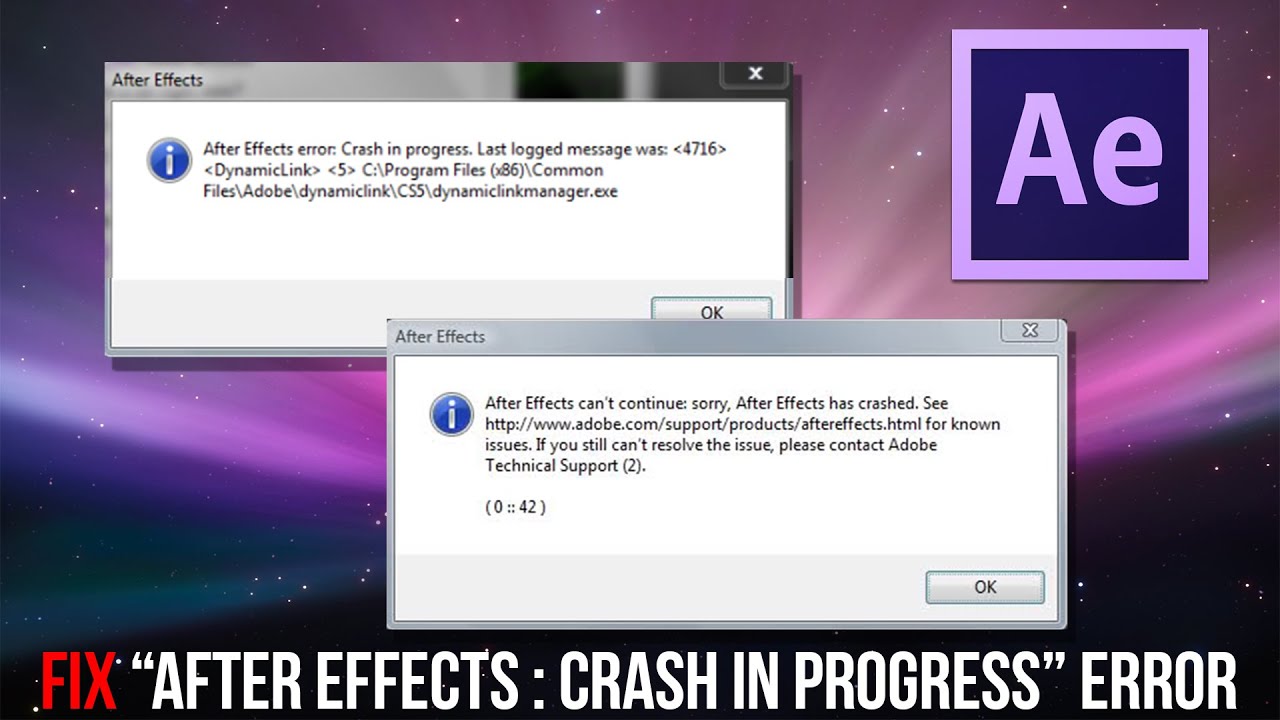
When Adobe After Effects unexpectedly quits, the panic that follows can be overwhelming. Your timeline, layers, and painstaking keyframes may seem lost forever, but there are several built‑in safety nets you can tap into. Below we walk through practical steps to retrieve a project that vanished after an After Effects crash, plus some preventive habits to keep your work safe.
Why After Effects Crashes and What It Means for Your File
Most crashes stem from memory overload, incompatible plugins, or corrupted cache files. When the program closes abruptly, it may not have had a chance to write the latest changes to disk. Fortunately, After Effects automatically creates several backup versions of your .aep file, which can be the key to recovery.
Locate the Auto‑Save Versions
By default, After Effects saves a backup every 10 minutes. To find these files:
- Open Edit → Preferences → Auto‑Save (Windows) or After Effects → Preferences → Auto‑Save (macOS) to confirm the folder path.
- Navigate to that folder in Explorer or Finder; you’ll see files named ProjectName_2023-09-30_1010.aep or similar.
- Choose the most recent version prior to the crash and open it.
If the auto‑save feature was disabled, you’ll need to rely on other recovery methods described below.
Use the “Recover Project” Prompt
The next time you launch After Effects after a crash, the software often displays a dialog offering to recover the last session. Click Yes to let it load the temporary recovery file. This file is stored in the same auto‑save directory but has a .tmp extension. If the prompt doesn’t appear, you can manually locate the .tmp file and rename it to .aep before opening.
Check the Render Queue and Media Cache
Sometimes the project appears missing because the render queue or cache became corrupted. Clearing the cache can coax After Effects into re‑reading the project file:
- Go to Edit → Preferences → Media & Disk Cache.
- Click Empty Disk Cache and confirm.
- Restart the program and attempt to open your project again.
Clearing the cache won’t affect your source footage, but it may rebuild previews that were causing instability.
Recover from a Previously Saved Version
If you habitually use “Save As” to create incremental versions (e.g., Project_v01.aep, Project_v02.aep), you can revert to the last stable copy. Even if you haven’t been diligent, the operating system’s own version history may help:
- On Windows, right‑click the file and select Properties → Previous Versions.
- On macOS, use Time Machine to browse snapshots of the project folder.
Restoring a previous version is often the fastest way to get back to a working state.
Leverage Third‑Party Recovery Tools (Cautiously)
When native options fail, some data‑recovery utilities can scan your hard drive for deleted .aep files. Tools like Recuva (Windows) or Disk Drill (macOS) can sometimes retrieve a project that was accidentally removed. Remember:
- Stop using the drive immediately to avoid overwriting the deleted data.
- Run the recovery program on a separate volume if possible.
- Recovered files may be incomplete; combine them with any auto‑save versions you still have.
Prevent Future Loss: Best Practices
Recovery is easier when you’ve built a safety net ahead of time. Here are a few habits that pay off:
- Enable Auto‑Save and set the interval to 5 minutes for critical projects.
- Adopt a version‑control naming scheme (Project_v001.aep, Project_v002.aep, etc.).
- Store projects on a fast SSD but keep a mirrored backup on an external drive or cloud service.
- Periodically purge the media cache to keep the application responsive.
These steps reduce the chance of a catastrophic loss and make any inevitable crash far less stressful.
FAQ
Can I recover an After Effects project if I never enabled Auto‑Save?
Yes, you can still try the “Recover Project” prompt, look for temporary .tmp files, or use system‑level version history. However, without auto‑save, the odds of a complete recovery diminish.
Is it safe to open a recovered .aep file that was created from a .tmp file?
Generally, yes. After Effects converts the temporary file into a readable project format. If the file is corrupted, you may see missing layers or effects, but you can often replace those manually.
How often should I clear the media cache?
For most users, clearing the cache once a week balances performance and safety. If you notice frequent freezes, a more aggressive schedule—every few days—can help.
Do third‑party recovery tools guarantee full restoration of my project?
No tool can promise 100 % recovery. Success depends on how quickly you act after deletion and whether the data blocks have been overwritten. Use them as a last resort when native methods fail.