Should You Enable Hardware‑Accelerated GPU Scheduling?
When Windows 10 (and later) introduced the option to off‑load certain graphics tasks to the GPU’s own scheduler, many PC builders wondered whether flipping the switch would actually make a difference. The answer isn’t a simple yes or no; it depends on your hardware mix, the workloads you throw at it, and how you value stability versus a few extra frames per second.
Understanding Hardware‑Accelerated GPU Scheduling
In a traditional Windows graphics pipeline, the CPU prepares rendering commands, then hands them to a kernel‑mode driver that queues the work for the GPU. That extra hand‑off adds latency, especially when many applications compete for the same GPU resources. Hardware‑accelerated scheduling lets the GPU’s own scheduler take over that queue, bypassing the OS‑level layer and theoretically shaving off a few milliseconds of delay.
Think of it like a traffic cop moving from a distant control tower to stand directly at the intersection. The vehicles (rendering commands) still move the same way, but the coordination happens closer to the action.
Potential Benefits
- Reduced Input Lag: Competitive gamers often notice a subtle improvement in responsiveness, particularly in fast‑paced shooters where every millisecond counts.
- Smoother Frame Timing: By letting the GPU manage its own queue, frame pacing can become more consistent, which helps avoid stutter in demanding titles.
- Lower CPU Overhead: The CPU spends less time managing graphics queues, freeing cycles for background tasks or AI‑driven gameplay features.
These gains are most evident when the GPU is already near its performance ceiling and the CPU is not a bottleneck.
When It Might Not Help – or Even Hurt
Not all systems see a measurable boost. If you’re using an older GPU that lacks dedicated scheduling hardware, Windows simply falls back to the classic path, and the toggle has no effect. Moreover, a few users report occasional driver instability or occasional screen flickering after enabling the feature—issues that tend to disappear after a driver update.
Another hidden cost is the extra VRAM the GPU reserves for its own command buffers. On cards with limited memory, that reservation can shave off a few megabytes from the pool available to games, which may matter in texture‑heavy scenarios.
Which Setups Benefit Most?
In practice, the sweet spot is:
- Modern GPUs from the RTX 20 series onward (including most GTX 16‑series cards) that support the feature in hardware.
- High‑refresh‑rate monitors (144 Hz or more) where frame timing nuances are more noticeable.
- Games that are CPU‑bound but still push the GPU hard, such as large‑scale open‑world titles.
If you’re on a mid‑range laptop with integrated graphics, you’re unlikely to feel any difference.
How to Enable It Safely
Turning the feature on is straightforward, but a few precautions can save you headaches.
Step‑by‑Step Guide
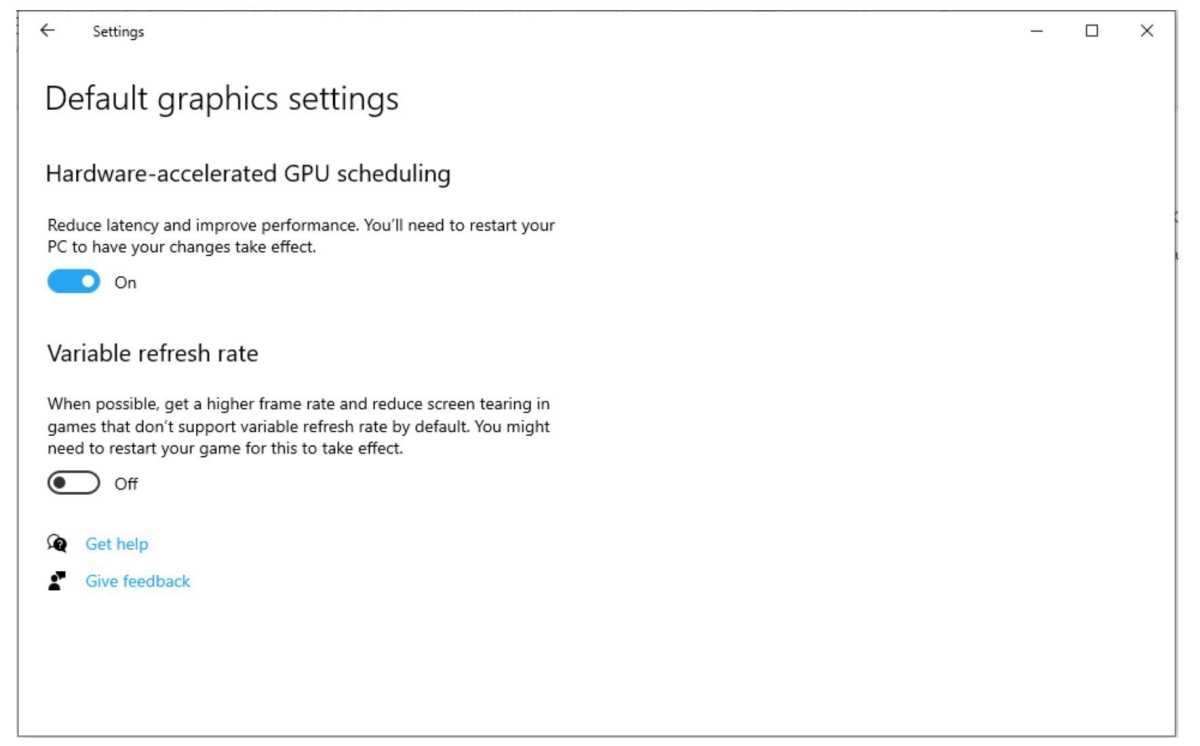
- Open Settings → System → Display.
- Scroll down and click Graphics settings (usually at the bottom).
- Toggle Hardware‑accelerated GPU scheduling to On.
- Restart your computer so the driver can re‑initialize with the new queue.
If you encounter visual glitches after the reboot, simply return to the same menu and flip the switch off. Most drivers will remember your choice, so you won’t need to repeat the process.
Testing the Impact on Your System
Because the performance delta varies, a quick before‑and‑after test can tell you whether the feature is worth keeping. Use a frame‑time analysis tool such as MSI Afterburner or CapFrameX to record average FPS, 1 % low, and input latency in a game you play regularly. Compare the numbers with the toggle off, then re‑enable and repeat.
Look for consistent improvements in the 1 % low or a measurable drop in latency. If the numbers are flat, or if you notice new artifacts, you probably don’t need the feature.
Future Outlook
Microsoft and GPU vendors are still refining the implementation. Upcoming driver releases often include performance tweaks for hardware‑accelerated scheduling, and Windows updates may tighten the integration further. Keeping your graphics driver current is the best way to ensure you’re getting the latest optimizations.
In short, the feature is a low‑effort experiment. Enabling it costs nothing more than a reboot, and rolling it back is equally painless.
Frequently Asked Questions
Will hardware‑accelerated GPU scheduling improve my average FPS?
Generally, the boost is modest—often a 1‑3 % increase—so it’s more about smoother frame delivery than raw FPS spikes.
Do I need a specific Windows version?
The toggle appears in Windows 10 version 2004 and later, as well as Windows 11. Earlier builds lack the option entirely.
Can I use the feature with multiple GPUs?
If you have an Nvidia SLI or AMD CrossFire setup, the OS applies the setting per‑GPU. Most users report mixed results; testing each card individually is advisable.
Is there any risk of voiding warranties?
No. Enabling or disabling the feature only changes driver behavior; it doesn’t modify firmware or hardware.

![Enable Hardware-Accelerated GPU Scheduling [Windows 10/11]](https://10scopes.com/wp-content/uploads/2023/03/enable-hardware-accelerated-gpu-scheduling.png)