The Complete Guide to a Dual‑PC Voicemeeter Setup for Streamers
Why a Dual‑PC Audio Chain Makes Sense
Running a single computer for both gaming and streaming can quickly become a bottleneck. High‑intensity games demand every ounce of CPU and GPU power, while encoding a live feed needs its own slice of resources. Splitting the workload across two machines lets each focus on what it does best, and Voicemeeter becomes the glue that holds the audio together.
Beyond raw performance, a dual‑PC rig offers flexibility. Want to route game sound to a dedicated headset while sending a clean microphone feed to the stream? Want separate mixes for Discord, Twitch chat, and background music? Voicemeeter’s virtual mixers make these scenarios painless—once you’ve got the two PCs talking to each other.
Getting Started: What You’ll Need
- Two capable PCs – one for gaming, one for streaming/encoding. Both should run Windows 10 or later.
- Voicemeeter Banana or Potato – the free version works, but Potato adds extra buses if you need more complex routing.
- Virtual audio cable(s) – VB‑Cable or similar, to create invisible “wire” connections between the mixers.
- Physical audio link (optional) – a USB audio interface, 3.5 mm cable, or HDMI audio extractor if you prefer hardware routing.
- Headset or speakers for monitoring, plus a decent USB or XLR microphone on the streaming PC.
Hardware Checklist
Make sure each PC has at least one free USB port for the virtual cable driver and any external audio device you plan to use. A dedicated sound card isn’t required, but a low‑latency USB interface can shave off a few milliseconds of delay, which matters for real‑time chat.
Software Prerequisites
Download the latest Voicemeeter installer from VB‑Audio’s website and install the accompanying virtual audio cable drivers. Restart both machines after installation to ensure the drivers register correctly. If you opt for a hardware link, install any necessary drivers for that interface as well.
Installing and Configuring Voicemeeter on Both Machines
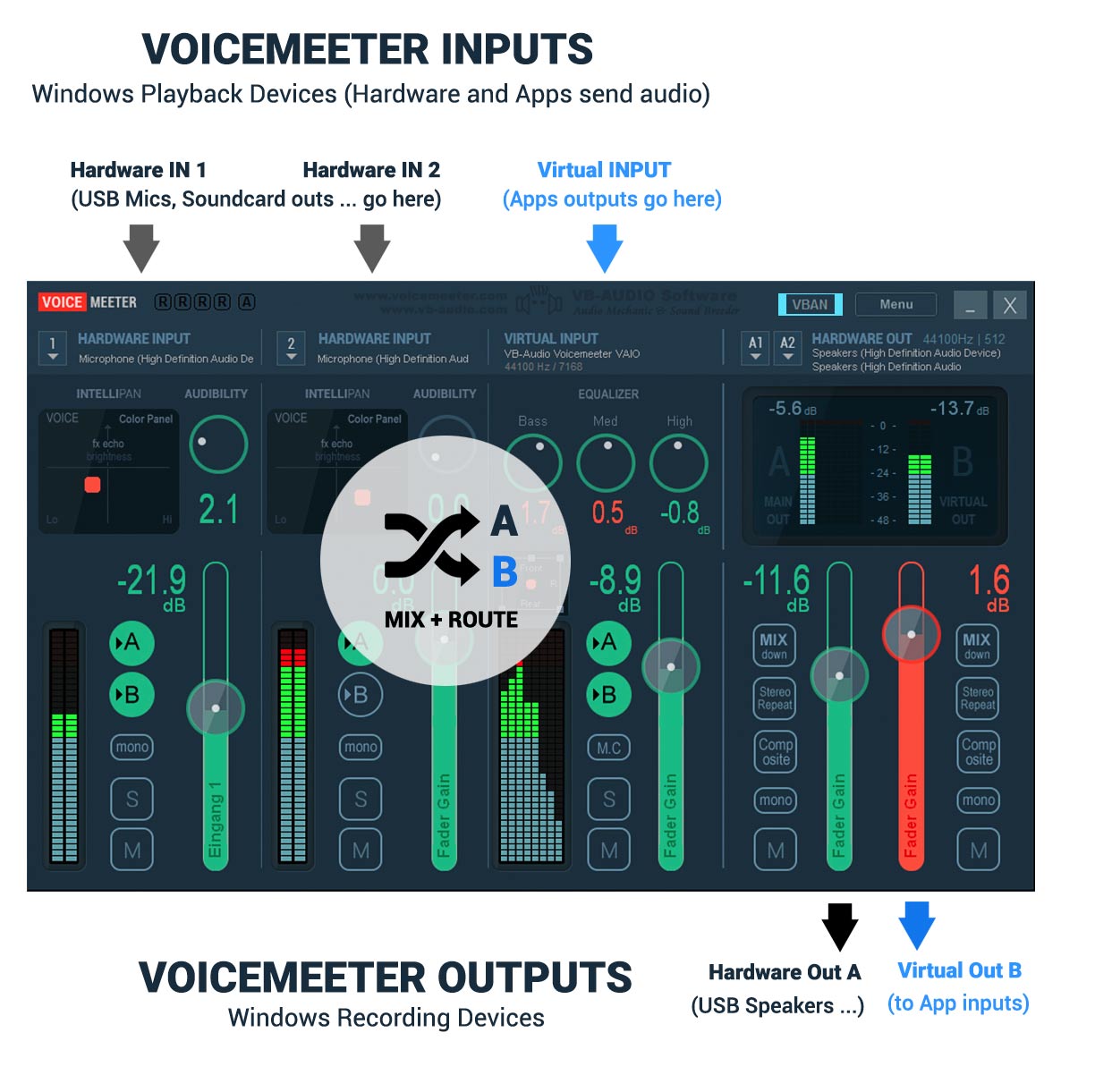
Start with the gaming PC. Open Voicemeeter and set your default playback device (Windows Sound Settings) to “Voicemeeter Input (VB‑Cable A)”. This tells Windows to send all game audio into the virtual cable instead of directly to the speakers.
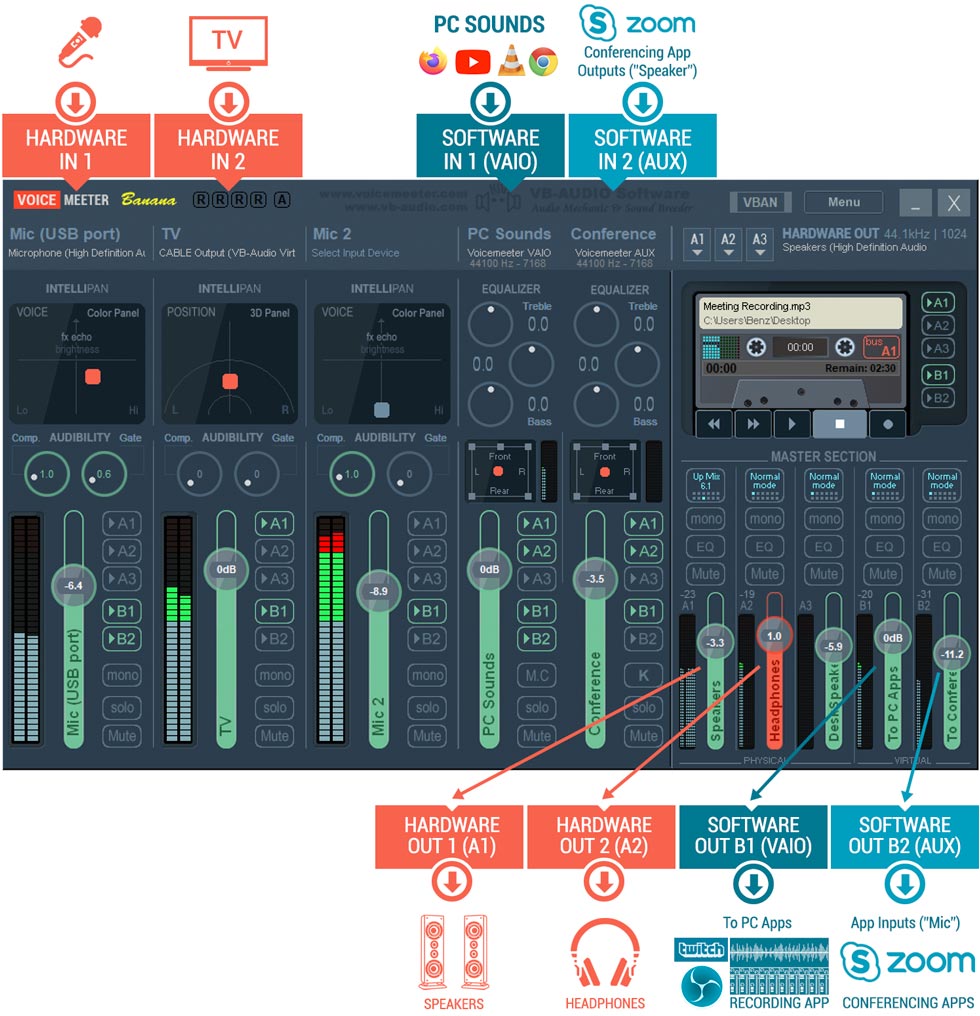
In Voicemeeter, route the “Hardware Input 1” to the “A1” output (your headphones or monitor) so you can still hear the game locally. Then enable “B1” and “B2” as virtual outputs—these will become the streams the streaming PC consumes.
Switch to the streaming PC. Set “Voicemeeter Output (VB‑Cable A)” as your default recording device for applications like OBS or Streamlabs. In Voicemeeter, assign the incoming “B1” channel to “A1” (your headphones) and to “B1” (the OBS audio source). This creates a clean, isolated mix of game sound that you can balance against mic and chat audio.
Repeat the process for any additional virtual cables you plan to use (e.g., VB‑Cable B for music). The key is keeping each audio source on its own bus so you can adjust levels independently on the streaming side.
Routing Audio Between the Two PCs
There are three popular ways to get the audio from the gaming rig to the streaming rig:
- Purely virtual – Use two virtual cables (A and B). Cable A carries game sound, Cable B carries voice chat. No extra hardware, but both PCs must share the same network for driver sync.
- Hybrid – Send game audio via a virtual cable and voice chat through a physical 3.5 mm line‑out that plugs into the streaming PC’s line‑in. This can reduce latency for chat, which is often more time‑sensitive.
- Full hardware – Use a USB audio interface on the gaming PC to output game sound via a dedicated output, then feed that into the streaming PC’s input. This method eliminates any software‑induced jitter, at the cost of an extra dongle.
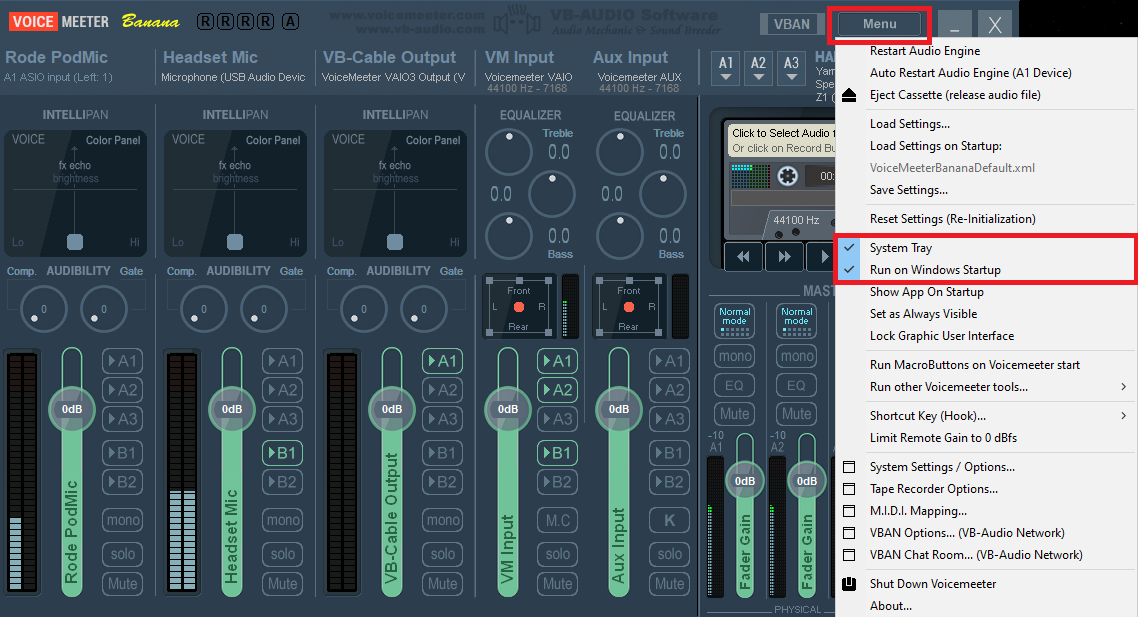
Whichever route you choose, keep an eye on the sample rate settings. Mismatched rates (44.1 kHz vs. 48 kHz) can cause crackle or drift over time. In Voicemeeter’s menu, lock both PCs to the same rate—48 kHz is a safe default for most streaming platforms.
Fine‑Tuning for Game Audio, Voice Chat, and Music
Now that the signal path is established, it’s time to sculpt the mix. In the streaming PC’s Voicemeeter, create three virtual buses:
- Bus A (Game) – Pulls from the virtual cable carrying the game. Apply a light compressor if the game’s volume swings wildly.
- Bus B (Chat) – Takes Discord or TeamSpeak input. Add a noise gate to silence background hiss when you’re not speaking.
- Bus C (Music) – Sources from a second virtual cable tied to Spotify or a local playlist. Use the “EQ” section to carve out space so music doesn’t mask voice.
Balance each bus by eye and ear, then route the final mix to OBS’s “Desktop Audio” and “Mic/Aux” tracks. Remember you can still send a separate “monitor” mix to your headphones, allowing you to hear everything without affecting the stream.
Common Pitfalls and How to Avoid Them
Latency creep. Even a few milliseconds can become noticeable when you’re synchronizing lip‑sync with game footage. If you sense a lag, try disabling “Listen to this device” in Windows and let Voicemeeter handle all monitoring.
Driver conflicts. Installing multiple virtual cable suites (e.g., both VB‑Cable and VoiceMeeter’s internal driver) can cause Windows to pick the wrong default. Stick to one family of drivers and double‑check the “Default Format” in the sound control panel.
Audio dropouts. High CPU load on the gaming PC may cause the virtual cable to stutter. Lower the game’s graphics settings or move the Voicemeeter process to a lower priority (right‑click → Set priority → Below normal).
FAQ
Can I use Voicemeeter without a second PC?
Yes. Voicemeeter can route multiple audio sources on a single machine, but a dual‑PC setup frees up CPU cycles and lets you keep the stream’s audio chain separate from the game’s processing.
Do I need a paid version of Voicemeeter?
The free “Banana” edition offers three virtual inputs and three outputs, which is enough for most streamer configurations. “Potato” adds extra buses and advanced routing for users who need more granular control.
What’s the best way to sync video and audio across the two PCs?
Use a hardware time‑code sync device or, more simply, enable “Use hardware acceleration when available” in OBS and keep both PCs on the same network. A small buffer (about 100 ms) in OBS often smooths out any residual drift.